
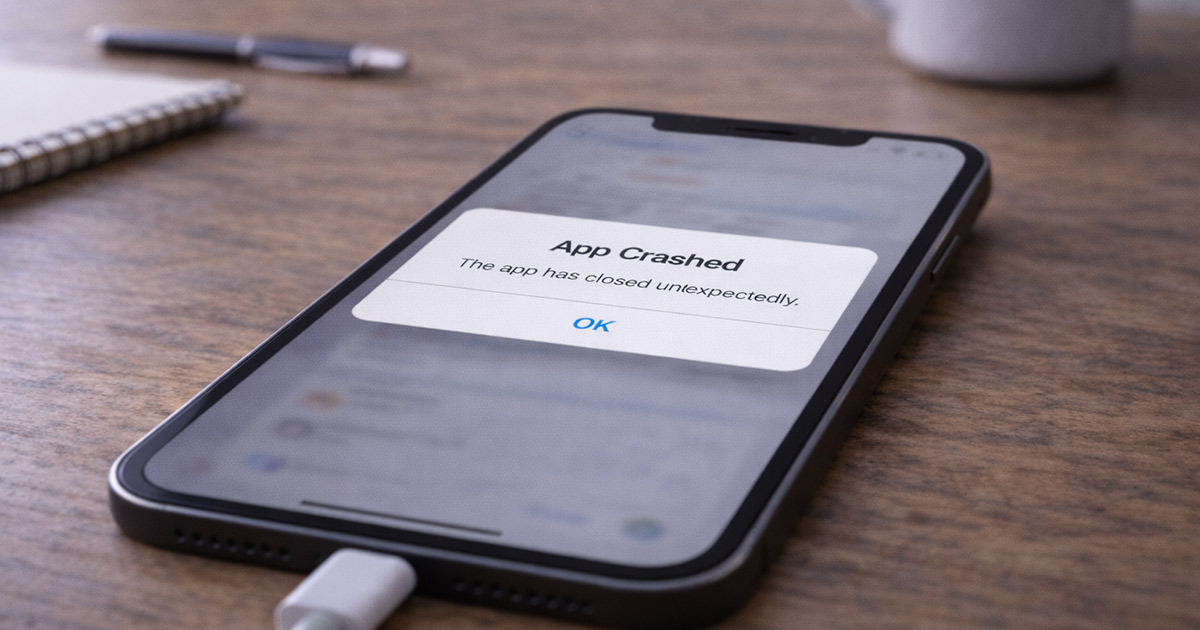
You tap the app.
It flashes for half a second.
Then it disappears like nothing happened.
No error message. No warning. Just gone.
That’s not random. And it’s not “just your phone acting weird.”
When an app crashes immediately after opening, something specific failed during launch. Apps don’t just quit for fun. The system shut it down because something didn’t load correctly.
Here’s what actually happens behind the scenes:
The moment you open an app, your phone has to:
- Load it into memory
- Read stored app data
- Check permissions
- Connect to system services
- Sometimes verify with the app’s servers
If any one of those steps fails, the operating system kills the app instantly.
That’s the crash.
Now instead of guessing, we’re going to walk through the real causes — in order of how often they actually happen — and fix this the right way.
What’s Really Happening When an App Opens
When you tap an app, your phone has to:
- Load the app into memory (RAM)
- Access saved app data
- Verify permissions
- Connect to system services
- Sometimes contact the app’s servers
If any one of those steps fails, the system shuts the app down.
That’s the crash.
Now let’s walk through the most common failure points — in order of likelihood.
1. Corrupted Cache or App Data (The #1 Cause)
This is the most common reason apps crash immediately.
Apps store temporary files to open faster next time. That’s called cache. Over time — especially after updates — those files can become corrupted.
When the app tries to read bad data at launch, it crashes instantly.
Fix on Android
- Go to Settings
- Tap Apps
- Select the app
- Tap Storage
- Tap Clear Cache
If that doesn’t work:
- Tap Clear Data (this resets the app completely)
Fix on iPhone
iPhones don’t allow direct cache clearing.
Instead:
- Delete the app
- Reinstall it from the App Store
That forces a clean install.
If the crash was data-related, this usually fixes it immediately.
2. The App Updated — But Something Broke
Not all updates are good updates.
Sometimes developers release a version that has bugs affecting certain devices. When that happens, the app crashes on launch for thousands of users at once.
If this just started happening after an update, that’s a clue.
What to Do
- Open the app store
- Check recent reviews
- See if others mention crashes
If you see a flood of “keeps crashing” reviews, it’s likely a broken update.
In that case, you wait for the patch. There’s nothing wrong with your phone.
3. Your Operating System Is Outdated
Apps are built for current versions of Android and iOS.
If your phone hasn’t been updated in a while, the app may be trying to use system features that don’t exist on your device anymore.
The result? Instant crash.
Fix
- Go to Settings
- Tap Software Update
- Install any available updates
- Restart your phone
Compatibility problems disappear after updating more often than people realize.
4. You’re Low on Storage Space
Apps need temporary working space when they open.
If your phone storage is almost full (especially under 1–2GB free), the system can’t allocate enough space for the app to launch properly.
So it shuts it down.
Check Your Storage
- Open Settings
- Tap Storage
If you’re nearly full:
- Delete unused apps
- Remove old videos
- Clear downloads
- Empty trash folders
Freeing up 2–3GB can instantly stop app crashes.
5. Too Many Background Apps (Memory Issue)
Storage and memory are different things.
Even if you have space, your RAM might be overloaded. If too many apps are running in the background, the system may kill the app as soon as it opens to preserve stability.
Fix
- Close all background apps
- Restart your phone
A full reboot clears memory completely.
It’s simple — but it works surprisingly often.
6. Permission Conflicts
Some apps require access to:
- Storage
- Camera
- Location
- Microphone
- Network
If permissions were denied (or revoked during a system update), the app may crash immediately at launch.
Fix
- Go to Settings
- Tap Apps
- Select the app
- Tap Permissions
- Enable required permissions
Then reopen the app.
7. Network-Dependent Apps Crashing on Launch
Some apps verify your account the second they open.
If your connection is unstable — or you’re using:
- A VPN
- Custom DNS
- Firewall app
- Network filter
The app may fail during its login handshake and crash.
Test This Quickly
- Switch from Wi-Fi to mobile data
- Or switch from mobile data to Wi-Fi
- Turn off VPN temporarily
- Restart your router
If it works on one network but not the other, the issue isn’t the app — it’s the connection.
8. The Device Is Simply Too Old
At some point, older phones fall outside supported compatibility.
If:
- Your device hasn’t received updates in years
- The app requires a newer OS version
- The crash happens only on this older device
You may be running unsupported software.
Check the app’s minimum requirements in the store listing.
Fastest Way to Fix It (Quick Checklist)
If you don’t want to analyze everything, do this in order:
- Restart your phone
- Update the app
- Update your phone
- Clear cache (or reinstall on iPhone)
- Free up storage
- Check permissions
- Test on another network
Most crashes are resolved by step 4.
When It’s Not You
If the crash happens:
- Right after logging in
- Only during syncing
- Or during a known outage
The company’s servers may be down.
In that case:
- Check social media
- Check outage reports
- Wait a few hours
There’s nothing to fix on your end.
Final Thoughts
An app that crashes immediately after opening isn’t mysterious.
It’s almost always one of these:
- Corrupted data
- Broken update
- Low storage
- Memory overload
- OS incompatibility
- Permission issue
The key is not guessing.
Start simple. Work logically. Fix one category at a time.
Nine times out of ten, you’ll solve it in under ten minutes.