
You install a Windows update.
It restarts.
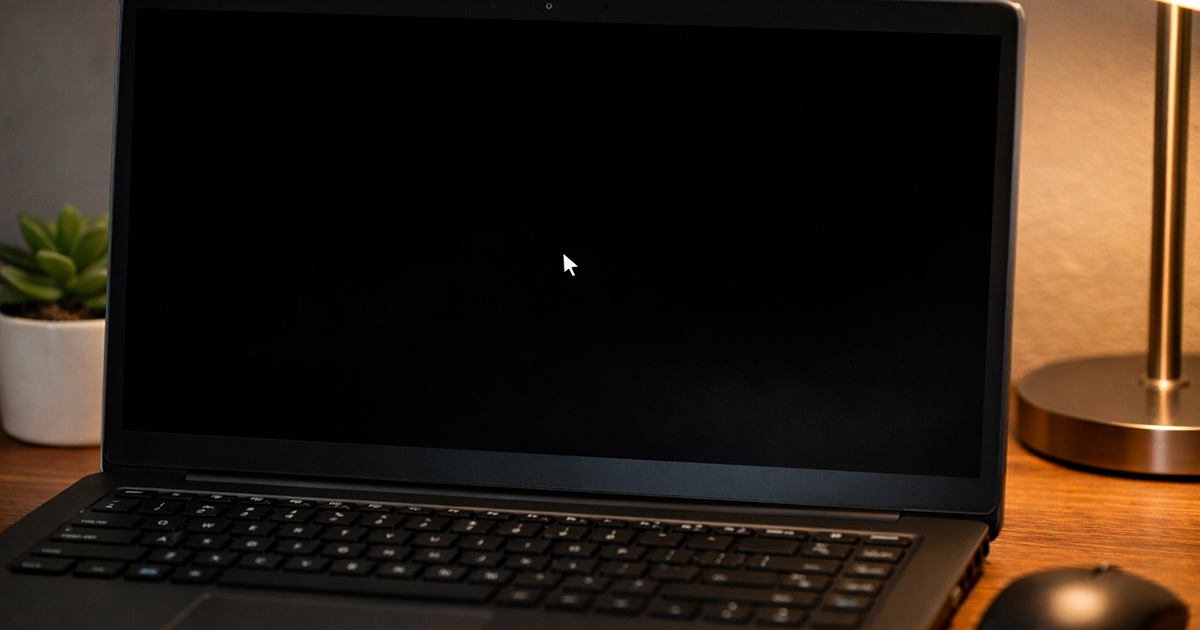
And then… black screen.
No desktop. No taskbar. Maybe a cursor. Maybe nothing at all.
This is the moment where people assume their PC just died or that Windows update broke my computer. It didn’t. In most cases, Windows is running — it just failed to load something critical during startup.
We’re not guessing. We’re diagnosing.
Let’s break down why this happens, then fix it step by step.
Why This Is Happening
A black screen after a Windows update — or even a Windows Update BSOD — usually means one of three things failed:
- The graphics driver
- The Windows shell (Explorer)
- The update itself
Sometimes it’s simple. Sometimes it’s layered. Either way, these problems after Windows update usually fall into a few predictable patterns.
1. Graphics Driver Broke During the Update
Windows updates often replace or modify display drivers.
If the new driver conflicts with your GPU (especially NVIDIA or AMD cards), Windows loads… but the screen output fails.
Symptoms:
- Black screen but mouse cursor is visible
- Screen briefly flashes before going black
- External monitor works, laptop screen doesn’t (or vice versa)
Quick test:
Press:
Ctrl + Shift + Esc
If Task Manager opens, Windows is alive. The display pipeline is the problem.
Fix note: Booting into Safe Mode usually restores basic display drivers.
2. Explorer.exe Didn’t Launch
Sometimes the update finishes — but Windows fails to load the desktop shell.
That means no taskbar. No icons. Just darkness.
Symptoms:
- Black screen with working mouse
- Task Manager opens
- PC responds to keyboard shortcuts
Quick test:
In Task Manager:
File → Run new task
Type: explorer.exe
Press Enter
If your desktop suddenly appears… there it is.
The update interrupted the startup process.
3. The Update Corrupted System Files
This is more serious, but still fixable.
If core system files were altered mid-install — for example, a windows update stuck mid-way and you forced a shutdown — Windows may fail to fully initialize.
Symptoms:
- Black screen with no cursor
- Endless spinning dots
- System restarts repeatedly
At this point, Windows Recovery Environment (WinRE) becomes necessary to get you out of a Preparing Automatic Repair loop or similar startup failure.
4. Fast Startup or Hybrid Boot Glitched
Windows uses a partial hibernation feature called Fast Startup.
After some updates, that cached boot state conflicts with new system files.
Result? Black screen.
This one drives me nuts because it looks dramatic… and it’s not.
How to Fix It
Work through this in order.
Don’t skip steps. Test after each one.
1. Force a Clean Restart
Sometimes Windows is stuck in a bad resume state.
- Hold the Power button for 10 seconds.
- Wait 30 seconds.
- Turn the PC back on.
Test:
Does Windows load normally?
If yes, it was a hybrid boot issue.
If not, continue.
2. Try Ctrl + Shift + Esc (Start Explorer Manually)
If you see a cursor:
- Press Ctrl + Shift + Esc.
- Click File → Run new task.
- Type: explorer.exe
- Press Enter.
If the desktop loads:
- Open Command Prompt as Administrator.
- Run:
sfc /scannow
Then restart.
This repairs damaged system files that may have blocked Explorer.
3. Boot Into Safe Mode
If the screen stays black:
- Power off the PC.
- Turn it on.
- As soon as Windows starts loading, hold Power to force shutdown.
- Repeat this 3 times.
Windows will enter Recovery Mode.
Then:
- Advanced options
- Startup Settings
- Restart
- Press 4 for Safe Mode
If Safe Mode loads, your display driver or update is the problem.
From Safe Mode:
- Open Device Manager
- Expand Display adapters
- Right-click your GPU
- Choose Uninstall device
- Restart normally
Windows will reinstall a stable driver automatically.
Test:
Does the screen return after reboot?
4. Roll Back the Update
If Safe Mode works but normal mode doesn’t:
- Go to Settings
- Windows Update
- Update history
- Uninstall updates
Remove the most recent quality update first.
Restart and test.
If that fixes it, pause updates for a week. Let Microsoft sort it out.
5. Use Startup Repair
If Windows won’t boot after update, Startup Repair is worth trying:
- Enter Recovery Mode (same method as Safe Mode above)
- Advanced options
- Startup Repair
Let Windows attempt automatic repair.
Sometimes it works. Sometimes it pretends to work. Test afterward.
6. Run System Restore
If restore points exist:
- Recovery Mode
- Advanced options
- System Restore
Choose a restore point before the update.
This rolls back system files without deleting personal files.
Clean. Effective.
7. Last Resort: Reset Windows (Keep Files)
If nothing else works:
- Recovery Mode
- Troubleshoot
- Reset this PC
- Choose “Keep my files”
This reinstalls Windows without deleting your documents.
It’s not ideal.
But it’s better than a black screen forever.
Final Thoughts
A black screen after a Windows update feels catastrophic.
It usually isn’t.
Most cases come down to:
- Display driver conflict
- Explorer not launching
- Update glitch
- Fast Startup confusion
The key is staying methodical.
One change at a time. Test after each step.
Windows rarely breaks without leaving clues. You just have to follow them instead of panicking.
This shouldn’t be happening. But it is. And now you know how to deal with it.