
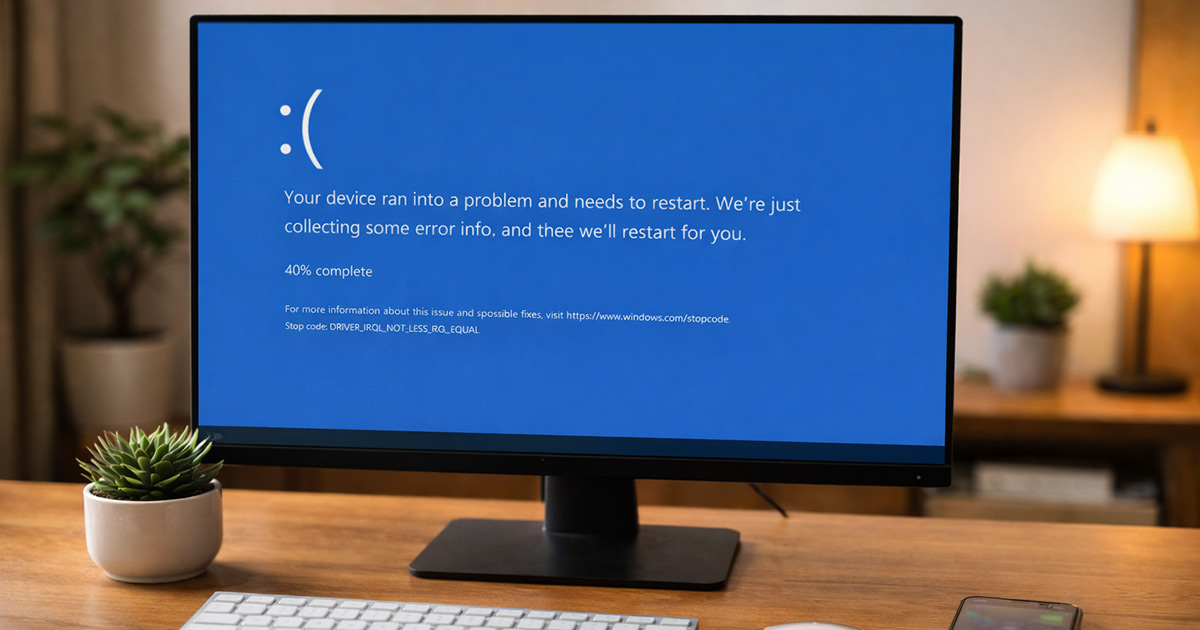
You install a Windows update. It restarts.
Then instead of your desktop… blue screen. Sad face. Error code. Restart loop.
That’s not random. And it’s not your computer “just dying” or another case of windows update broke my computer happening out of nowhere.
A BSOD after a Windows update usually means the update changed something your system wasn’t ready for — the same way a black screen after Windows update often points to a deeper driver or system conflict.
This is fixable. We just have to approach it logically.
Why This Is Happening
Windows updates don’t just patch security. They replace drivers, modify system files, and sometimes update firmware components.
If something in your setup doesn’t agree with those changes, Windows stops everything. That blue screen is actually a protective shutdown.
Here are the most common causes.
1. Driver Conflict After the Update
This is the big one.
Windows updates often install new drivers automatically — graphics, storage, chipset, network.
If:
- You already had a newer driver manually installed
- Your hardware uses a custom OEM driver
- The update installs a generic version
You get a conflict.
Symptoms:
- BSOD appears right after restart
- Error mentions files like
nvlddmkm.sys,atikmpag.sys, or other.sysdrivers - System reboots repeatedly
Quick test:
Boot into Safe Mode. If it runs fine there, it’s almost always a driver issue.
Safe Mode loads minimal drivers. No conflict = stable system.
Fix (brief):
Roll back or reinstall the correct driver. We’ll do this in the fix section.
2. Corrupted System Files During Update
Updates don’t always install cleanly, especially if a windows update stuck mid-install leaves system files half-written.
Power interruption, forced shutdown, or background interference can corrupt core Windows files.
Symptoms:
- BSOD error codes like:
- CRITICAL_PROCESS_DIED
- SYSTEM_SERVICE_EXCEPTION
- PAGE_FAULT_IN_NONPAGED_AREA
- Update hangs before crash
- Random blue screens after login
Quick test:
If Startup Repair runs automatically and fails, file corruption is likely involved — this is the same pattern seen in a Windows update boot failure.
Fix (brief):
System File Checker or DISM repair usually handles this.
3. Incompatible BIOS or Firmware
This one’s sneaky.
Major Windows feature updates sometimes expect newer motherboard firmware.
If your BIOS is outdated:
- Memory handling can fail
- Storage controller behavior can change
- Secure Boot can conflict
Symptoms:
- BSOD appears immediately on boot
- Error mentions ACPI or memory management
- Update installs fine but crashes on restart
This isn’t common — but when it happens, it’s consistent, and it sometimes leads straight into a Preparing Automatic Repair loop on the next reboot.
4. Antivirus or Third-Party Security Conflict
Some antivirus software hooks deep into the system kernel.
Windows updates modify those same system areas.
That overlap can trigger a crash.
Symptoms:
- BSOD appears right after login
- Removing antivirus in Safe Mode fixes it
There’s your gremlin.
5. Failing Hardware (Update Just Exposed It)
Updates stress drivers and memory differently.
If:
- RAM is borderline unstable
- SSD has bad sectors
- GPU is aging
The update might push it over the edge.
Symptoms:
- Random BSOD codes (different each time)
- Crashes continue even after rollback
- System was slightly unstable before
The update didn’t cause the hardware issue. It revealed it.
How to Fix It
We’re going from least invasive to most, because these problems after Windows update tend to stack on each other if you shotgun fixes.
Do one step at a time. Test after each.
1. Boot Into Safe Mode
If Windows won’t boot normally:
- Power on the PC.
- When it starts loading, force power off.
- Repeat 3 times.
- Windows will enter Recovery Mode.
- Go to:
- Troubleshoot
- Advanced Options
- Startup Settings
- Restart
- Press 4 for Safe Mode.
Test:
If it runs stable here, we’re likely dealing with a driver or software issue — the same kind of chain reaction that can also lead to Windows 11 slow after update problems.
2. Uninstall the Recent Windows Update
Inside Safe Mode:
- Go to Settings
- Windows Update
- Update History
- Uninstall Updates
- Remove the most recent update
Restart normally.
Test:
If the system boots without a blue screen, the update was the trigger.
Pause updates temporarily until a patched version is released.
3. Roll Back or Reinstall Graphics Drivers
Graphics drivers cause more BSODs than anything else.
In Safe Mode:
- Right-click Start
- Open Device Manager
- Expand Display Adapters
- Right-click your GPU
- Choose:
- Roll Back Driver (if available), or
- Uninstall Device
Restart normally.
Then download the latest driver directly from:
- NVIDIA
- AMD
- Intel
Not Windows Update.
Test:
No crash after restart? Good. Driver conflict confirmed.
4. Run System File Repair
If corruption is suspected:
Open Command Prompt as Administrator.
Run:
sfc /scannow
Let it complete.
If it finds errors, restart and test.
If issues persist, run:
DISM /Online /Cleanup-Image /RestoreHealth
Restart again.
Test:
If blue screens stop, system files were damaged during the update.
5. Disable or Remove Third-Party Antivirus
In Safe Mode:
- Uninstall your antivirus completely
- Restart normally
Windows Defender will activate automatically.
Test:
If the crash disappears, reinstall a fresh version of your antivirus or consider sticking with Defender.
6. Use System Restore
If everything started immediately after the update:
- Boot into Recovery Mode
- Choose System Restore
- Select a restore point before the update
Let it complete.
Test:
Stable again? Good. You can retry the update later after driver updates.
7. Check RAM (If Crashes Continue)
If BSOD codes change every time, test memory.
- Press Windows + R
- Type: mdsched.exe
- Restart and run memory diagnostics
If errors appear, faulty RAM is likely the cause.
At that point, the update just exposed instability.
8. Last Resort: Reset Windows (Keep Files)
If nothing works:
- Recovery Mode
- Reset This PC
- Choose Keep My Files
This reinstalls Windows without deleting personal files.
It’s not ideal. But it’s clean.
Final Thoughts
A Blue Screen of Death after a Windows update feels dramatic.
It usually isn’t.
Windows changed something. Your system disagreed. That’s it.
Most of the time:
- It’s a driver conflict.
- Or a corrupted install.
- Occasionally outdated firmware.
- Rarely hardware — but possible.
Work the steps calmly. One change at a time. Test after each.
Don’t shotgun five fixes at once. That just hides the cause.
This is a system disagreement, not a death sentence.
Fix it methodically and your machine will settle down.
It always does.