
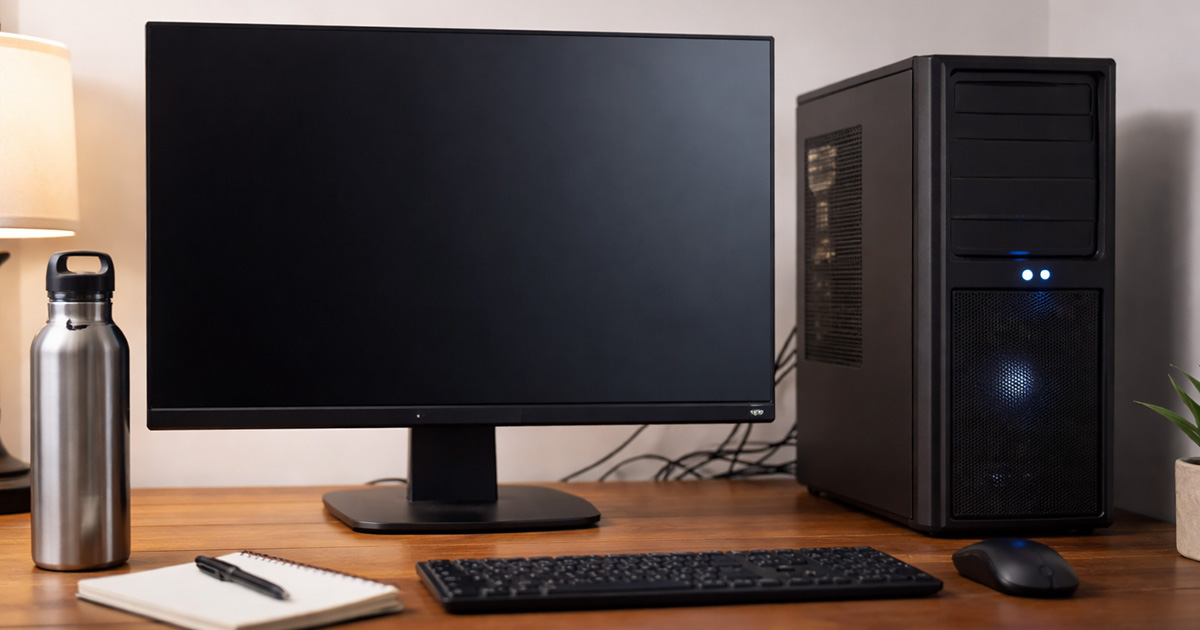
You press the power button.
Fans spin. Lights come on. Maybe you even get that confident little “beep.”
And the monitor just sits there. Black screen. No signal. Dead stare.
This is fixable. But it’s not “random.” It’s usually one of a handful of very specific failure points.
We’re going to figure out why it’s happening first, then fix it in a clean order. One change at a time.
Why This Is Happening
A “no display” problem is basically the computer saying: “I might be running… but I can’t complete the part where I talk to a screen.”
That can happen for a few broad reasons:
1) The monitor isn’t actually getting a usable signal
Sometimes the PC is fine. The display chain is the problem.
Clues:
- Monitor says “No Signal” or keeps cycling inputs
- Backlight comes on but stays black
- A laptop with an external monitor works (or vice versa)
Quick test: Change the monitor input manually (HDMI 1 vs HDMI 2 vs DP), and try a different cable/port.
Fix: Use a known-good cable and the GPU’s output (not the motherboard’s) if you have a graphics card.
2) You’re plugged into the wrong video port
This is the classic: a desktop with a dedicated GPU, but the cable is in the motherboard video output.
What’s happening:
- The motherboard port might be disabled automatically when a GPU is installed.
- Or it’s enabled, but the system is outputting on the GPU anyway.
Clues:
- Your PC has a graphics card lower on the back panel (horizontal ports), but you’re plugged into the upper motherboard area (vertical ports)
Quick test: Move the cable from the motherboard port to the graphics card port.
Fix: Keep it on the GPU port going forward. Motherboard video is for systems using integrated graphics.
3) The system is failing POST (Power-On Self-Test)
This is the big one. Fans and lights don’t mean “booted.” They mean “has power.”
If POST fails, you get no display because the machine never reaches the stage where it can initialize graphics properly.
Clues:
- No manufacturer logo splash screen
- Reboot loop or powers on and stays “stuck”
- Motherboard debug LEDs show CPU/DRAM/VGA/BOOT
- Beep codes (if you have a speaker installed)
Quick test: Look for debug LEDs on the motherboard (usually labeled CPU/DRAM/VGA/BOOT). Note which one stays lit.
Fix: Reseat RAM/GPU, clear CMOS, and reduce the system to minimum required parts.
4) RAM isn’t seated, isn’t compatible, or a stick is failing
RAM issues are incredibly good at creating “powers on, no display” situations.
What’s happening:
- The CPU can’t complete memory training.
- The board may power up and look normal, but it won’t proceed.
Clues:
- DRAM debug LED stays on
- System worked before a RAM upgrade
- Moving the case or bumping the desk suddenly “started this” (yep)
Quick test: Boot with one stick of RAM in the recommended slot (often A2).
Fix: Reseat and test sticks one at a time, then test different slots.
5) GPU isn’t seated, isn’t powered, or output is confused
Dedicated GPUs cause no-display problems in boring, predictable ways.
What’s happening:
- The card isn’t fully in the PCIe slot.
- PCIe power cables aren’t connected (or are the wrong ones).
- The monitor is connected to the wrong output during initialization.
- The card is failing.
Clues:
- VGA debug LED stays lit
- GPU fans spin but no output
- You recently moved the PC or installed the GPU
Quick test: Reseat the GPU and confirm the PCIe power connectors are plugged in fully.
Fix: Use the correct PCIe cables (not CPU/EPS cables), and test another port/cable.
6) CMOS/BIOS settings are blocking startup
This hits after changes: enabling XMP/EXPO, overclocking, changing GPU settings, or sometimes after a bad power event.
What’s happening:
- The board tries to boot with settings your hardware can’t handle.
- It fails early and never reaches display initialization.
Clues:
- Problem started right after BIOS settings changes
- System powers on, then restarts, then powers on again, then… nothing
Quick test: Clear CMOS.
Fix: Reset BIOS to defaults and reapply settings slowly.
7) CPU/power problems that still allow “lights and fans”
A CPU that isn’t seated properly, a bent pin (on some sockets), or missing CPU power can still produce a very convincing fake “it’s on” situation.
Clues:
- CPU debug LED stays on
- You recently built the PC or changed the cooler
- No beep, no display, no progress
Quick test: Verify the CPU power cable (EPS 8-pin) is connected to the motherboard.
Fix: Reseat CPU/cooler carefully (only if you’re comfortable), and confirm all power connectors.
8) Storage/boot problems that look like “no display”
Less common, but it happens: the PC posts, but you never see it because it’s stuck, or the display handoff is weird.
Clues:
- You can hear Windows startup sounds but still no video
- Keyboard caps lock toggles (system is alive)
- Monitor stays black but not “no signal” (it’s getting something)
Quick test: Try a different output (HDMI vs DP) and a different monitor.
Fix: Once you get video, you can address driver/boot issues (safe mode, GPU drivers, etc.).
How to Fix It
We’re going in order: easy, non-destructive checks first, then deeper hardware isolation.
After each step, do the test. Don’t stack five changes and hope. That’s how you end up “fixing” it without knowing what was wrong.
- Check the monitor side like you don’t trust it (because you shouldn’t).
- Make sure the monitor is powered.
- Manually set the input source (HDMI/DP).
- Try a different cable if you have one.
Test: Does the monitor show a picture from the PC or at least stop saying “No Signal”?
- Confirm you’re plugged into the correct port.
- If you have a dedicated GPU, the cable should be plugged into the GPU outputs (lower slots on the back), not the motherboard video ports.
Test: Do you get the motherboard logo or BIOS screen?
- If you have a dedicated GPU, the cable should be plugged into the GPU outputs (lower slots on the back), not the motherboard video ports.
- Power drain reset (quick, harmless, surprisingly effective).
- Shut down the PC.
- Turn off the PSU switch (or unplug the power cable).
- Hold the power button for 15–20 seconds.
- Plug back in and power on.
Test: Any change? Even a brief logo flash counts as progress.
- Reseat the display cable and try a different GPU output.
- Swap from DisplayPort to HDMI if possible, or use a different port on the GPU.
- Some cards/monitors get picky during initialization.
Test: Do you get a picture on any output?
- Check motherboard debug LEDs / beep codes (if available).
- Look near the motherboard edge for labeled LEDs: CPU, DRAM, VGA, BOOT.
- If one stays lit, that’s the area to focus on.
Test: Which LED is stuck? Write it down. We use facts here.
- Reseat RAM and try one stick at a time.
- Power off, unplug PSU.
- Remove all RAM sticks.
- Install one stick in the recommended slot (often A2 — check board label/manual).
- If that fails, try the same stick in a different slot.
- Then try the other stick(s) one at a time.
Test: Does the system POST and show anything with a single stick?
- Reseat the GPU and verify GPU power.
- Power off and unplug.
- Remove the GPU and reinstall it firmly into the PCIe slot.
- Verify PCIe power connectors are fully seated.
- If you have multiple PCIe cables, don’t mix “CPU” and “PCIe.” They are not the same, even if the plugs look like they want to lie to you.
Test: Does the VGA debug light go away and does display return?
- Clear CMOS (BIOS reset).
Safe reset method:- Power off and unplug the PSU.
- Press the power button for 10 seconds.
- Use the Clear CMOS button if your board has one.
- If not, use the CMOS jumper (per motherboard manual), or remove the coin-cell battery for 3–5 minutes, then reinstall.
Test: On next boot, do you get the BIOS screen or a “defaults loaded” message?
- Reduce the system to minimum parts (the “stop arguing, start isolating” step).
Disconnect or remove anything not required to POST:- Unplug extra drives
- Remove USB devices except keyboard
- Remove extra RAM sticks (leave one)
- Remove expansion cards not needed
- If your CPU has integrated graphics, remove the dedicated GPU and use the motherboard video output instead
Test: Does it POST in a minimal configuration?
- Verify the power connectors (this catches embarrassing stuff).
Make sure these are seated:
- 24-pin motherboard power
- CPU power (EPS 8-pin, sometimes 4+4) near the top of the board
- PCIe power to GPU (if used)
Test: Any change in debug LEDs, beeps, or display behavior?
- Try integrated graphics (if your CPU supports it).
Not all CPUs have it. Many “F” models from Intel and many Ryzen chips without “G” do not.
- If you do have integrated graphics, remove the GPU and connect the monitor to the motherboard video output.
Test: If integrated works, your GPU (or GPU power, or GPU slot) is the suspect.
- If it’s a new build: recheck CPU/cooler seating (carefully).
This is where you slow down and stop “muscling” anything.
- Too much cooler pressure, uneven mounting, or a mis-seated CPU can prevent POST.
- If you’re on a socket with pins (or delicate contacts), inspect for bent pins/contacts.
Test: After reseating, does the CPU debug LED change or clear?
- If you can hear Windows but still get no picture: treat it like a video output/driver handshake issue.
- Try a different monitor or a TV via HDMI.
- Try different GPU outputs.
- If you regain display, consider reinstalling GPU drivers cleanly.
Test: Can you get any display on a different screen or output?
If you hit a step where the machine suddenly posts again, stop and stabilize:
- Put components back one at a time.
- Test each time.
That’s how you find the actual culprit instead of living in superstition.
Final Thoughts
A PC that “turns on” with no display is usually either (1) not actually completing POST, or (2) outputting video somewhere you’re not looking, or (3) failing in the RAM/GPU/BIOS triangle.
Work the chain logically:
- Confirm the monitor/cable/input.
- Confirm the right port.
- Use debug LEDs if you have them.
- Reseat RAM, then GPU.
- Clear CMOS.
- Minimize the build until it posts.
When it finally shows a logo again, it’s not magic. It’s cause and effect. Computers are irritating, but they’re not mystical. They just hide their failures behind spinning fans.
And once you find the exact failure point, you can fix it permanently instead of doing the ritual dance every time the screen goes black.