
You install a Windows update.
It finishes. You reboot. Everything looks normal.
Then the fans spin up like a small jet engine and your laptop suddenly feels like it’s running a 4K video render… while doing absolutely nothing.
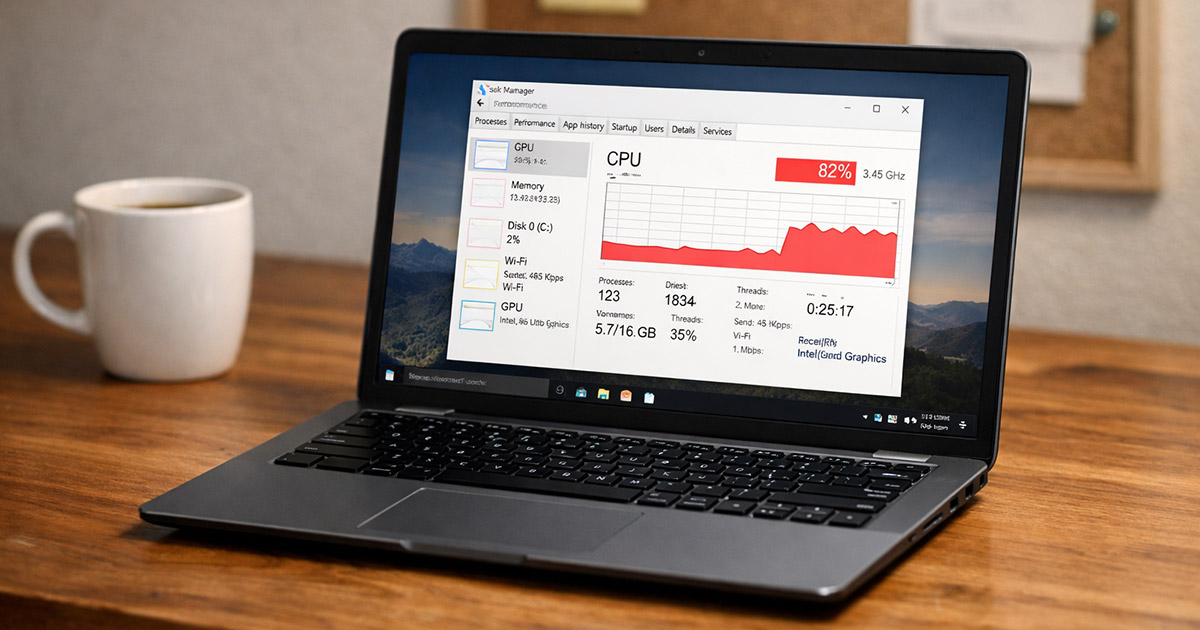
Task Manager says CPU usage is 60%, 80%, sometimes 100%.
This shouldn’t be happening — but these problems after Windows update show up more often than they should.
The good news? In most cases, this is fixable. And no, you probably don’t need a new computer.
Let’s walk through why this happens first. Then we’ll fix it logically.
Why High CPU Usage Happens After a Windows Update
Updates don’t just “install.” They change system files, drivers, services, and background processes. After a major update, Windows often has cleanup and rebuilding work to do.
Sometimes that work finishes normally.
Sometimes it doesn’t.
Here are the usual suspects.
1. Windows Is Rebuilding Indexes and Caches
After an update, Windows may rebuild:
- Search indexing
- .NET optimization files
- System caches
- Defender definitions
This can spike CPU temporarily.
Symptoms:
- High CPU from:
- SearchIndexer.exe
- MsMpEng.exe (Windows Defender)
- TiWorker.exe (Windows Modules Installer Worker)
- PC is usable but sluggish
- CPU usage slowly drops over 20–60 minutes
This kind of background load is the same type of chain reaction that sometimes leads to a black screen after Windows update when display drivers struggle post-patch.
Quick test:
Leave the computer on and idle for an hour. Don’t open 20 apps. Just let it sit.
If usage gradually settles down, this was background rebuilding. Annoying, but normal.
If it stays pegged high for hours or days, something’s stuck.
There’s your gremlin.
2. A Driver Broke During the Update
Windows updates sometimes replace drivers. Especially:
- Graphics drivers
- Chipset drivers
- Network adapters
If the new driver conflicts with your hardware, the CPU ends up doing extra work to compensate.
Symptoms:
- System interrupts using noticeable CPU
- Lag when moving windows
- Fans constantly running
- High CPU immediately after reboot
Quick test:
Open Task Manager → sort by CPU.
If you see “System interrupts” using more than 5–10% consistently, suspect a driver issue.
3. Windows Update Got Stuck in a Loop
Sometimes the update installs… but doesn’t finish cleaning up, especially if a windows update stuck mid-process left files in a half-configured state.
Then Windows keeps retrying background tasks.
Symptoms:
- TiWorker.exe constantly active
- Windows Update shows “Installing” or “Pending restart” repeatedly
- CPU spikes every few minutes
This one drives me nuts — and it’s the same kind of underlying conflict that can trigger a Windows Update BSOD when drivers disagree after a patch. It looks finished. It isn’t.
4. Corrupted System Files After the Update
Updates replace core system files.
If something gets interrupted or corrupted, Windows may struggle continuously trying to access broken components.
Symptoms:
- Random CPU spikes
- Services Host processes using high CPU
- Occasional errors in Event Viewer
- Sluggish performance everywhere
Not dramatic. Just wrong — and closely related to why some systems feel Windows 11 slow after update when corrupted files bottleneck the system.
5. Third-Party Software Conflict
Security software, system optimizers, VPNs, and hardware utilities sometimes don’t play nicely with fresh updates.
After the update, they start misbehaving.
Symptoms:
- High CPU from a non-Microsoft app
- Usage spikes when opening certain programs
- Problem disappears in Safe Mode
Safe Mode is the tell.
How to Fix High CPU Usage After a Windows Update
We’re going in order. Easy checks first. No random clicking.
After each step, give it a few minutes and check CPU usage again. Rushing fixes is how people end up in a Preparing Automatic Repair loop after an update misfires.
1. Let Windows Finish Its Background Work
If the update was recent (within 24 hours):
- Restart the PC once.
- Leave it on and idle for 45–60 minutes.
- Keep it plugged in.
Test:
Open Task Manager and watch CPU usage for 5–10 minutes.
If it gradually drops under 10–15% at idle, you’re done.
If not, continue.
2. Restart Windows Update Services
Sometimes the update process gets stuck.
- Press Windows + R
- Type: services.msc
- Find Windows Update
- Right-click → Restart
- Do the same for:
- Background Intelligent Transfer Service (BITS)
These services failing to restart properly are also behind the common wi-fi not working after windows update issues — the pattern is almost identical.
Reboot after that.
Test:
Check Task Manager again.
3. Run System File Checker (SFC)
This checks for corrupted system files.
- Right-click Start
- Open Terminal (Admin) or Command Prompt (Admin)
- Type: sfc /scannow
- Press Enter
- Wait for it to finish (10–20 minutes)
If it finds and repairs files, reboot.
Test:
Check CPU usage after restart.
4. Run DISM Repair (If SFC Didn’t Fix It)
Still high? Run DISM.
In Admin Command Prompt:
DISM /Online /Cleanup-Image /RestoreHealth
Let it complete fully. Then reboot.
This repairs deeper Windows image issues.
5. Check for Driver Problems
Open Device Manager.
Look for:
- Yellow warning icons
- Recently updated drivers
If CPU usage is tied to System interrupts:
- Right-click your graphics driver
- Choose Update driver
- Or roll back the driver (if available)
Sometimes installing the latest driver directly from the manufacturer’s website works better than Windows’ version.
Test:
Reboot and monitor CPU again.
6. Boot Into Safe Mode
If CPU usage drops significantly in Safe Mode:
- A third-party app is the issue.
Then:
- Press Windows + R
- Type: msconfig
- Go to Services
- Check Hide all Microsoft services
- Disable remaining services
- Reboot
If CPU usage drops, re-enable services one at a time until you find the offender.
Slow? Yes.
Effective? Also yes.
7. Uninstall the Recent Update (Last Resort)
If everything started immediately after a specific update and nothing fixes it:
- Go to Settings → Windows Update
- Click Update history
- Select Uninstall updates
- Remove the most recent one
Then pause updates temporarily.
I don’t love doing this. But if the update is broken, waiting for Microsoft to patch it is sometimes the only move — especially when it’s the kind of bug that leads to Windows won’t boot after update failures.
Final Thoughts
High CPU usage after a Windows update usually falls into one of three buckets:
- Normal background rebuilding
- A stuck update process
- A driver or software conflict
It’s rarely hardware failure.
The key is not panicking and not randomly disabling things.
Check what’s using the CPU. Test one fix at a time. Reboot between major steps.
Windows updates aren’t evil. They’re just messy sometimes.
Work through it logically and you’ll get your quiet fans back.