
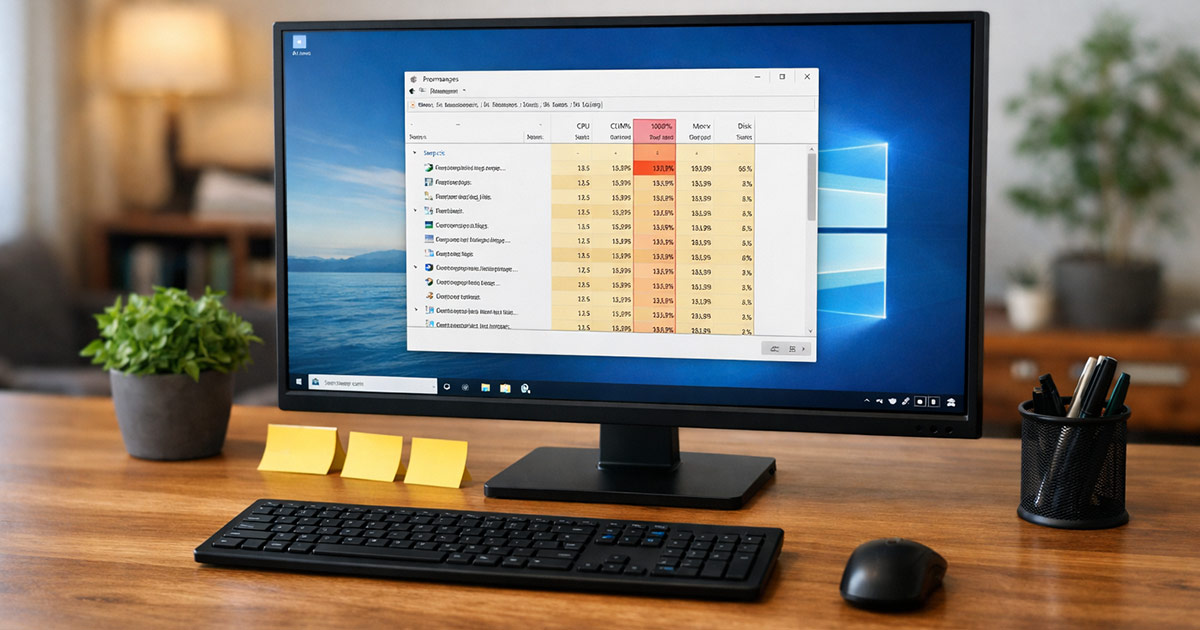
You open Task Manager and the Disk column is pinned at 100%.
Everything feels like it’s moving through wet cement.
Programs take forever to launch. Clicking things doesn’t do anything… until it does.
The fan spins up like the laptop is rendering a Pixar movie.
This is fixable.
We figure out why Windows is hammering the drive, then we stop it. One change at a time.
Why This Is Happening
“100% Disk” rarely means your drive is physically full. It means the drive is busy. Completely busy. Queue backed up. Windows is trying to read/write faster than the storage can respond.
That can be normal for a minute (updates, indexing), or it can be a persistent problem caused by a few usual suspects.
1) You’re on a hard drive, and Windows is doing modern Windows things
Windows 10/11 assume decent storage performance. On an older spinning HDD, background tasks can saturate the disk constantly.
Clues:
- Disk stays at 100% even when you’re “doing nothing”
- Active time is 100%, but transfer speed is low (like 0.5–5 MB/s)
- The system feels worse after boot and stays worse
Quick test: In Task Manager > Performance > Disk, check if it says HDD or SSD. If it’s HDD, the bar for “normal” is unfortunately pretty low.
2) A specific process is flooding the disk (real work, not a “Windows mystery”)
Sometimes it’s a single offender: antivirus scans, cloud sync loops, browser cache going wild, game launchers updating, etc.
Clues:
- In Task Manager, one process is consistently at the top for Disk
- It’s repeatable (every boot, every login, every time you open a specific app)
Quick test: Task Manager > Processes > click the Disk column to sort. Watch what stays on top for 30–60 seconds.
3) Windows Search indexing is stuck or overactive
Indexing is supposed to be polite. Sometimes it isn’t. Especially after a large update, profile migration, or lots of file churn.
Clues:
- “SearchIndexer.exe” shows high disk use
- Disk spikes when idle
- You recently added/moved a large library (photos, downloads, OneDrive restore)
Quick test: Pause and see if disk calms down when indexing is limited (we’ll do that in the fix steps).
4) SysMain (Superfetch) is thrashing an HDD
SysMain tries to predict what you’ll open and pre-load it. On SSDs it’s usually fine. On HDDs it can become an endless read-fest.
Clues:
- “Service Host: SysMain” or “SysMain” shows disk activity
- Especially bad right after boot
- System feels like it’s constantly “loading something” in the background
Quick test: Temporarily stop SysMain and see if the disk drops within a minute.
5) Delivery Optimization or Windows Update is chewing the drive
Windows updates download, unpack, stage, and install. That’s a lot of disk I/O. Delivery Optimization can add extra activity by sharing update data on your network (or internet, depending on settings).
Clues:
- “Service Host: Windows Update” or “Delivery Optimization” in Task Manager
- C:\ drive active even while you’re not installing anything intentionally
- You recently had a big feature update
Quick test: Settings > Windows Update shows “Downloading” or “Installing” even when you’re not touching it.
6) Paging and memory pressure (not enough RAM, too many startup apps)
If you’re low on RAM, Windows leans on the pagefile. That turns “disk” into “extra memory,” which is slower and keeps the disk busy.
Clues:
- High Memory usage in Task Manager (80–95%+)
- Disk busy whenever you have a few apps/tabs open
- Laptop has 4–8 GB RAM and you’re asking it to juggle modern browsers
Quick test: Task Manager > Performance > Memory. If it’s constantly near the top, disk is probably paying the price.
7) Drive errors, bad sectors, or controller/driver issues
If the drive is struggling (or the storage driver is), Windows retries reads/writes. Retries look like high active time with miserable performance.
Clues:
- Disk active time 100% but throughput is tiny
- Event Viewer shows disk warnings
- Random freezes, file corruption symptoms, or long boot times
- It used to be fine, then suddenly got terrible
Quick test: Check SMART status and run a disk check. (We’ll do the safe ones first.)
8) Corrupted system files or a broken Windows component loop
If a service is stuck repeatedly failing and retrying, it can create constant disk churn.
Clues:
- Repeated disk spikes tied to Windows components
- Updates fail repeatedly
- You’ve had recent crashes or forced power-offs
Quick test: Run system file checks (SFC/DISM). These don’t fix everything, but they do catch real corruption.
How to Fix It
Do this in order. Don’t shotgun ten tweaks at once and then wonder which one helped. Change one thing, then Test:.
1) Identify the top disk offender (so we’re not guessing)
- Open Task Manager (Ctrl + Shift + Esc).
- Go to Processes.
- Click the Disk column to sort descending.
- Watch for at least 30–60 seconds.
Test: If one process stays on top consistently, you’ve got a target. If it’s “Service Host: …” expand it (little arrow) to see what’s inside.
If the top offender is a third-party app (cloud sync, antivirus, updater):
- Pause syncing temporarily.
- Disable its “scan everything constantly” setting if it has one.
- Update the app.
- If it’s clearly broken, uninstall it cleanly (don’t just disable it and pretend it’s gone).
Test: Disk active time should drop, and the machine should stop stuttering within a couple minutes.
2) Check if you’re dealing with HDD limitations
- Task Manager > Performance > Disk.
- Look for “HDD” vs “SSD.”
If it’s HDD and you’re on Windows 10/11:
- Some background disk activity is unavoidable.
- The “fix” is often reducing background features, or moving to SSD if possible.
You can still improve it with the next steps, but if the hardware is the bottleneck, expect “better,” not “magical.”
Test: After completing steps 3–6, idle disk should settle under ~10–20% most of the time on HDD. On SSD, it should usually sit near 0–5%.
3) Tame Windows Search indexing (without nuking your whole system)
- Open Settings.
- Go to Privacy & security > Searching Windows.
- Switch to “Classic” indexing (if you don’t need enhanced indexing everywhere).
- Add large churn folders to exclusions (Downloads, game libraries, VM folders, huge photo dumps).
If you want to quickly verify indexing is the issue, you can temporarily stop the Windows Search service:
- Press Win + R.
- Type:
services.msc
- Find “Windows Search.”
- Right-click > Stop.
Test: If disk drops fast after stopping Windows Search, indexing was a major contributor. You can leave it running but constrained, or keep it stopped if you truly don’t use search much. (Some people do. Some people just mash the Start menu and hope.)
4) Stop SysMain if you’re on an HDD and it’s thrashing
- Press Win + R.
- Type:
services.msc
- Find “SysMain.”
- Right-click > Stop.
- Double-click it > Startup type: Disabled (or Manual if you want to be less aggressive).
Test: If SysMain was the culprit, disk usage should calm down noticeably within a minute or two, especially after boot.
Note: On SSDs, SysMain usually isn’t the villain. On HDDs, it often is.
5) Reduce Windows Update / Delivery Optimization disk churn
If Windows Update is actively installing, let it finish. Fighting an update mid-flight is how you get a different problem.
But you can stop it from being extra noisy:
- Settings > Windows Update > Advanced options.
- Delivery Optimization (usually under Windows Update or a related section).
- Turn off “Allow downloads from other PCs” if you don’t need it.
You can also schedule updates so they don’t slam the disk while you’re trying to work.
Test: Disk activity should become more “bursty” instead of constant. Updates will still use disk. They just won’t act like a file-sharing server on top of it.
6) Fix paging pressure by reducing startup junk (and checking RAM usage)
- Task Manager > Startup apps.
- Disable anything you don’t actively need at boot (game launchers, “helper” apps, auto-updaters that can run later).
- Reboot.
Then check Memory usage:
- If Memory sits near the limit all the time, disk will keep getting hammered.
- If you’re on 4–8 GB RAM and you live in Chrome tabs, consider upgrading RAM if the machine allows it. That’s not a “tweak,” that’s physics.
Test: After reboot, Memory should have breathing room at idle, and Disk should calm down faster after login.
7) Run a disk check (safe first), then look for real drive trouble
Open Command Prompt as Administrator.
Run:
chkdsk /scan
Test: If it reports errors, that’s important. Not “maybe.” Important.
If you suspect file system corruption and you can afford a reboot window, you can schedule a deeper check:
chkdsk C: /f
It may ask to run on restart. Say yes, reboot, let it complete.
If disk performance is awful and you’re seeing warnings, also look at SMART status. The simplest built-in view is still limited, but you can at least see if Windows is already worried:
wmic diskdrive get status
If it says anything other than “OK,” assume the drive is failing and back up your data immediately. Don’t negotiate with a dying drive. It doesn’t do feelings.
8) Repair system files (for the “Windows component loop” scenario)
Open Command Prompt as Administrator.
Run SFC:
sfc /scannow
If it reports corruption it couldn’t fix, run DISM:
DISM /Online /Cleanup-Image /RestoreHealth
Then run SFC again:
sfc /scannow
Test: After a reboot, persistent disk thrash tied to Windows components may reduce. If it doesn’t, at least you ruled out a common underlying cause.
9) Update storage drivers (when the numbers look wrong)
If you see 100% active time with tiny throughput, and none of the service tweaks helped, the storage stack may be part of the issue.
Do the sane version:
- Run Windows Update (including Optional updates if they include driver updates).
- Update chipset/storage drivers from your PC/motherboard manufacturer if applicable.
Avoid random driver sites. They’re basically malware with a marketing department.
Test: Disk throughput should become more proportional to active time. If it’s still “100% busy doing nothing,” you’re back to hardware suspicion.
10) If it’s an HDD and you want it to stop forever: move to SSD
This isn’t me being dramatic. It’s just the real fix for constant 100% disk on older HDD-based systems.
If your system supports it, a SATA SSD is usually enough to make Windows feel like a different operating system.
Symptoms that scream “HDD is the problem”:
- Disk 100% at boot for 10–30+ minutes
- Low MB/s during “100%”
- Everything improves when you do nothing, but collapses when you do anything
Test: After migrating to SSD, the “100% disk” problem usually evaporates unless there’s an actual software offender.
Final Thoughts
100% Disk in Windows is almost never a mystery. It’s Windows trying to do real work on storage that can’t keep up, or one specific process going feral, or a drive that’s starting to fail.
The trick is refusing to guess.
Find the process. Match it to a cause. Make one change. Test. Repeat.
If nothing in the software layer explains it and performance is still terrible, don’t waste a week “optimizing.” Check the drive health and take the hardware answer seriously.
There’s your gremlin.