
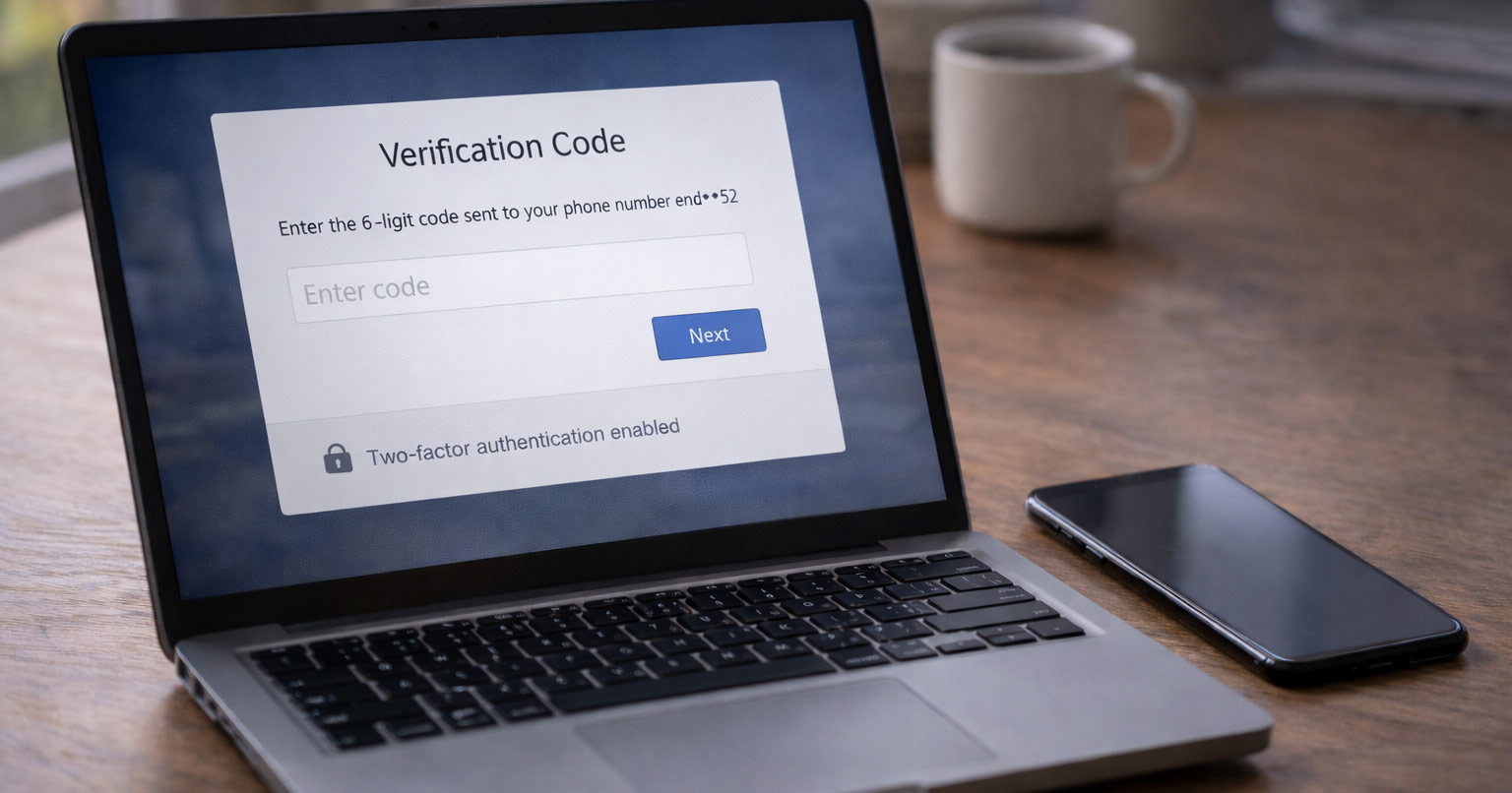
You’re trying to log in.
It asks for a verification code.
You don’t have it.
And now you’re stuck staring at a screen that says something like:
“Enter the code we sent to your device.”
Except you don’t have that device anymore.
Or the number changed.
Or the email goes to a black hole.
This shouldn’t be happening.
But there’s a reason for it.
Let’s unpack it properly.
Why This Happens in the First Place
Verification codes are part of two-factor authentication (2FA). That system does one thing:
It proves you are you.
Not just someone who guessed your password.
When you lose access to the second factor — phone, authenticator app, backup email — the system can’t confirm your identity. So it locks the door.
It’s not being dramatic.
It’s doing exactly what it was designed to do.
Common triggers:
- You changed phone numbers.
- You reset or replaced your phone.
- You deleted an authenticator app.
- You restored a device without backing up 2FA.
- You’re logging in from a new location or device.
- Too many failed attempts flagged security.
Behind the curtain, the system sees risk.
And risk means restrictions.
There’s your gremlin.
Now let’s remove it.
Step 1: Check for Backup Verification Methods
Most people forget they set these up.
Look carefully at the login screen for options like:
- Try another way
- Use backup code
- Send code to recovery email
- Answer security questions
- Approve sign-in on another device
Click those.
Slowly.
Don’t rush it.
If you ever downloaded backup codes when enabling 2FA, this is their moment. Check:
- Password managers
- Old email folders
- Printed documents
- Notes apps
If you find a backup code, enter it exactly as shown. They’re one-time use.
If you don’t have backup options available, move to the next step.
Step 2: Use the Official Account Recovery Process
Every major platform has an account recovery system.
Use the official one.
Not third-party “recovery services.”
Not random links from forums.
The recovery system will usually ask for:
- Previous passwords
- Approximate account creation date
- Recent login locations
- Linked services
- Security question answers
Answer honestly.
If you don’t know something, don’t guess wildly. Inconsistent answers lower your trust score.
These systems measure behavioral consistency.
Location.
Device fingerprint.
Browser history.
IP familiarity.
It’s quiet. But it’s watching.
Be patient during review. Some recoveries are automated. Others require manual review.
Step 3: Try Logging In From a Familiar Device or Location
This one matters more than people realize.
If possible:
- Use the device you normally log in from.
- Connect to your home Wi-Fi.
- Use the same browser you typically use.
Security systems build behavioral profiles.
New device + new location + missing 2FA?
That’s high risk.
Familiar device + familiar location?
Much lower.
If the system recognizes the environment, it may reduce verification strictness.
Simple. But effective.
Step 4: Check if You’re Still Logged In Somewhere
Before assuming you’re completely locked out:
Check:
- Old phones
- Tablets
- Work computers
- Secondary browsers
- Email apps
If you’re still logged in somewhere:
- Go to security settings.
- Update your recovery phone number.
- Add a new backup email.
- Generate new backup codes.
- Disable and re-enable 2FA properly.
If you regain access this way, fix the security setup immediately.
Don’t close the session until it’s updated.
Step 5: If You Lost an Authenticator App
This one drives me nuts.
Authenticator apps don’t store codes in the cloud by default.
If you:
- Reset your phone
- Deleted the app
- Didn’t enable sync
The codes are gone.
Your options:
- Use backup codes (if saved).
- Use account recovery.
- Contact platform support if manual verification is available.
Some services allow identity verification with:
- Government ID
- Selfie verification
- Video confirmation
It feels excessive.
But it’s still better than permanent lockout.
Step 6: If Your Phone Number Changed
If you still have access to your account on another device:
- Update your recovery phone number immediately.
If you don’t:
Try contacting your previous carrier. Sometimes old numbers can be temporarily reactivated or accessed.
Not always. But occasionally.
If the number is permanently gone, you’re relying on recovery verification.
Which means patience.
Step 7: Wait Out Temporary Security Locks
If you see messages like:
- “Too many attempts.”
- “Try again later.”
- “Account temporarily locked.”
Stop trying.
Repeated attempts extend lock duration.
Most temporary locks last:
- 30 minutes
- 24 hours
- 48 hours
Depends on severity.
Trying again every five minutes just tells the system something suspicious is happening.
Walk away.
I know. You want to fix it immediately.
But sometimes the fix is letting the system cool down.
When Recovery Fails Completely
If recovery fails and no backup methods exist, there are only two possibilities:
- The system cannot confidently verify you.
- The account has been permanently restricted.
At that point:
- Check official support documentation.
- Look for identity verification appeals.
- Submit a manual review if available.
If no manual recovery exists, the account may be unrecoverable.
It’s rare.
But it happens.
Security systems are designed to prevent takeover — even if that occasionally blocks the rightful owner.
Cold logic.
How to Prevent This Ever Happening Again
Once you regain access, do this immediately:
- Add a recovery email you control long-term.
- Update your phone number.
- Enable cloud sync for authenticator apps (if supported).
- Generate backup codes and store them offline.
- Use a password manager to store recovery info.
Do not rely on memory.
Memory fails.
Systems don’t care.
Final Thoughts
When you can’t access a verification code, it feels like the system betrayed you.
It didn’t.
It did exactly what it was designed to do.
Your job now is to prove identity through alternative paths.
Slow down.
Follow the recovery steps carefully.
Use familiar devices.
Answer consistently.
Let temporary locks expire.
And once you’re back in, fix the security setup properly.
Because the worst time to set up backup recovery…
is after you’ve already lost access.
We’re not guessing.
We’re fixing it.