
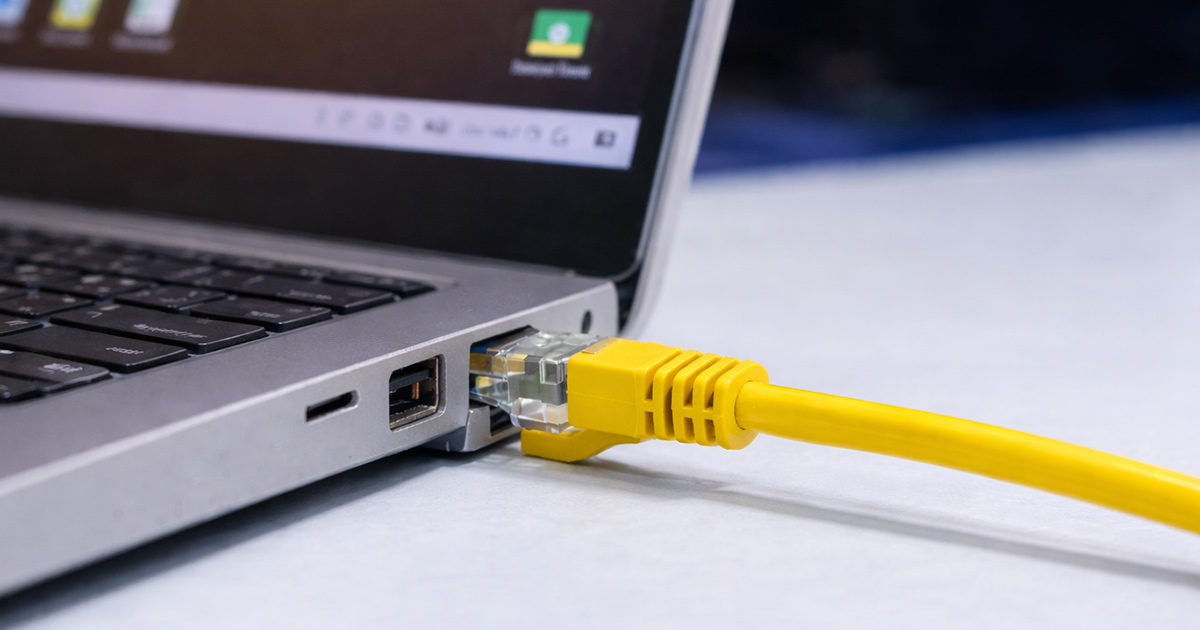
If your internet works perfectly when you plug in an Ethernet cable — but completely falls apart on Wi-Fi — that’s actually very good information.
Seriously.
Because it tells us something important right away:
Your modem is working.
Your ISP connection is working.
Your internet plan is working.
The problem is isolated to Wi-Fi.
That’s not a mystery. That’s a clear direction.
And clear directions are how problems get fixed.
Let’s walk through it calmly.
What This Pattern Is Really Telling You
When Ethernet works but Wi-Fi doesn’t, the core internet connection is fine.
Wired connections bypass the wireless system entirely. So if wired is solid, we’re not dealing with:
- ISP outages
- Modem failure
- “Bad internet service”
We’re dealing with the wireless layer of your router.
That narrows things down fast.
Instead of chasing everything, we focus exactly where the issue lives.
The Most Common Reasons This Happens
1. The Wi-Fi Radio Is Disabled (Yes, It Happens)
Sometimes Wi-Fi gets turned off in router settings.
It can happen after:
- A firmware update
- A reset
- ISP remote configuration
- Someone clicking around in settings
Ethernet keeps working because that’s separate hardware.
Wi-Fi, meanwhile, might be disabled or misconfigured.
Fix:
- Log into your router’s admin page
- Confirm 2.4GHz and 5GHz are enabled
- Save settings
- Reboot
It sounds basic. It fixes more cases than people expect.
2. Weak or Unstable Wi-Fi Signal
This is very common.
Wi-Fi doesn’t travel like Ethernet.
It struggles through:
- Thick walls
- Brick
- Concrete
- Appliances
- Metal shelving
You can be “connected” but still have unstable signal.
Ethernet doesn’t care about walls. Wi-Fi does.
Quick test:
Stand right next to the router and try again.
If Wi-Fi works there but not across the house, you’re dealing with coverage.
Fix:
- Move the router to a central location
- Raise it off the floor
- Keep it out in the open
- Consider a mesh system if your home is larger
Signal strength alone solves a lot of these cases.
3. Router Firmware Glitch
Routers are small computers.
And small computers glitch.
Sometimes the wireless portion freezes while Ethernet keeps running normally.
You might see:
- Devices connect to Wi-Fi but no internet
- Random Wi-Fi drops
- Wi-Fi working briefly after reboot
That’s often firmware behaving badly.
Fix:
- Restart the router
- Check for firmware updates
- Install updates
- Reboot again
If rebooting temporarily fixes it, firmware is a strong suspect.
4. One Wi-Fi Band Is Failing
Many routers broadcast:
- 2.4GHz
- 5GHz
Sometimes one band becomes unstable while the other works fine.
If you’re connected to the unstable band, it may feel like Wi-Fi is broken.
Ethernet continues to work because it’s unrelated.
Fix:
- Switch to the other band
- Separate network names so you can test manually
If one band consistently fails, the wireless hardware may be aging.
5. Too Many Devices on Wi-Fi
Modern homes load routers heavily.
Look around:
- TVs
- Consoles
- Cameras
- Smart speakers
- Phones
- Tablets
- Laptops
Wireless bandwidth gets shared.
Ethernet doesn’t share airspace. Wi-Fi does.
If Wi-Fi slows or stops during heavy use, your router may be overloaded.
Fix:
- Disconnect unused devices
- Pause large downloads
- Upgrade the router if it’s 5+ years old
Sometimes it’s not broken. It’s just stretched thin.
6. Wireless Interference
Wi-Fi operates in crowded radio space.
Interference can come from:
- Neighboring routers
- Microwaves
- Baby monitors
- Bluetooth devices
Ethernet doesn’t care about interference.
Wi-Fi does.
Fix:
- Restart the router (it may auto-select a better channel)
- Manually change Wi-Fi channels in settings
This is especially common in apartments or dense neighborhoods.
7. Device-Specific Wi-Fi Issue
If only one device can’t connect over Wi-Fi but others work, the issue may not be the router at all.
It could be:
- Corrupted network settings
- Outdated drivers
- VPN interference
- Disabled Wi-Fi adapter
Fix:
- Forget and reconnect to Wi-Fi
- Restart the device
- Update network drivers
- Disable VPN temporarily
If multiple devices fail, focus on the router.
If only one fails, focus on that device.
Step-By-Step Fix (Keep It Simple)
Work through this in order:
✔ Restart modem and router
✔ Test Wi-Fi next to the router
✔ Confirm Wi-Fi is enabled in settings
✔ Switch between 2.4GHz and 5GHz
✔ Update router firmware
✔ Reduce device load
✔ Change Wi-Fi channel
Move one step at a time.
Don’t shotgun changes.
That’s how you isolate the real cause instead of guessing.
When It’s Time to Replace the Router
Consider upgrading if:
- Wi-Fi fails repeatedly
- One band stops working permanently
- Router overheats
- It’s 5+ years old
- Reboots only help temporarily
Wireless components often wear out before Ethernet ports do.
That doesn’t mean your internet is bad.
It means your router is aging.
And that’s normal.
Final Thoughts
If internet works with Ethernet but not Wi-Fi, that’s not a disaster.
It’s a clean diagnostic sign.
It means:
- Your ISP is fine
- Your modem is fine
- Your internet service is fine
The issue lives inside the wireless system.
Start with the basics. Check settings. Test signal strength. Update firmware.
Most of the time, this isn’t complicated.
And no — you probably don’t need to call your ISP.
You just need to tune your Wi-Fi.
If you’re troubleshooting other router or connectivity problems, explore the related guides on FixTechProblem.com for clear, step-by-step solutions.