
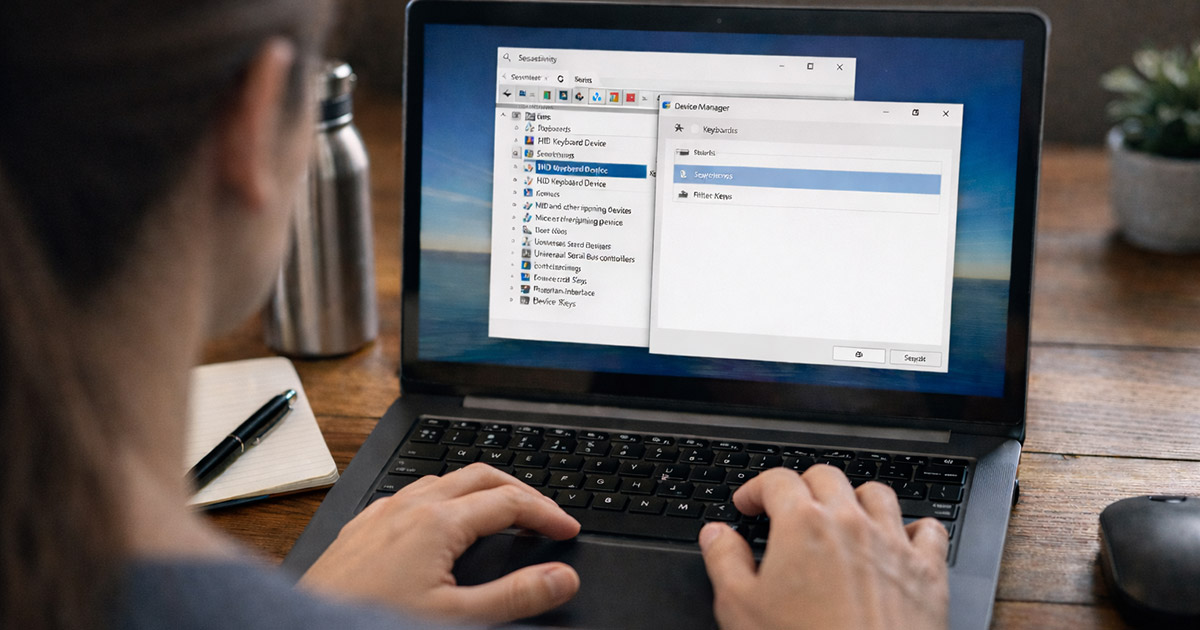
You open the laptop.
You type your password.
Nothing happens.
Maybe one key works. Maybe none.
Maybe it only types the wrong letters, like it’s doing improv.
This is fixable.
We troubleshoot in order. WHY first, then HOW. One change at a time.
Why This Is Happening
A laptop keyboard can fail in a few very specific ways. The trick is noticing which failure you’re getting.
1) The laptop thinks you’re using a different keyboard layout
Windows and macOS can switch layouts without asking. Suddenly your “@” becomes something else, or slashes and quotes are wrong.
Clues:
- Letters mostly work, but symbols are wrong
- Z/Y swapped (common with QWERTZ)
- It started after an update or remote session
Quick test: Open a password field and type something simple like aaaa1111!!!!. If letters are fine but symbols are chaos, think layout.
2) Sticky Keys / Filter Keys / accessibility settings are interfering
This is the classic “my keyboard is broken” setting problem.
Filter Keys can ignore quick keystrokes. Sticky Keys can make modifiers “stick.” Sometimes it feels like the keyboard is lagging or missing characters.
Clues:
- Keystrokes don’t register unless held down
- Repeated keys behave weirdly
- You heard a Windows “ding” after tapping Shift a bunch
Quick test: Hold a key like A. If it repeats fine but quick taps fail, accessibility settings are suspect.
3) The laptop is in “Tablet mode” or the OS is prioritizing the on-screen keyboard
2-in-1 devices and some Windows setups can decide you’re “in tablet mode,” which can cause keyboard weirdness depending on drivers and power states.
Clues:
- On-screen keyboard keeps popping up
- Physical keyboard works in BIOS but not in Windows
- Happens after folding the device or docking/undocking
Quick test: If the keyboard works outside the OS (BIOS/UEFI), this isn’t a dead keyboard. It’s software, drivers, or mode switching.
4) A driver or firmware hiccup (especially after sleep/hibernate)
Sleep is where good drivers go to do crimes.
The keyboard is usually connected internally via the laptop’s embedded controller (EC) and a ribbon cable, but the OS still relies on drivers and power management. One bad resume-from-sleep event and the keyboard can vanish until reboot.
Clues:
- It worked earlier today, then stopped after sleep
- Trackpad might also be odd (sometimes they share a controller path)
- A reboot temporarily fixes it
Quick test: If a full shutdown/power drain fixes it, you’re dealing with a power/firmware state issue.
5) The keyboard is disabled at the device level or by OEM hotkeys
Some laptops have an Fn key combo that disables the internal keyboard or swaps behavior. Also, Device Manager can end up with a disabled HID keyboard device.
Clues:
- Nothing types anywhere, but the laptop boots fine
- External USB keyboard works normally
- It happened right after you hit an Fn combo
Quick test: Plug in a USB keyboard. If that works, the system is alive. Now we narrow it to internal keyboard path.
6) Something is physically wrong (liquid, debris, or a loose ribbon cable)
If certain keys don’t work, or keys “type themselves,” you’re in physical territory.
Clues:
- Only some keys fail (often a row or cluster)
- Keys feel mushy or stuck
- Random input / ghost typing
- History of a “tiny spill” (it’s never tiny)
Quick test: Boot into BIOS/UEFI and try typing in any field (some BIOS screens allow it, some don’t). Or use a pre-boot hardware test if your brand offers one. If it fails outside the OS, hardware is likely.
7) Battery/power issues causing the embedded controller to misbehave
This one’s annoying because it looks like a keyboard issue but it’s really the laptop’s low-level controller being weird.
Clues:
- Keyboard and trackpad both glitch
- Fan behavior is odd
- Power button behavior is inconsistent
- A “hard reset” fixes it for a while
Quick test: Full power drain reset (we’ll do it safely in the fix section).
How to Fix It
Work top to bottom. Stop when it’s fixed.
After each step, do the same Test: so you’re not guessing.
If you can’t type at all, use an external USB keyboard for the steps. That’s not “cheating.” That’s being practical.
1) Confirm the problem scope (internal vs external)
- Plug in a USB keyboard.
- Try typing in a text box.
Test: Does the USB keyboard work normally?
- If USB works: the OS is fine. Focus on internal keyboard, drivers, firmware, or hardware.
- If USB also fails: this is bigger than the laptop keyboard (OS input stack, system corruption, or weird software).
2) Reboot properly (not “sleep reboot”)
If you’ve only been closing the lid and reopening it, you haven’t really reset anything.
On Windows, do a full restart.
Test: After restart, does the internal keyboard work?
If it comes back after a restart, you’re likely dealing with driver/power state issues. Keep going anyway so it doesn’t keep happening.
3) Do a full shutdown and power drain reset (safe reset method)
This clears stuck embedded controller states and weird power-resume bugs.
- Shut down the laptop completely.
- Unplug the charger.
- If the battery is removable, remove it. (Most aren’t anymore. Fine.)
- Hold the power button down for 15–20 seconds.
- Plug the charger back in.
- Boot normally.
Test: Does the keyboard work now?
If yes, you’ve basically proven it was an EC/power state gremlin. It may still come back later, but now you know the category.
4) Check keyboard layout (Windows)
If keys “work” but output is wrong, don’t reinstall drivers. Fix the layout.
- Open Windows Settings.
- Go to language/input settings.
- Confirm the keyboard layout matches what you actually use.
Test: Type symbols: @, ", ?, and the number row.
If it’s fixed, you’re done. If it keeps flipping layouts, remove unused layouts so Windows has fewer ways to sabotage you.
5) Turn off Sticky Keys / Filter Keys (Windows)
These settings can make a keyboard feel broken even when it’s fine.
Open Settings and search for:
- Sticky Keys
- Filter Keys
- Toggle Keys
Turn them off.
Test: Tap A quickly 10 times. Does every tap appear?
If it starts behaving, that was it. The keyboard wasn’t broken. The OS was being “helpful.”
6) Disable “Fast Startup” (Windows)
Fast Startup can preserve a bad driver/power state across shutdowns. It’s basically hibernate wearing a shutdown costume.
- Open Control Panel.
- Power Options.
- Choose what the power buttons do.
- Change settings that are currently unavailable.
- Turn off Fast Startup.
Test: Shut down fully, power back on, and check the keyboard.
If this solves recurring “keyboard dead after sleep/shutdown” issues, keep Fast Startup off.
7) Reinstall the keyboard device in Device Manager (Windows)
This forces Windows to re-enumerate the internal keyboard path.
- Open Device Manager.
- Expand “Keyboards.”
- Right-click each “HID Keyboard Device” and uninstall (one at a time).
- Restart the laptop.
Test: After restart, does the internal keyboard work?
If you see multiple HID keyboard devices, that’s normal. Windows loves duplicates. Uninstalling them is usually safe because they reinstall on reboot.
8) Update chipset and keyboard/serial-IO drivers (OEM drivers, not random ones)
Laptop keyboards often rely on Intel Serial IO / chipset drivers and OEM-specific packages. If those are stale or corrupted, the keyboard can disappear.
- Go to your laptop manufacturer’s support page (Dell/HP/Lenovo/ASUS/Acer/etc.).
- Install updates for:
- Chipset
- Serial IO (if listed)
- Hotkey / function key utility
- BIOS/UEFI (only if you’re comfortable doing it carefully)
Test: After updates and a reboot, does the issue stop returning after sleep?
If the keyboard works in BIOS but not in Windows, driver/firmware updates are especially relevant. The hardware is fine. Windows is the one forgetting how to talk to it.
9) Check for “ghost input” or stuck keys (physical inspection)
If you’re getting random typing, repeated characters, or keys that don’t pop back up, software fixes won’t help much.
- Power the laptop off.
- Inspect the keyboard for:
- Crumbs/debris under keys
- Sticky residue
- Keys that sit lower than others
If you’re comfortable, use compressed air at an angle (short bursts).
Do not blast the keyboard like you’re pressure-washing a driveway.
Test: Boot up and open a blank text document. Do characters appear without touching anything? Do any keys repeat?
If ghost typing continues, that’s usually liquid damage or a shorted key matrix. Software won’t reverse physics.
10) Test outside the OS (BIOS or pre-boot diagnostics)
This step separates “Windows problem” from “keyboard problem.”
- Enter BIOS/UEFI during boot (often F2, Del, or Esc).
- If your laptop has built-in diagnostics (Dell often uses F12 diagnostics, HP has its own), run the keyboard test if available.
Test: Does the keyboard respond in pre-boot tools?
- Works in BIOS/diagnostics but not Windows: software/driver/power issue. Go back to steps 6–8 and consider Windows repair.
- Fails in BIOS/diagnostics: hardware path (keyboard itself, ribbon cable, motherboard connector).
11) If it’s hardware: decide between reseating the cable vs replacing the keyboard
Here’s the blunt part: internal laptop keyboards are not “repairable” in a meaningful way. They’re replaced.
What hardware failure usually is:
- Ribbon cable loosened (rare but possible, especially after a drop or repair)
- Keyboard membrane failure
- Liquid damage
- Connector damage on the motherboard (worse case)
If you’re comfortable opening the laptop:
- Look up the exact service manual for your model.
- Reseat the keyboard ribbon cable carefully (it has a locking tab that breaks if you look at it wrong).
Test: After reseating, does the keyboard work consistently?
If not, replacement is the usual fix. External keyboard is the practical temporary solution, but it’s not exactly portable elegance.
12) Last resort (Windows): System file repair if all keyboards are weird
Only do this if both the internal and an external USB keyboard act broken in Windows.
Run system file checks.
sfc /scannow
Then:
DISM /Online /Cleanup-Image /RestoreHealth
Test: After reboot, does typing behave normally?
If it still fails and USB keyboards also misbehave, you may be looking at a deeper OS issue (or some third-party software intercepting input).
Final Thoughts
A laptop keyboard doesn’t stop working “for no reason.” It’s usually one of three buckets:
- The OS is interpreting input wrong (layout/accessibility).
- Power management or drivers are losing the keyboard after sleep.
- The keyboard hardware or its connection is failing.
Start by proving whether an external keyboard works. Then do the power drain reset and the settings checks. If it works in BIOS but not in Windows, don’t waste your life prying up keycaps. Update drivers and fix power behavior. If it fails outside the OS, it’s hardware, and the fix is physical.
Troubleshoot like you mean it: one change, one test, one conclusion. That’s how you stop guessing and actually solve it.