
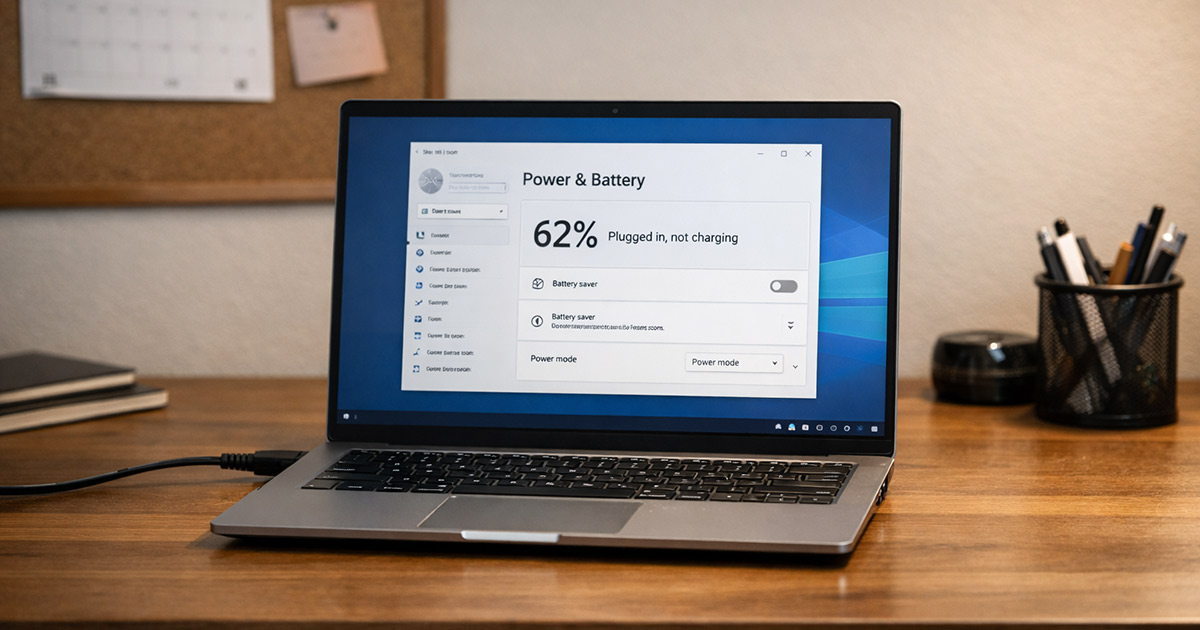
You plug the laptop in.
The little charging icon shows up.
Then it sits at 2% like it’s making a statement.
Sometimes it says “Plugged in, not charging.”
Sometimes it says nothing at all and just slowly dies while connected to wall power.
Annoying. Also usually fixable.
This isn’t magic. It’s power management, batteries, adapters, ports, and a few “helpful” safety rules that love to misfire. We’re going to diagnose the WHY first, then do the HOW. One change at a time.
Why This Is Happening
1) Your laptop is intentionally refusing to charge (battery protection mode)
Modern laptops often stop charging on purpose to reduce battery wear. The feature names vary:
- Battery Health / Battery Conservation
- Adaptive charging / Smart charging
- Charge threshold (stop at 80%, start at 60%, etc.)
If it’s enabled, you’ll see “plugged in, not charging,” or the battery will stick at a certain percentage and never go higher.
Clues:
- Battery percentage stalls at the same number every time (often 60% or 80%)
- It charges sometimes, but not always, based on your usage pattern
- The laptop is mostly used on AC power at a desk
Quick test: Shut the laptop down completely, leave it plugged in for 20 minutes, then boot up and check if the percentage moved at all.
Fix: Turn off conservation/threshold mode (or raise the threshold) in your manufacturer app or BIOS/UEFI.
2) The adapter isn’t actually delivering enough power (wrong wattage or flaky charger)
A laptop can be “plugged in” without being “powered.” That’s a fun distinction.
If the adapter wattage is too low (or the cable is damaged), the laptop may:
- run off the adapter but refuse to charge the battery
- charge only when asleep/shut down
- discharge slowly while “plugged in”
Clues:
- “Plugged in, not charging” happens under load (gaming, video calls, compiling, etc.)
- The battery charges while the laptop is off, but not while it’s on
- The adapter gets unusually hot, or intermittently cuts out
- USB-C chargers: it works with one charger but not another
Quick test: Check the adapter label for wattage (W). Compare to what your laptop expects.
Fix: Use the correct wattage charger (and a proper USB-C PD cable if applicable).
3) The charging port or cable connection is making a weak connection
Loose barrel jacks, worn USB-C ports, lint-packed ports, and cracked plugs all cause “charging roulette.”
Clues:
- Charging starts/stops when you wiggle the connector
- The plug never feels snug
- USB-C: one side/angle works better than another
- You see sparks, smell heat, or the port feels hot (stop using it)
Quick test: With the laptop on, gently move the connector a few millimeters. If the charging state flickers, you’ve found the problem.
Fix: Clean the port safely, try another cable/charger, and stop using a port that overheats or feels loose.
4) USB-C power delivery negotiation is failing (common, subtle, irritating)
USB-C charging relies on a “handshake” between charger, cable, and laptop. If anything in that chain is off (cheap cable, non-PD brick, dock acting weird), the laptop may accept power but refuse to charge the battery.
Clues:
- Charges through one USB-C port but not another
- Works directly with charger, fails through a dock/hub
- “Slow charger” message or rapid connect/disconnect behavior
Quick test: Plug the charger directly into the laptop (no dock), using a known-good USB-C PD cable.
Fix: Replace the cable with an e-marked PD cable, avoid questionable hubs, and use a PD charger with enough wattage.
5) Battery calibration is wrong (percent is lying, not the battery)
Sometimes the battery charge gauge gets out of sync. The laptop may think the battery is full (or unsafe to charge) when it isn’t.
Clues:
- Battery percentage jumps suddenly (e.g., 2% to 20% after reboot)
- Laptop shuts down at “30%”
- “Plugged in, not charging” appears randomly after sleep
Quick test: Look for sudden percentage jumps across reboots.
Fix: Do a controlled calibration cycle (not a daily habit—just a repair step).
6) Windows power/battery drivers are glitched
Windows uses ACPI battery drivers and vendor power services. If those get corrupted or stuck, charging status can misreport or charging behavior can break.
Clues:
- This started after an update or driver install
- Battery icon behavior is inconsistent
- Device Manager shows battery devices with warnings
Quick test: If a full shutdown (not sleep) temporarily fixes it, you might be dealing with a driver/power state glitch.
Fix: Reinstall battery drivers in Device Manager and reset power states.
7) BIOS/UEFI or firmware is enforcing a bad rule
Laptop firmware controls charging logic at a low level. A buggy BIOS update (or outdated firmware) can cause charging thresholds, incorrect adapter detection, or weird battery behavior.
Clues:
- Charging broke after a BIOS/firmware update
- The laptop warns “AC adapter not recognized”
- Known-good chargers are refused
Quick test: Enter BIOS/UEFI and check if battery/adapter info looks wrong.
Fix: Update BIOS/UEFI (or roll back if supported) and update USB-C/Thunderbolt firmware where applicable.
8) The battery itself is failing (or its temperature sensor is)
Batteries age. Cells degrade. Sensors misread temps. If the battery reports unsafe conditions, charging may stop.
Clues:
- Battery health is poor (high cycle count, low capacity)
- It charges to a point, then stops forever
- Battery gets hot fast, or the laptop reports “battery needs service”
- Swelling (stop using immediately)
Quick test: Check battery health/condition in the manufacturer app or Windows report.
Fix: Replace the battery if health is bad or if swelling/overheating occurs.
How to Fix It
Follow this in order. Don’t jump around. Charging issues are one of those problems where random fixes feel productive but just waste your time.
- Do a real power reset (clears stuck power states).
- Shut down completely (not sleep).
- Unplug the charger.
- If your laptop has a removable battery, remove it.
- Hold the power button for 15–20 seconds.
- Reconnect battery (if removed), plug in charger, boot up.
Test: See if the battery percentage increases within 5–10 minutes.
- Check for battery conservation / charge threshold settings.
- Open your manufacturer app:
- Lenovo Vantage
- Dell Power Manager / MyDell
- HP Support Assistant / BIOS battery settings
- ASUS MyASUS
- Acer Care Center
- MSI Center, etc.
- Look for “Conservation,” “Adaptive charging,” or “Charge limit.”
Fix: Disable it temporarily or set the limit to 100% for testing.
Test: Plug in and see if the percentage climbs past the old ceiling.
- Open your manufacturer app:
- Confirm the charger wattage is correct (and not “close enough”).
- Read the label on the charger brick: wattage is usually printed as W, or you can multiply volts × amps.
- USB-C chargers: make sure it’s Power Delivery (PD) and supports a profile your laptop needs (often 45W, 65W, 90W, 100W+).
Fix: Use the OEM charger if possible, or a known-good PD charger with equal/higher wattage.
Test: Under normal use, battery should at least hold steady and then increase.
- Bypass docks and hubs (USB-C especially).
- Connect the charger directly to the laptop.
- Try a different USB-C port if your laptop has multiple.
Fix: If direct works but dock doesn’t, the dock/cable is the problem, not the battery.
Test: Stable charging without connect/disconnect loops.
- Inspect and clean the charging port (carefully).
- Power the laptop off and unplug everything.
- Use a flashlight to look for lint, debris, or bent pins (USB-C).
- Use compressed air or a soft non-metal pick. No metal tools, no “I’ll just scrape it real quick.”
Fix: Remove debris and confirm the connector seats firmly.
Test: Charging should not cut in/out when the cable is lightly touched.
- Reinstall Windows battery drivers (Windows 10/11).
- Open Device Manager.
- Expand Batteries.
- Uninstall:
- Microsoft AC Adapter
- Microsoft ACPI-Compliant Control Method Battery
- Reboot. Windows will reinstall them automatically.
Test: Charging status updates correctly, and charging resumes if it was driver-stuck.
- Generate a battery report (Windows) and look for obvious red flags.
- Open an admin Command Prompt and run:
powercfg /batteryreport
- Open the report path it shows (usually in your user folder).
Look for: - DESIGN CAPACITY vs FULL CHARGE CAPACITY (big gap = worn battery)
- Recent usage showing weird drops or sudden jumps
Fix: If capacity is heavily degraded, skip the “tweak” fixes and plan a battery replacement.
Test: After addressing the cause, battery should charge consistently and discharge predictably.
- Calibrate the battery gauge (only if the percentage is clearly lying).
Safe reset method:- Charge to 100% (or as high as it will go).
- Let it sit plugged in for 30 minutes.
- Unplug and use it normally down to about 10% (don’t race to 0% unless the laptop forces it).
- Shut down at ~10% and leave it off for 30 minutes.
- Charge back to 100% uninterrupted.
Test: Percentage should behave more smoothly and “plugged in, not charging” should stop appearing randomly.
- Update BIOS/UEFI and firmware (especially for USB-C charging).
- Get updates from your laptop manufacturer, not from random driver sites.
- If there’s USB-C/Thunderbolt firmware, install it too.
Fix: Firmware updates often fix adapter detection and charging logic bugs.
Test: Charger is recognized consistently and charging behavior stabilizes.
- Rule out a failing battery or hardware issue.
If you’ve done everything above and it still won’t charge reliably:
- Try a known-good charger (OEM if possible).
- If the laptop has multiple charging ports, try them all.
- Check the battery health/condition in the manufacturer tool.
Fix: Replace the battery if health is poor, or service the charging port/DC-in board if the connection is loose.
Test: Laptop charges normally without babysitting the cable angle.
If the battery is swelling, the laptop smells hot/chemical, or the charging port is overheating, stop. That’s not “a setting.” That’s hardware becoming a problem you can smell.
Final Thoughts
“Plugged in but not charging” is usually one of three things: a deliberate charge limit, a charger/cable that isn’t delivering enough power, or a flaky port/USB-C handshake.
Start with the logic: confirm it’s not a conservation setting, confirm you have the right wattage, then remove variables (dock, cable, port). After that, drivers and firmware. Battery health last.
Do it in order and you’ll stop doing that thing where you stare at the battery icon like it owes you money.