
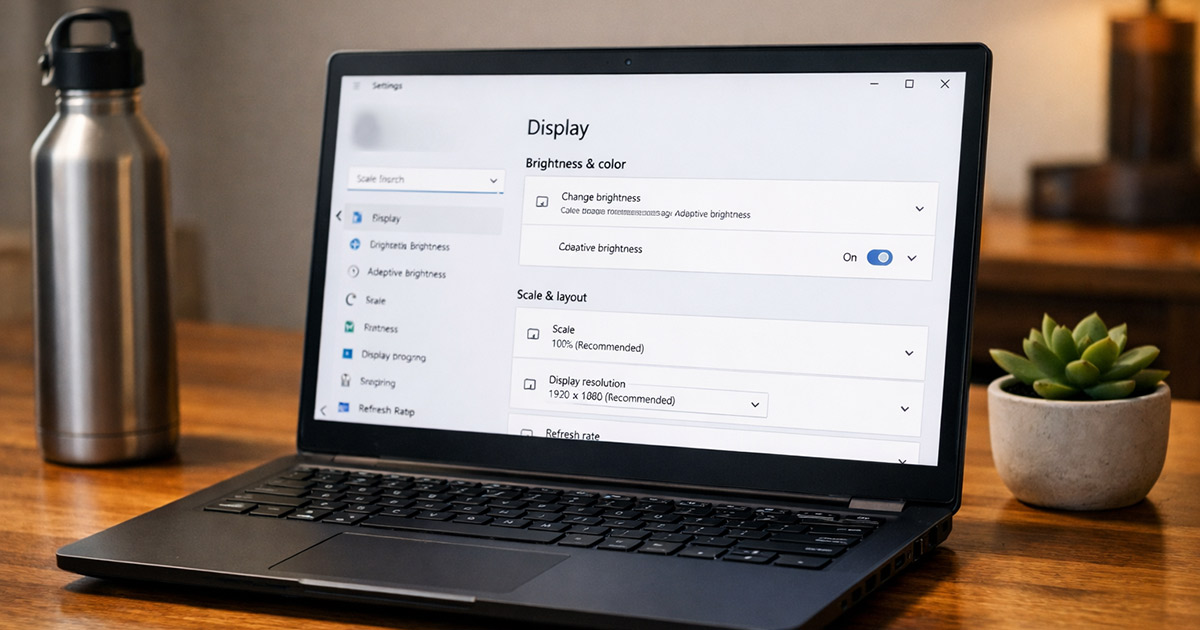
You open the laptop.
The screen starts doing that little “strobe light” thing like it’s auditioning for a nightclub.
Sometimes it flickers only on battery. Sometimes only when you move the lid. Sometimes it’s random enough to make you question reality.
This is fixable.
We’re not guessing. We figure out why it’s happening, then fix the specific thing. One change at a time.
Why This Is Happening
Screen flicker is basically the display pipeline coughing. That pipeline has a few common choke points: power, refresh timing, the graphics driver, the panel cable, or the panel/backlight itself. The trick is spotting which one is actually guilty.
1) The display refresh rate or resolution is unstable
Your panel expects a certain timing (refresh rate + resolution + color depth). If Windows/macOS or the GPU driver sets something the panel doesn’t like, you get flicker, pulsing brightness, or intermittent black flashes.
Clues:
- Flicker starts right after a driver update or OS update
- Flicker happens constantly, even when you don’t touch the laptop
- External monitor looks fine (or sometimes only the external one flickers)
Quick test: Change the refresh rate (even temporarily) and see if the flicker changes immediately.
2) Adaptive brightness / content-based dimming is fighting you
Some laptops “help” by changing brightness based on what’s on screen (especially on battery). That can look like flicker, pulsing, or brightness pumping—particularly on dark webpages, code editors, or video scenes.
Clues:
- Worse on battery power
- Looks like brightness breathing, not a hard “signal drop”
- Happens more on certain apps or when scrolling
Quick test: Set brightness to a fixed level and disable adaptive features. If it stops, that was it.
3) Variable Refresh Rate (VRR), G-SYNC/FreeSync, or panel self refresh is glitching
Modern laptops use VRR and power-saving display tech to stretch battery life. When it works, you never notice. When it doesn’t, you notice a lot.
Clues:
- Flicker mostly in games, fullscreen video, or while scrolling
- Flicker appears when switching between apps or waking from sleep
- It’s not constant; it comes in “events”
Quick test: Turn off VRR/G-SYNC/FreeSync (where available) and retest the same scenario.
4) The graphics driver is corrupted, outdated, or just wrong for your GPU
Drivers control how frames are delivered to the display. A buggy driver can cause:
- Rapid flicker
- Black screen flashes
- Screen tearing-like jitter
- Flicker only in specific apps (browsers are famous for this because of hardware acceleration)
Clues:
- Flicker started after updates
- Flicker happens more in Chrome/Edge/Firefox or video apps
- Safe Mode (Windows) reduces or eliminates the issue
Quick test: Toggle hardware acceleration in your browser. If flicker stops in the browser, the driver/acceleration combo is the real problem.
5) The display cable (eDP/LVDS) is loose or damaged
This is the classic “flickers when I move the lid” situation. Inside the hinge area there’s a thin ribbon cable carrying the video signal. Hinges move. Cables flex. Eventually one gets pinched, loosens, or starts to fail.
Clues:
- Flicker changes when you open/close the lid or adjust the hinge angle
- You can “make it happen” by gently moving the screen
- You see brief horizontal lines, sparkles, or partial image dropouts
Quick test: Slowly change the lid angle. If the flicker reliably changes, that’s a hardware path problem.
6) The LCD panel, backlight, or inverter circuitry is failing
On most modern laptops the backlight driver is part of the panel assembly. When it goes, you’ll see flicker that doesn’t care about drivers, settings, or Windows.
Clues:
- Flicker appears before the OS loads (BIOS/boot logo flickers)
- External monitor is perfectly stable while the laptop panel flickers
- Flicker is consistent across apps and refresh rate changes don’t help
Quick test: Enter BIOS/UEFI settings. If it flickers there, software is innocent.
7) Power delivery issues (battery, charger, power plan)
Bad charger, unstable battery voltage, or aggressive power-saving can produce flicker—especially the “only on battery” type.
Clues:
- Flicker only happens on battery or only when plugged in
- Flicker improves when you switch chargers or outlets
- Brightness changes coincide with flicker
Quick test: Try a known-good charger (same wattage or higher from the manufacturer). If behavior changes, you’re hunting power, not pixels.
How to Fix It
Do these in order. Stop when the flicker is gone. Don’t stack ten changes and then wonder which one worked.
1) Decide: software or hardware first
Before you do anything complicated, answer one question: does it flicker outside the operating system?
- Reboot the laptop.
- Enter BIOS/UEFI (usually F2, Del, Esc, or a function key depending on brand).
- Watch the screen for 30–60 seconds.
Test:
- If it flickers in BIOS → skip ahead to Step 8 (hardware path).
- If BIOS is stable → keep going. This is likely software, settings, or power behavior.
2) Set a sane refresh rate (and confirm resolution)
Windows sometimes “gets creative” after updates or docking/undocking.
- On Windows 11/10: Settings → System → Display → Advanced display.
- Set Refresh rate to the panel’s native option (commonly 60Hz, 120Hz, 144Hz depending on laptop).
- Confirm resolution is the recommended/native one.
Test: Use it for a few minutes, including whatever normally triggers flicker (scrolling, video, games).
3) Turn off adaptive brightness and content-based dimming
This fixes the “brightness pumping” flicker that looks like a subtle strobe.
On Windows, start with these:
- Settings → System → Display → Brightness.
- Disable any “Change brightness automatically” / “Help improve battery…” type toggles.
- If you see “Content adaptive brightness control,” turn it off.
If your laptop has Intel graphics, also check Intel Graphics Command Center:
- Look for “Display Power Saving Technology” and disable it.
Test: Run on battery and plugged in. Scroll a dark webpage and a bright page. If the pulsing stops, you found the culprit.
4) Disable VRR/G-SYNC/FreeSync (temporarily)
If flicker shows up in games, video playback, or fast scrolling, VRR can be the gremlin.
On Windows:
- Settings → System → Display → Graphics → Change default graphics settings.
- Turn off Variable refresh rate (if present).
If you have NVIDIA:
- NVIDIA Control Panel → Display / Set up G-SYNC (or Manage 3D settings).
- Disable G-SYNC for testing.
Test: Recreate the exact moment it flickers (same game/menu, same scrolling, same fullscreen video).
5) Fix the browser flicker (hardware acceleration test)
Browsers are great at exposing driver issues because they lean heavily on GPU acceleration.
In Chrome/Edge:
- Settings → System and performance.
- Toggle “Use hardware acceleration when available” off.
- Restart the browser.
Test: If flicker disappears only in the browser, your next stop is the graphics driver step. Don’t just leave acceleration off forever unless you’re okay with reduced performance/battery efficiency.
6) Clean reinstall the graphics driver
Driver updates can install fine and still be wrong. A clean reinstall is often faster than suffering.
On Windows:
- Download the latest GPU driver from your laptop manufacturer first (not just NVIDIA/AMD/Intel), especially for gaming laptops or machines with switchable graphics.
- Install it.
- Reboot.
If it got worse right after a driver update, try rolling back:
- Device Manager → Display adapters → (your GPU) → Properties → Driver.
- Use Roll Back Driver if available.
Test: Full reboot, then stress it: brightness changes, video playback, external monitor, sleep/wake.
7) Check power behavior: battery vs charger vs plan
Now isolate power as the trigger.
- Test on battery only (charger unplugged).
- Test plugged in.
- If you have another compatible charger, try it.
Then set a stable plan:
- On Windows, temporarily switch to “Best performance” (or equivalent) so the system stops downclocking aggressively.
Test: If flicker is only on battery, it’s often adaptive dimming or panel power-saving. If it’s only on AC, a sketchy charger or outlet can be the reason.
8) External monitor test (tells you where the failure is)
This narrows it down fast.
- Plug in an external monitor or TV via HDMI/USB-C.
- Duplicate or extend the display.
- Watch both screens during a flicker event.
Test:
- External monitor is stable while laptop panel flickers → panel/cable/backlight path.
- Both flicker at the same time → GPU/driver/power problem is more likely.
9) The lid-angle test (cable/hinge diagnosis)
If moving the lid changes the flicker, don’t waste your weekend reinstalling Windows.
- Set the laptop on a table.
- Slowly open/close the lid through different angles.
- Lightly tap near the hinge area (not like you’re mad at it—just enough to see if it reacts).
Test: If flicker reliably reacts to lid movement, the display cable is loose, pinched, or failing. That’s hardware.
Fix:
- If you’re comfortable opening the laptop, reseating the display cable at the motherboard end can solve a “loose connector” case.
- If you’re not comfortable (or it’s under warranty), stop here and get it serviced. Hinge-cable repairs are common, but they’re not “fun” common.
10) If it flickers in BIOS: you’re looking at panel/backlight failure
If BIOS flickers, drivers aren’t the problem. The laptop is flickering before it even knows what a driver is.
What you do next depends on your situation:
- Under warranty: file the claim. Don’t DIY a new panel and donate your warranty to the void.
- Out of warranty:
- Panel replacement is usually the real fix.
- If the hinge cable is the issue, replacing the cable can be cheaper than a full panel.
Test: After hardware repair/reseat/replacement, flicker should be gone everywhere, including BIOS. If it still flickers, the part you replaced wasn’t the part that failed.
11) Last resort (software): system file repair on Windows
If you’ve proven it’s software (BIOS stable, external monitor stable sometimes, driver reinstalls help but don’t stick), system corruption can contribute.
Run System File Checker:
sfc /scannow
Then run DISM repair:
DISM /Online /Cleanup-Image /RestoreHealth
Test: Reboot, then test the original trigger scenario again.
Final Thoughts
Laptop screen flicker feels random because it shows up as a visual symptom, not a neat error message. But it’s usually one of a handful of causes: refresh timing, power-saving brightness behavior, a driver/hardware acceleration conflict, or a physical cable/panel issue.
The fastest path is always the same:
- Does it flicker in BIOS?
- Does an external monitor flicker too?
- Does lid movement affect it?
Answer those, and you stop doing “maybe this” troubleshooting and start doing “this is the part that’s broken” troubleshooting. Which is the only kind worth doing. There’s your gremlin.