
You open the laptop.
You go for the trackpad.
Nothing. No cursor movement. No click. No two-finger scroll.
Maybe it worked yesterday. Maybe it died mid-scroll like it got bored.
This is fixable. But we’re not going to “try random stuff” until it comes back. We diagnose logically, then fix it. One change at a time.
Why This Is Happening
A touchpad failing usually isn’t mysterious. It’s almost always one of a few categories: it’s disabled, it’s being ignored, the driver is broken, the device isn’t being detected, or the hardware connection is flaky.
1) It’s disabled (on purpose, accidentally)
Most laptops still have a touchpad toggle. Sometimes it’s a function key combo. Sometimes it’s a Windows setting. Sometimes the touchpad gets auto-disabled when a mouse is connected.
Clues:
- Cursor moves fine with a USB mouse, but the touchpad is dead
- The touchpad works in the BIOS or at the login screen, then stops in Windows
- It stopped right after you hit a bunch of Fn keys (classic)
Quick test: Look for a touchpad icon on an F-key (often F5, F6, F7, F9, F10, or F11). Try Fn + that key once. Wait 2 seconds.
2) “Palm rejection” or touchpad sensitivity is set too aggressively
Modern touchpads try to ignore your palm while typing. Great idea. Sometimes they get overconfident and ignore your fingers too.
Clues:
- Touchpad “kind of” works, but drops input, jumps, or stops while typing
- Two-finger scroll is dead but basic movement works
- It got worse after a Windows update or driver update
Quick test: Move the cursor with one finger while not touching the keyboard area at all. If it works better, this is a settings/driver behavior issue.
3) The wrong driver is installed (or Windows replaced it)
Touchpads are picky. Precision touchpads, Synaptics, ELAN, and vendor-specific drivers all behave differently. Windows Updates love to “help” by swapping in a generic driver that technically functions… badly. Or not at all.
Clues:
- Touchpad stopped after an update
- Touchpad works, but gestures are gone
- In Device Manager, the touchpad shows as a generic HID mouse device
- The touchpad shows up with a warning icon
Quick test: Check Device Manager and see what Windows thinks the touchpad is.
4) The touchpad device isn’t being detected at all
If the system doesn’t see the hardware, no amount of settings tweaking will revive it.
Clues:
- Touchpad is missing from Settings entirely
- Touchpad is missing from Device Manager (even under hidden devices)
- It doesn’t work in BIOS/UEFI either
- It died after a drop, pressure on the palmrest, or a laptop “flex moment”
Quick test: If your BIOS/UEFI has a “Pointing Device” setting, see if it’s enabled. If it’s enabled and the pad still doesn’t work there, you’re leaning hardware/connection.
5) Touchpad is disabled by an external mouse setting
Windows has a setting that disables the touchpad when a mouse is connected. Some OEM utilities do this too. Sometimes it flips itself on after updates.
Clues:
- Touchpad works until you plug in a mouse
- Touchpad returns when you unplug the mouse (or after a reboot)
- You use a USB dongle that’s always connected (wireless mouse receiver)
Quick test: Unplug all USB pointing devices and dongles. Then reboot once. If it comes back, this is the lane.
6) A vendor utility is hijacking the touchpad
Some laptops (especially older ones, or ones with OEM “control center” apps) use vendor software for gestures and toggles. If that utility breaks, the touchpad can act dead even though the hardware is fine.
Clues:
- Touchpad died after uninstalling OEM software
- Gestures/tapping used to be controlled by a “Dell/HP/Lenovo” touchpad app that’s now missing
- Device Manager looks fine, but the pad is still unresponsive
Quick test: If Windows Settings doesn’t show touchpad options but Device Manager shows a touchpad driver, you may be missing the OEM control layer.
7) Corrupted system files or stuck input service state
Less common, but real. If core input components or related services are messed up, Windows can behave like the touchpad doesn’t exist.
Clues:
- Multiple input weirdness (keyboard shortcuts acting odd, other HID devices flaky)
- Issue started after a crash, forced shutdown, or “update failed halfway”
- Device shows up, but it won’t start properly
Quick test: A clean reboot helps here, but the real test is running system file checks.
8) Hardware connection issue or failing touchpad
If you’ve ruled out settings and drivers, you’re left with physical reality: the ribbon cable can loosen, a touchpad can fail, or the top case can flex enough to cause intermittent contact.
Clues:
- Touchpad works sometimes, then dies
- It cuts out when you press near the touchpad or palmrest
- It doesn’t work in BIOS either
- It started after impact, liquid exposure, or battery swelling (battery swelling can literally push things out of alignment)
Quick test: If the laptop battery is bulging (bottom case not sitting flat, trackpad feels tight or clicks weird), stop using it until that’s addressed.
How to Fix It
Work top to bottom. Don’t skip around. The goal is to find the cause, not perform a ritual.
1) Do the simple “is it disabled” checks first
- Press the touchpad toggle key (Fn + the F-key with a touchpad icon).
Test: Try moving the cursor and doing a two-finger scroll. - On Windows 11/10, open Settings → Bluetooth & devices → Touchpad and make sure it’s On.
Test: Toggle it Off, then On again. Try the touchpad.
If you don’t even see “Touchpad” in Settings, note that. It matters later.
2) Remove the external mouse variable
- Unplug any USB mouse.
- Remove wireless dongles (even the tiny ones you forget exist).
- Reboot once.
Test: After reboot, try the touchpad before plugging anything back in.
If it works now, go back into touchpad settings and look for the “Leave touchpad on when a mouse is connected” style option (wording varies).
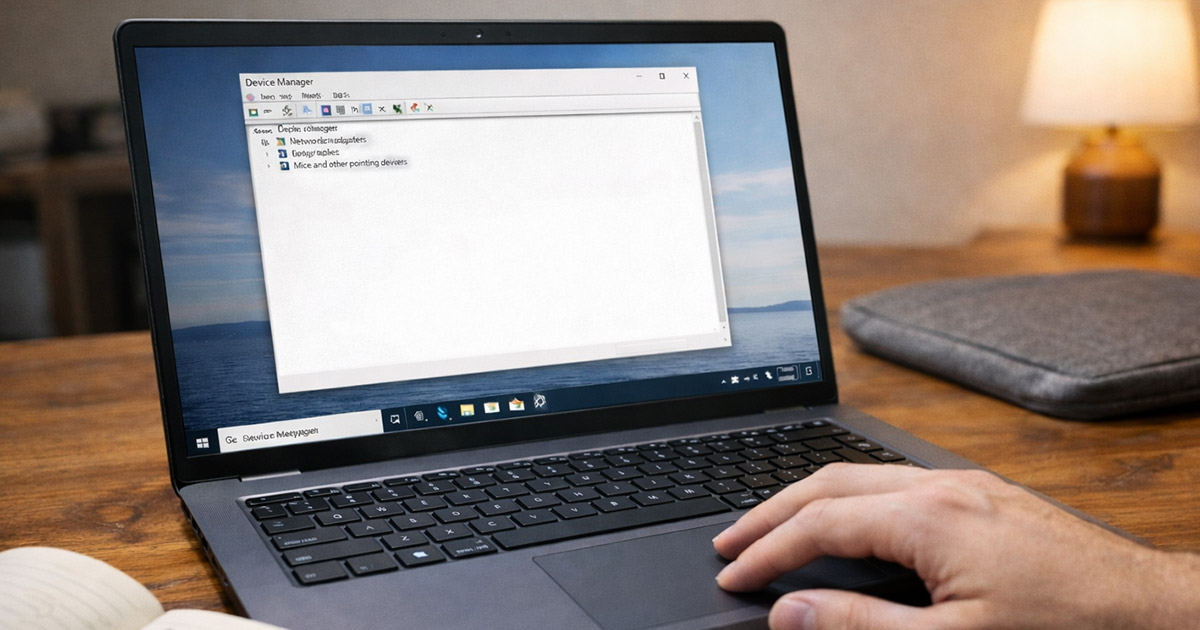
3) Check Device Manager for the touchpad’s identity
- Right-click Start → Device Manager.
- Expand these sections:
- Human Interface Devices
- Mice and other pointing devices
Look for items like:
- HID-compliant touch pad
- ELAN Input Device
- Synaptics TouchPad
- “I2C HID Device” (often tied to precision touchpads)
If you see a warning icon, that’s a big clue.
Test: If the touchpad works in BIOS but not in Windows, the device is detected and the issue is likely driver/software.
4) Re-enable, then restart the device (the polite reset)
- In Device Manager, right-click the touchpad-related device.
- If you see “Disable device,” click it, wait 5 seconds, then “Enable device.”
- If you see “Uninstall device,” don’t do that yet. We’re still being polite.
Test: Try cursor movement and tapping immediately after re-enable.
5) Adjust sensitivity and gestures if it’s “half working”
If movement works but gestures/taps are broken, treat it like a settings/driver behavior problem.
- Go to touchpad settings.
- Set sensitivity to Medium (or less aggressive).
- Turn off “press the lower right corner to right-click” type options temporarily if the clicking behavior is weird.
- Toggle gestures off/on.
Test: Two-finger scroll first. Then tapping. Then click.
This step is boring, but it catches the “palm rejection got weird” issue fast.
6) Update (or roll back) the touchpad driver the correct way
This is where people get sloppy. Don’t just hit “Update driver” and hope.
- In Device Manager, right-click the touchpad device → Properties.
- Go to the Driver tab.
Now choose the path based on what happened recently:
- If this started after an update:
- Click Roll Back Driver (if available).
Test: Reboot and test touchpad.
- Click Roll Back Driver (if available).
- If roll back isn’t available or didn’t help:
- Use your laptop manufacturer’s support page and install the touchpad driver for your exact model.
- If it’s a precision touchpad device, you may also need the chipset/I2C driver package from the manufacturer.
Test: After installing, reboot and test gestures and clicking.
Yes, it’s annoying that the “correct” driver is on a vendor website with a slow download portal and a design from 2009. Still the right move.
7) If the touchpad is missing in Settings, show hidden devices
Sometimes the device exists but Windows is hiding it like it’s ashamed.
- In Device Manager, click View → Show hidden devices.
- Re-check Human Interface Devices and Mice and other pointing devices.
- If you find a greyed-out touchpad device:
- Right-click → Uninstall device
- Reboot
Test: After reboot, see if touchpad options reappear in Settings and whether the device returns normally.
8) Run system file checks (when Windows feels “off”)
If drivers look normal but input is still broken, do the system integrity check. This targets corruption after failed updates or crashes.
Open Command Prompt as Administrator and run:
sfc /scannow
When it finishes, run:
DISM /Online /Cleanup-Image /RestoreHealth
Then reboot.
Test: Touchpad movement + clicking + gestures.
9) Clean boot the laptop (to catch vendor utility conflicts)
If you suspect software is hijacking input (OEM control centers, gesture apps, “mouse enhancement” utilities), isolate it.
- Press Windows + R, type:
msconfig
- Go to Services → check “Hide all Microsoft services” → Disable all.
- Go to Startup → Open Task Manager → disable startup apps.
- Reboot.
Test: If the touchpad works in a clean boot, something you installed (or your OEM bundled) is interfering. Re-enable services/startup items in chunks until the touchpad dies again. That last chunk contains the culprit.
10) Check BIOS/UEFI settings (detection-level troubleshooting)
If the touchpad doesn’t work even before Windows loads, or it’s missing from Device Manager entirely, check BIOS/UEFI.
Look for settings like:
- Internal Pointing Device
- Touchpad
- Advanced → I2C device settings (varies)
Make sure it’s enabled.
Test: Save and reboot. Try the touchpad in BIOS and then in Windows.
If it works in BIOS but not Windows, go back to drivers/software.
If it doesn’t work in BIOS either, keep going.
11) Hardware reality check
Now we stop pretending this is a settings issue.
Things to look for:
- Battery swelling (bottom bulging, trackpad click feels tight or uneven)
- Touchpad works intermittently when you press near it
- Laptop was dropped, flexed, or had liquid exposure
- Touchpad is dead in BIOS
Fix: If you’re comfortable opening the laptop:
- Reseat the touchpad ribbon cable (usually under the palmrest area, sometimes accessible after removing the bottom cover).
- While you’re in there, check the battery condition.
If you’re not comfortable opening it, don’t. A shop can reseat a cable quickly, and it’s cheaper than guessing and replacing parts you didn’t need.
Test: After reseating, confirm touchpad works in BIOS first, then in Windows.
Final Thoughts
A dead touchpad feels random because your hand expects it to work. But it’s usually not random.
Either it’s disabled, Windows swapped drivers, an external mouse setting is blocking it, or the system isn’t detecting the hardware. Once you figure out which category you’re in, the fix gets boring. In a good way.
Work in order. Make one change. Test after each step. If it doesn’t work in BIOS, stop wasting time in Windows settings and treat it like hardware or connection.
And if it turns out the battery is swelling and pushing the touchpad around, congratulations: you didn’t “break your touchpad.” You found a different problem that was going to get your attention anyway. There’s your gremlin.