
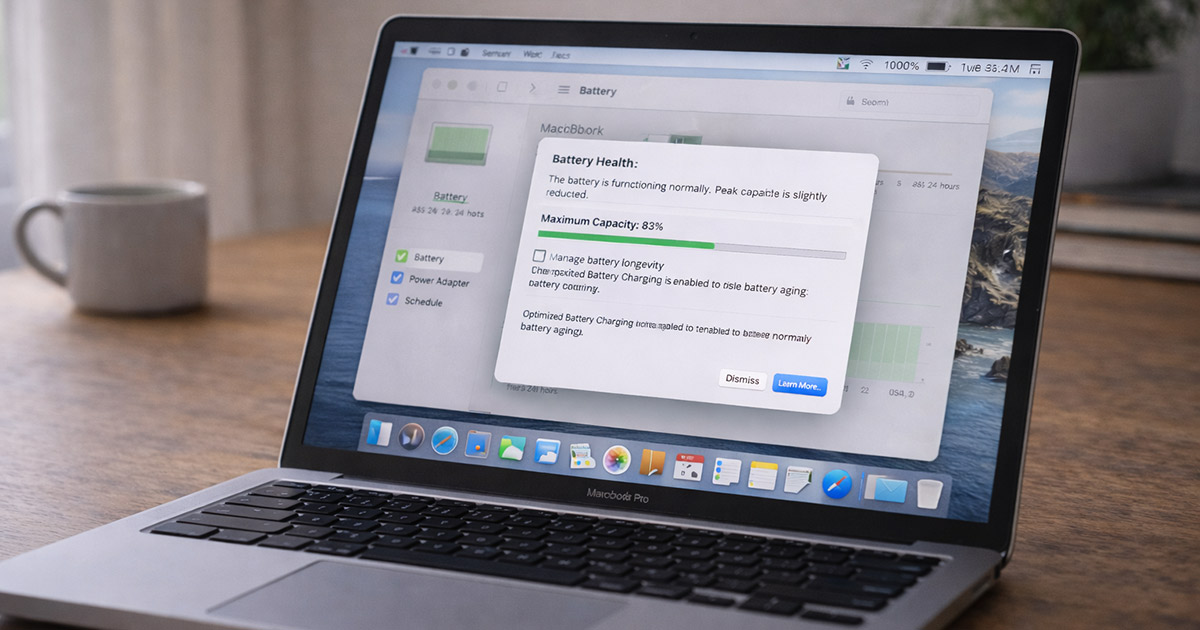
If your Mac’s battery life suddenly feels worse than it used to, you’re not imagining it.
You didn’t suddenly start using it wrong. You didn’t “break” anything.
Mac batteries lose capacity over time. That’s normal. What’s frustrating is when the drop feels sudden — like you used to get 8 hours and now you’re barely getting 4.
In most cases, faster battery drain is caused by battery aging, background processes, or power settings — not a defective Mac.
Let’s break down what’s actually going on.
Why a Mac Battery Drains Faster Over Time
Every rechargeable battery wears down. That’s physics, not a flaw.
As your Mac battery ages:
- It holds less total charge
- It drains faster under load
- The percentage drops more quickly
- Runtime becomes less predictable
After a few years, this is expected.
What’s not expected is losing hours of battery overnight. When that happens, there’s usually something else running in the background.
The Most Common Causes of Fast Battery Drain
1. Battery Aging and Cycle Count (Most Common)
Mac batteries are rated for a certain number of charge cycles.
Each full cycle slightly reduces maximum capacity. Over time:
- 100% isn’t really 100% anymore
- The battery empties faster
- You notice shorter unplugged sessions
This isn’t a failure. It’s normal wear.
You can check battery health in System Settings → Battery → Battery Health to see how much capacity remains.
2. Background Apps You Don’t Realize Are Running
This is where most people get surprised.
Your Mac might look idle — but behind the scenes it could be:
- Syncing iCloud
- Indexing files
- Analyzing Photos
- Uploading to cloud storage
- Running browser scripts
- Updating apps
These processes quietly use CPU power, and CPU power drains battery.
One heavy background task can cut battery life in half.
3. Screen Brightness (Bigger Than You Think)
The display is one of the biggest battery consumers on a Mac.
If your brightness is high, battery life drops fast. Add HDR or an external monitor, and it drops even faster.
Lowering brightness just 20–30% can noticeably extend runtime.
It’s boring advice. It works.
4. Recent macOS Update
Right after a macOS update, battery life often looks worse.
Why?
Because macOS is:
- Re-indexing files
- Rebuilding search data
- Syncing system changes
- Optimizing apps
During this time, CPU usage stays elevated. That drains battery.
In many cases, this improves after a day or two.
5. One Power-Hungry App
Sometimes it’s not the system. It’s one app.
Common culprits:
- Web browsers with 20+ tabs
- Video calls
- Streaming services
- Background utilities
- Older, poorly optimized software
Go to System Settings → Battery → Usage by App and look at what’s actually consuming energy.
The biggest drain is usually obvious.
6. External Devices Pulling Power
Anything plugged into your Mac draws energy.
That includes:
- External drives
- USB hubs
- Charging your phone
- External monitors
- Audio interfaces
If you’re unplugged, disconnect what you don’t need.
7. Performance Over Efficiency
Some Macs prioritize performance when unplugged, especially under load.
Higher CPU speeds = faster battery drain.
If you want runtime over performance, enabling Low Power Mode makes a noticeable difference.
How to Fix a Mac Battery That Drains Too Fast
Step 1: Check Battery Health
Go to:
System Settings → Battery → Battery Health
If maximum capacity is significantly reduced, shorter runtime is expected.
If you see “Service Recommended,” the battery may need replacement.
Step 2: Identify the Real Drain
Open Battery → Usage by App and look at what’s actually consuming energy.
Close or uninstall apps that consistently use high power.
Don’t guess. Check.
Step 3: Lower Screen Brightness
- Reduce brightness manually
- Enable Auto-Brightness
- Disable HDR unless needed
This is one of the fastest ways to extend battery life.
Step 4: Enable Low Power Mode
Low Power Mode:
- Reduces CPU performance
- Limits background activity
- Extends battery runtime
If you’re working unplugged, it’s worth turning on.
Step 5: Let macOS Finish Its Work
If you just updated your Mac:
- Plug it in
- Let it sit idle
- Don’t force-quit system tasks
Battery life often improves after indexing completes.
Step 6: Disconnect Unnecessary Accessories
Unplug:
- External monitors
- USB drives
- Charging cables
You’ll often see immediate improvement.
Step 7: Keep macOS Updated
Updates frequently improve:
- Power efficiency
- App optimization
- Battery management
Staying updated helps more than people realize.
What Not to Do
Don’t install “battery optimizer” apps.
Don’t constantly keep your Mac at 100%.
Don’t panic over minor percentage drops.
Don’t assume poor battery life means your Mac is dying.
Most battery drain issues are normal wear or software-related.
When It’s Actually a Hardware Problem
The situation may be more serious if:
- Battery life suddenly drops by several hours
- Your Mac shuts down unexpectedly
- You see “Service Recommended”
- The Mac overheats while draining quickly
In those cases, battery replacement may be necessary.
The good news? Replacing the battery often makes the Mac feel brand new again.
Final Thoughts
If your Mac battery drains faster than it used to, the most common cause is simple: battery aging plus background activity.
You probably didn’t break anything.
Check battery health. Identify power-hungry apps. Lower brightness. Use Low Power Mode when needed.
Most of the time, a few small adjustments noticeably improve runtime.
If you’re troubleshooting other Mac power or performance issues, explore the related guides on FixTechProblem.com for clear, step-by-step fixes.