
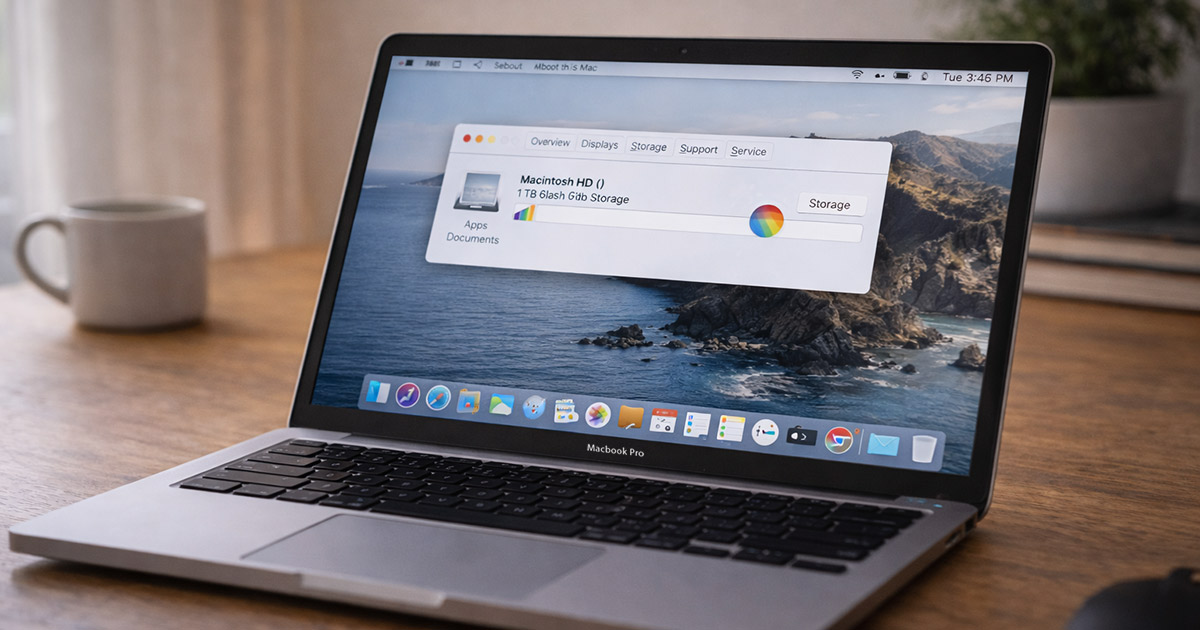
You check your storage.
200GB free.
Maybe 500GB free.
So why does your Mac feel… slow?
Apps hesitate.
Windows take longer to open.
The beachball shows up like it pays rent.
And your first thought is:
“I have tons of space. It shouldn’t be slow.”
You’re right about one thing — storage space alone isn’t the whole story.
Free storage helps.
But it’s only one piece of performance.
Let’s talk about what actually makes a Mac feel slow — even when you’ve got plenty of space left.
First: Storage ≠ Performance
A Mac can have plenty of free storage and still feel sluggish because performance depends on:
- CPU usage
- RAM usage
- Background processes
- Thermal throttling
- Startup items
- macOS indexing
- System caching
Storage capacity is just one factor.
So if you’ve already cleared space and nothing improved, you’re not crazy.
We’re just looking in the wrong place.
The Most Common Reasons This Happens
1. RAM Pressure (Extremely Common)
This is the biggest one I see.
Your Mac might have enough storage — but not enough available memory (RAM).
When RAM fills up:
- macOS starts swapping to disk
- Apps pause
- The system hesitates
- The beachball appears
Open Activity Monitor → Memory tab.
If Memory Pressure is yellow or red, that’s your slowdown.
Browsers are the usual suspects.
Multiple tabs. Extensions. Background web apps.
Each one quietly eats RAM.
Fix:
- Close unused apps
- Reduce browser tabs
- Disable unnecessary extensions
- Restart occasionally (yes, it helps)
RAM pressure makes fast Macs feel slow.
2. Background Processes Working Hard
macOS does a lot behind the scenes.
Especially after updates.
It may be:
- Re-indexing Spotlight
- Syncing iCloud
- Rebuilding Photos library
- Running Time Machine backups
- Installing background updates
Open Activity Monitor → CPU tab and sort by CPU usage.
If you see system processes working hard, the Mac isn’t “slow.”
It’s busy.
Most of the time, this settles within 24–48 hours after major updates.
3. Too Many Login Items
Over time, apps add themselves to startup.
You might not notice them — but they’re launching at boot.
Go to:
System Settings → General → Login Items
You may see:
- Cloud apps
- Messaging apps
- Menu bar utilities
- Auto-updaters
Each one adds load at startup.
Even if you have storage space, startup clutter slows the experience.
Disable what you don’t need.
Your Mac should boot lean.
4. Thermal Throttling (Yes, Even Macs)
If your Mac gets warm during light tasks, it may be throttling performance.
When temperatures rise:
- The CPU reduces speed
- Performance drops
- Everything feels slower
Even simple tasks can feel delayed.
This is especially common if:
- The Mac is on a soft surface
- Vents are dusty
- It’s a few years old
If the fan is running often during light use, heat may be limiting performance.
Use it on a hard surface. Keep vents clear.
Heat silently slows things down.
5. macOS Update Residue
After macOS updates, your system may:
- Rebuild caches
- Re-index files
- Re-optimize storage
- Reconfigure system services
This can make a fast Mac feel sluggish temporarily.
It’s not damage.
It’s background cleanup.
If you updated recently, give it a day or two before assuming something broke.
6. Storage Type Matters (SSD vs Aging SSD)
Even if you have free space, SSD performance can degrade slightly over many years.
Especially if:
- It’s nearly full often
- It’s older
- It’s heavily used
This is rare — but possible on older machines.
Modern Macs handle storage efficiently, but age does matter.
7. Browser Overload
This deserves its own callout.
I’ve seen powerful Macs feel “slow” because of:
- 40+ Chrome tabs
- Multiple browser windows
- Heavy extensions
- Web apps running constantly
Browsers are resource hogs.
Especially Chrome.
Close everything. Restart the browser.
Watch how much faster the system feels.
It’s not always the Mac.
Sometimes it’s the tabs.
Step-By-Step Fix (No Panic Required)
Work through this calmly:
✔ Restart the Mac
✔ Open Activity Monitor and check CPU + Memory
✔ Close unused apps and browser tabs
✔ Disable unnecessary Login Items
✔ Make sure you’re not overheating
✔ Install pending macOS updates
✔ Let the system finish background indexing
One change at a time.
Observe what improves.
That’s how you isolate the real cause.
When It’s More Than Normal Slowdown
You may need deeper troubleshooting if:
- Memory pressure stays red constantly
- CPU usage remains high even at idle
- The Mac freezes frequently
- Apps crash repeatedly
That’s when we consider:
- Corrupted user profile
- Failing hardware
- Severe software conflicts
But that’s not most cases.
Most “slow Mac with plenty of storage” complaints come down to RAM pressure and background load.
Final Thoughts
If your Mac is running slow even though you have plenty of storage, the problem isn’t space.
It’s workload.
Usually:
- RAM pressure
- Background processes
- Login items
- Heat
- Or browser overload
Storage is only one piece of performance.
Free space helps.
But memory, CPU usage, and system load matter just as much.
Start with Activity Monitor. That’s your truth serum.
And no — having 300GB free doesn’t guarantee speed.
Performance is about balance, not just empty space.
If you’re troubleshooting other Mac performance issues, explore the related guides on FixTechProblem.com for clear, step-by-step solutions.