
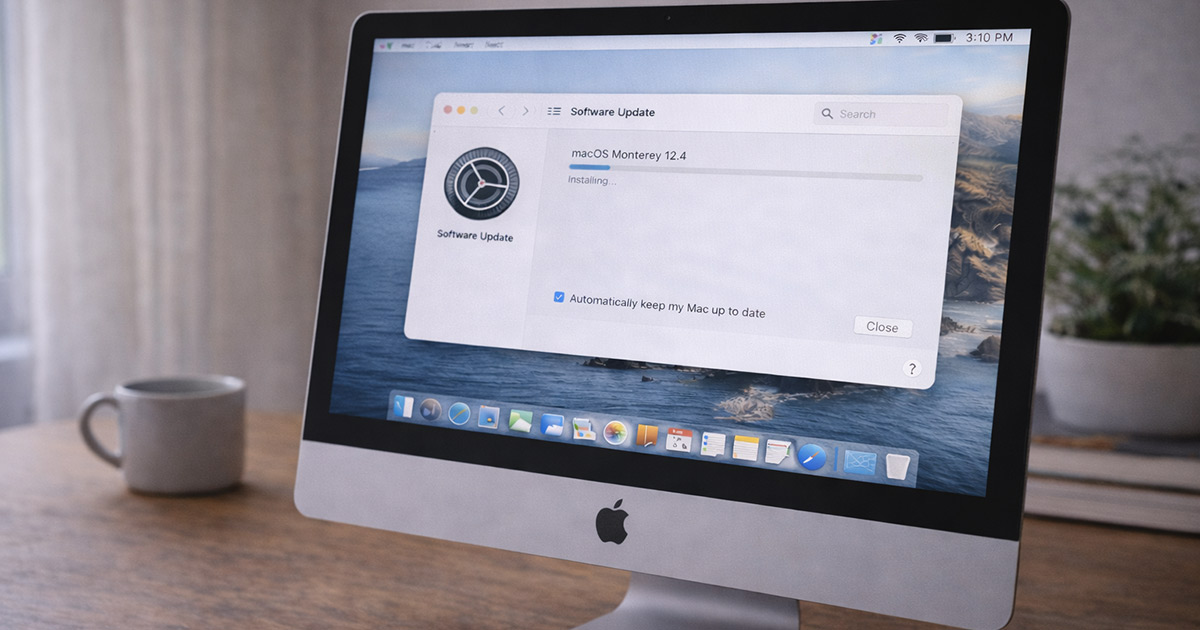
You update macOS.
It reboots.
You log back in.
And something feels off.
Apps open slower.
The fan spins more.
The beachball shows up just long enough to annoy you.
Immediate thought:
“Why did I update?”
Take a breath.
In most cases, nothing is broken.
Your Mac is just busy finishing work behind the scenes.
And that work can temporarily make even a fast Mac feel slow.
Let’s break down what’s actually happening.
First: The Update Isn’t Done When It Restarts
When macOS finishes installing and reboots, that’s just the visible part.
After login, your Mac often continues:
- Re-indexing Spotlight
- Rebuilding system caches
- Re-analyzing Photos libraries
- Syncing iCloud
- Optimizing storage
- Updating background services
All of that uses CPU, memory, and disk activity.
And when those are active, performance dips.
It doesn’t mean the update ruined your Mac.
It means it’s reorganizing itself.
The Most Common Reasons Your Mac Feels Slow After an Update
1. Spotlight Re-Indexing (Extremely Common)
This is the big one.
After major updates, Spotlight rebuilds its entire search index.
That process:
- Uses CPU
- Hits the disk heavily
- Runs for hours (sometimes longer on large drives)
While that’s happening, apps can hesitate.
If your Mac was updated within the last 24–48 hours, this is likely the cause.
You don’t always see it — but you feel it.
Usually, once indexing finishes, performance stabilizes.
2. iCloud Resyncing
After updates, iCloud may:
- Re-sync files
- Re-verify documents
- Re-process Photos
- Reconnect background services
If you use iCloud Drive heavily, this can create noticeable background activity.
Open Activity Monitor and check CPU and Network usage.
If Apple-related processes are active, the system is just syncing.
3. Login Items Re-Enabled
Some updates reset or re-enable:
- Login items
- Background apps
- Menu bar utilities
You might suddenly have more things launching at boot.
That adds load immediately.
Go to:
System Settings → General → Login Items
Disable anything you don’t truly need at startup.
Lean startup = faster Mac.
4. RAM Pressure Increased
Sometimes an update introduces:
- New background services
- Heavier system features
- More aggressive caching
If your Mac has lower RAM (8GB especially), updates can push it closer to memory limits.
Open Activity Monitor → Memory tab.
If Memory Pressure is yellow or red, that’s your slowdown.
Browsers + system services together can overwhelm limited RAM.
5. Thermal Throttling
New macOS versions sometimes change:
- Power management
- Background behavior
- Visual effects
If your Mac runs warmer after updating, it may throttle performance slightly.
When temperatures rise, the CPU slows down to protect itself.
If the fan runs more often than before, heat may be contributing.
Use the Mac on a hard surface and keep airflow clear.
6. Old Apps Not Optimized Yet
Sometimes apps need updates to match the new macOS version.
If older apps:
- Lag
- Freeze
- Use high CPU
…they may not be fully optimized yet.
Update all apps through the App Store or directly from developers.
Software mismatches can make the system feel unstable.
What To Do (Without Regretting the Update)
Let’s handle this calmly.
Step 1: Restart Again
Yes, again.
A second reboot after a major update often smooths out lingering background processes.
It sounds simple.
It works surprisingly often.
Step 2: Give It Time
If you updated today, give the system 24–48 hours.
Leave it plugged in and idle for a while so indexing and syncing can finish.
Constantly interrupting it slows the cleanup process.
Patience matters here.
Step 3: Check Activity Monitor
Look at:
- CPU
- Memory
- Energy
If system processes are active, let them finish.
If one third-party app is hogging resources, update or remove it.
Don’t guess. Observe.
Step 4: Clean Up Login Items
Disable:
- Auto-launching apps
- Unnecessary background utilities
Less startup load makes the system feel lighter instantly.
Step 5: Update All Apps
Open the App Store → Update everything.
Developers release compatibility patches quickly after major macOS releases.
Old app + new macOS = performance friction.
Step 6: Check Storage Health (Just in Case)
Even if you have free space, try to maintain at least 15–20% free storage.
macOS performs best when it has breathing room.
When It’s Not Temporary
You may need deeper troubleshooting if:
- Performance remains poor after several days
- Memory pressure stays red constantly
- Apps crash repeatedly
- The system freezes
That’s when we look at:
- Corrupt user profiles
- Driver-level issues
- Rare update conflicts
But that’s not the majority.
Most post-update slowdowns are temporary workload, not damage.
Final Thoughts
If your Mac is slow after a software update, it usually isn’t broken.
It’s reorganizing.
Updates trigger:
- Re-indexing
- Re-syncing
- Cache rebuilding
- Background optimization
That temporary activity feels like slowdown.
Most Macs stabilize within a day or two.
And I’ll say this clearly:
The update almost never “ruins” performance permanently.
It just makes the system work harder for a little while.
Give it time. Trim startup clutter. Watch Activity Monitor.
And don’t panic.
If you’re troubleshooting other Mac performance issues, explore the related guides on FixTechProblem.com for clear, step-by-step solutions.