
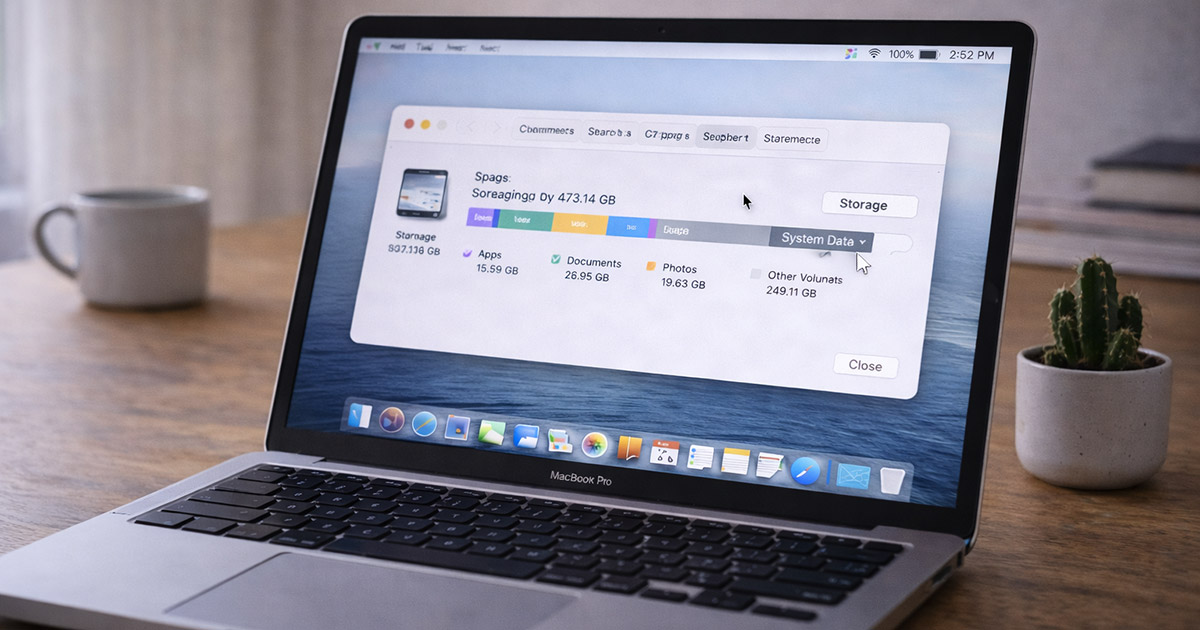
If your Mac shows “System Data” taking up a massive amount of storage, you’re not alone.
And no — it’s not secretly installing something weird.
“System Data” is a catch-all category.
It includes:
- Caches
- Logs
- Temporary files
- Virtual memory
- Snapshots
- App support files
- System frameworks
- Update leftovers
The problem?
macOS groups all of that under one label.
So when it grows, it looks mysterious.
But it’s usually predictable — and manageable.
Let’s break it down.
First: What “System Data” Actually Is
macOS doesn’t list every hidden file individually in Storage settings.
Instead, it groups many things under System Data.
This includes:
- Spotlight indexes
- Safari and browser caches
- App caches
- System logs
- Time Machine local snapshots
- iOS device backups
- Virtual memory swap files
Some of these are normal.
Some grow over time.
Some can balloon unexpectedly.
And that’s when people get nervous.
The Most Common Reasons System Data Gets Huge
1. Time Machine Local Snapshots (Very Common)
Even if you don’t actively use Time Machine every day, macOS may create local snapshots.
These are temporary backups stored on your drive.
They’re meant to:
- Protect your data
- Help with file recovery
- Improve restore reliability
But if snapshots accumulate, they can consume tens — even hundreds — of gigabytes.
They’re supposed to shrink automatically when space is needed.
Sometimes they don’t shrink as quickly as expected.
You can check for them using Terminal:
tmutil listlocalsnapshots /
If you see many entries, that’s likely your “missing” space.
2. App Caches That Never Cleared
Apps create cache files to speed things up.
Browsers are especially guilty.
Over time:
- Safari cache
- Chrome cache
- App temp files
…can grow much larger than necessary.
Most caches are harmless — but they don’t always clean themselves efficiently.
And macOS lumps them into System Data.
3. iOS Device Backups
If you’ve backed up an iPhone or iPad to your Mac, those backups live locally.
And they can be huge.
Open:
Finder → Go → Go to Folder →
~/Library/Application Support/MobileSync/Backup
You might find multiple large backup folders there.
If you don’t need them, they can be removed.
4. macOS Update Residue
Major updates leave behind:
- Old installers
- Temporary update files
- Cache rebuild data
Most of it cleans up automatically.
Sometimes leftovers stick around longer than they should.
Especially after large version upgrades.
5. Virtual Memory (Swap Files)
If your Mac frequently runs low on RAM, macOS uses disk space as temporary memory.
These are called swap files.
Heavy RAM usage = larger swap files.
They’re necessary.
They’re temporary.
They’re included in System Data.
If you constantly push memory limits, this category grows.
6. Logs and System Junk
Over time, macOS accumulates:
- Diagnostic logs
- Crash reports
- Background logs
Individually they’re small.
Collectively? Not always.
How to Fix Large System Data (Without Breaking Anything)
Now let’s clean this up carefully.
No random file deleting.
No “drag everything to Trash and pray.”
Step 1: Restart Your Mac
Yes, first.
A restart clears:
- Swap files
- Temporary caches
- Background processes
You’d be surprised how often System Data shrinks after a clean reboot.
Start simple.
Step 2: Remove Time Machine Local Snapshots (If Necessary)
If snapshots are consuming space:
You can delete them with:
sudo tmutil deletelocalsnapshots YYYY-MM-DD-HHMMSS
Or temporarily disable local snapshots.
Be careful. Only remove snapshots you don’t need.
Step 3: Clear Browser Caches
In Safari:
Safari → Settings → Advanced → Show Develop Menu
Develop → Empty Caches
In Chrome:
Settings → Privacy → Clear Browsing Data
Browsers quietly accumulate large caches over time.
Step 4: Remove Old iOS Backups
Navigate to:
~/Library/Application Support/MobileSync/Backup
Delete backups you no longer need.
These alone can free tens of gigabytes.
Step 5: Review Large Files Manually
Open:
System Settings → General → Storage
Scroll through categories carefully.
Sometimes “System Data” hides files that appear elsewhere once you dig deeper.
Step 6: Let macOS Manage Storage
Enable:
Optimize Storage
macOS is generally good at freeing purgeable space when needed.
Don’t fight it unless the storage pressure is real.
When You Should Not Panic
If:
- You still have 20%+ free storage
- The Mac is running normally
- System Data fluctuates
That’s normal behavior.
macOS dynamically adjusts this category.
It grows and shrinks.
It’s not always permanent usage.
When It’s Actually a Problem
It’s concerning if:
- Storage is nearly full
- System Data keeps growing daily
- Performance drops significantly
- Free space doesn’t recover after cleanup
That’s when deeper inspection makes sense.
But that’s not most cases.
Most “huge System Data” situations are:
- Snapshots
- Caches
- Backups
- Or temporary system files
Not hidden corruption.
Final Thoughts
If Mac Storage shows System Data as huge, it’s not mysterious malware.
It’s macOS grouping together:
- Caches
- Snapshots
- Logs
- Swap files
- Update leftovers
That category looks dramatic because it’s broad.
Start with a restart.
Check for snapshots.
Clear old backups.
Empty browser caches.
And don’t randomly delete system folders.
Your Mac isn’t secretly hoarding something evil.
It’s just managing a lot of behind-the-scenes data.
If you’re troubleshooting other Mac storage or performance issues, explore the related guides on FixTechProblem.com for clear, step-by-step solutions.