
You install an update because you’re told it’s “important.”
Your phone restarts. Everything looks normal.
Then the battery starts hemorrhaging like it’s trying to win a speedrun.
By noon you’re at 32%, and you haven’t even done anything fun.
This is fixable.
We diagnose logically first, then fix it. One change at a time.
Why This Is Happening
Updates don’t just “add features.” They reshuffle the entire house.
Right after an update, your phone is usually doing extra work in the background, re-checking permissions, rebuilding indexes, syncing accounts, and sometimes getting stuck in a loop because one app didn’t get the memo.
Battery drain after an update usually falls into a few buckets.
1) Background re-indexing and “catch-up” tasks
After a major OS update, the system often rebuilds things like:
- Search indexes (so your phone can find apps, contacts, photos fast)
- Photo analysis (faces, objects, “Memories,” whatever your phone calls it)
- App optimization (recompiling or optimizing apps for the new OS)
- Library syncing (messages, photos, cloud storage)
That all costs CPU time. CPU time costs battery.
Symptoms/clues:
- Phone gets warm while doing nothing
- Battery drops steadily even with the screen off
- It’s worst in the first 24–72 hours after the update
Quick test: Put the phone down, screen off, for 30 minutes. If it still warms up and loses multiple percent without notifications coming in, background work is happening.
Fix: Mostly time, plus making sure it’s allowed to finish efficiently (Wi-Fi + charging helps).
2) One app is misbehaving after the update
This is the classic. The OS changes something, an app doesn’t like it, and now it’s:
- Hammering location services
- Spamming background refresh
- Crashing and relaunching silently
- Trying (and failing) to sync endlessly
Symptoms/clues:
- Battery usage shows one app way above normal
- Phone runs hot near the camera bump or mid-back area
- Drain continues for days, not just the first day
Quick test: Check battery usage details and look for an outlier app.
Fix: Update the app, restrict its background behavior, or reinstall it.
3) Location services got “reset louder” than before
Updates often revisit privacy and location settings. Sometimes an app that used to be “While using” ends up behaving like it’s always invited.
Location is expensive. Especially if multiple apps are asking for it and the phone is constantly negotiating GPS, Wi-Fi scanning, and cell triangulation.
Symptoms/clues:
- Location arrow/indicator shows up frequently
- Battery drain is worse while moving (commuting, walking, driving)
- “Maps,” “Weather,” “Fitness,” “Social” apps spike
Quick test: Look at which apps have “Always” location access.
Fix: Reduce location permissions and disable unnecessary system location features.
4) Push email and sync are stuck in a loop
After an update, accounts sometimes re-authenticate or re-sync.
If one account (especially Exchange/Work, Gmail with multiple profiles, or a calendar account) gets stuck, it can repeatedly try to connect.
Symptoms/clues:
- Mail app spins or shows repeated errors
- Calendar events duplicate or don’t refresh
- Battery usage points to Mail, Accounts, or “System”
Quick test: Temporarily disable one account and see if drain improves.
Fix: Re-add the account cleanly, or fix the authentication prompt you ignored.
5) Screen and radio settings change (or you start using the phone differently)
Sometimes the update didn’t “cause” the drain directly.
It changed defaults. Or it nudged you into new features that eat power.
Common culprits:
- Higher screen brightness or different auto-brightness behavior
- Always-on display turning itself on
- More aggressive 5G usage
- New widgets refreshing constantly
- “Live” wallpapers or heavier animations
Symptoms/clues:
- Drain is worst during screen-on time
- Battery graph shows sharp drops while actively using the phone
- No single app stands out, but “Screen” time is high
Quick test: Compare screen-on time versus battery drop. If your phone dies with high screen-on hours, it’s mostly display + usage.
Fix: Tune display settings, 5G behavior, and the “new stuff” you didn’t ask for.
6) Battery health was already on thin ice
Updates can expose a weak battery because the OS may use the CPU differently, or background tasks increase temporarily and your battery can’t keep up.
A worn battery drops voltage faster under load, so you see:
- Bigger percentage swings
- Sudden drops at 20–30%
- Shutdowns when the phone still claims it has charge
Symptoms/clues:
- Phone is older (2–4+ years) or heavily used
- Battery percentage “jumps” down
- Performance feels throttled when battery is low
Quick test: Check battery health/capacity in system settings.
Fix: Battery replacement (or at least adjusting expectations and settings).
How to Fix It
This is the order that tends to save time. Start simple. Don’t shotgun five changes and then wonder which one worked.
After each step: Test: watch battery drain for at least 1–2 hours of normal use (or overnight if the issue is mostly standby drain).
1. Give it one proper “post-update settling” cycle
If you updated in the last 24–72 hours, the phone may still be rebuilding things.
What to do:
- Put it on Wi-Fi
- Plug it in for an hour or two
- Let it sit with the screen off
That lets the heavy background tasks finish faster, instead of dragging them out on battery.
Test: After a full charge, check standby drain over 2–3 hours with normal notifications. It should calm down noticeably.
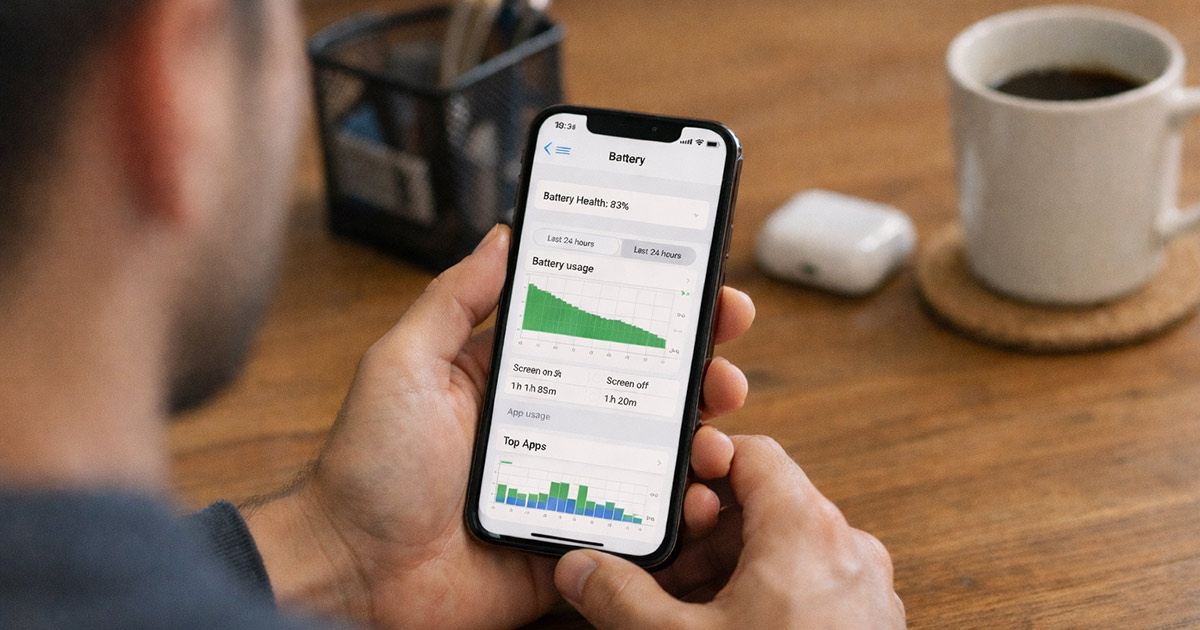
2. Check battery usage and hunt the outlier app
You’re looking for one app acting like it’s mining crypto in your pocket.
On iPhone (general path): Settings → Battery
On Android (general path): Settings → Battery → Battery usage
Look for:
- An app with an unusually high percentage
- “Background activity” being dominant
- An app you barely used but somehow “worked” a lot
Fix: Update that app first (App Store / Play Store). If it’s already updated, move to the next steps.
Test: After updating the culprit app, monitor for heat + drain for a couple hours.
3. Force-close and restart once (yes, once)
This is not magic. It’s cleanup.
After an OS update, processes can get stuck in weird states. A restart clears that.
Fix: Restart the phone normally.
Test: If drain was caused by a stuck process, you’ll usually feel it within the next hour: less heat, slower drop.
4. Turn off Background App Refresh (or restrict it)
Background refresh is useful for a handful of apps. For everything else, it’s just constant “checking in.”
On iPhone: Settings → General → Background App Refresh
On Android: Settings → Apps → (App) → Battery → Background restrictions (varies by brand)
Start by disabling it for:
- Social apps you don’t need instant updates from
- Shopping apps
- Games
- Anything with ads (they love background behavior)
Test: Standby drain overnight. If you wake up and the phone lost 15–25% doing nothing, and now it loses 3–8%, you found a big lever.
5. Audit location permissions (this one matters)
Location is one of the fastest ways to burn battery without noticing.
What to do:
- Set most apps to “While using” (or “Ask every time” for apps you rarely need)
- Remove “Always” from anything that doesn’t truly need it
- Disable precise location for apps that don’t need street-level accuracy
Also check system features that use location constantly (names vary by OS), like:
- Location-based alerts/suggestions
- Wi-Fi/Bluetooth scanning “to improve accuracy”
- Frequent location history
Test: Watch for the location indicator popping up less often. Battery should follow.
6. Fix email/accounts that are looping
If your battery screen shows Mail/Accounts/System services high, or you’re seeing account errors, don’t ignore it. It’s usually retrying endlessly.
Fix: Temporarily remove the suspicious account, then add it back.
On iPhone (general path): Settings → Mail → Accounts
On Android: Settings → Passwords & accounts (or Accounts)
If it’s a work account, make sure you didn’t miss a “Sign in again” prompt after the update.
Test: If the account was looping, battery drain improves fast (often within an hour).
7. Reset network settings (when radios are the suspect)
After updates, Wi-Fi and cellular handoffs can get messy. If your phone is constantly hunting signal or bouncing between networks, battery drops hard.
Clues:
- Drain is worse outside the house
- Signal is weak in your usual places
- Phone gets warm during idle while on cellular
Fix: Reset network settings (this removes saved Wi-Fi networks and VPN configs, so you’ll need passwords again).
On iPhone (path): Settings → General → Transfer or Reset iPhone → Reset → Reset Network Settings
On Android: Usually Settings → System → Reset options → Reset Wi-Fi, mobile & Bluetooth (wording varies)
Test: Take a normal trip (errands/commute). If the phone stops overheating and drain slows, the radios were the issue.
8. Tame the display (because it’s still the biggest battery eater)
If your drain tracks with screen-on time, stop blaming the update and look at the glowing rectangle.
Fix options:
- Lower brightness or let auto-brightness work
- Shorten screen timeout
- Disable always-on display (if enabled)
- Reduce motion/animations (helps a little, not miracles)
- Switch from 5G to LTE if your area has weak 5G (weak 5G is a battery shredder)
Test: Compare battery drop over one hour of similar use before/after changing display settings.
9. Update everything, including system patches
Some battery issues are real OS bugs that get patched quickly. Same for apps.
Fix:
- Install the latest OS patch available (not just the major update)
- Update all apps
This is one of the rare times “update it” isn’t a lazy answer. Post-update drain issues are often fixed in minor releases because enough people complain loudly.
Test: After patching, give it a day of normal use. Battery behavior should stabilize.
10. Clear problem apps the hard way (reinstall)
If battery usage clearly points at one app and nothing else worked:
- Uninstall it
- Reboot once
- Reinstall it
- Log in fresh
This clears corrupted caches and forces the app to rebuild its local data cleanly for the new OS.
Test: If the app was thrashing in the background, the improvement is usually obvious.
11. Last resort: settings reset (not a factory wipe)
If you’ve tried the logical stuff and the phone still drains like it’s offended, a settings reset can clear weird post-update configuration conflicts.
This is not the same as wiping the phone. But it does reset preferences.
On iPhone, “Reset All Settings” lives in the same reset menu as network reset. On Android, you may have “Reset app preferences” plus other reset options depending on the manufacturer.
Safe reset method: Back up first. Then reset settings, not storage/data.
Test: Standby drain overnight. If it’s finally normal, the update left behind a gremlin in settings.
12. Check battery health and be honest about hardware
If your battery health/capacity is low, you can tweak settings forever and still lose.
Things to look for:
- Significantly reduced maximum capacity / health rating
- Unexpected shutdowns
- Performance throttling warnings
Fix: Replace the battery if the phone is worth keeping. Otherwise, you’ll keep playing “why is it dying” every time the OS gets heavier.
Test: A fresh battery makes the whole device feel less fragile. Not faster in a magical way. Just… stable.
Final Thoughts
A battery that drains fast after an update usually isn’t a mystery. It’s workload plus one or two settings or apps that didn’t transition cleanly.
Start with the boring logic: let background tasks finish, identify the outlier app, rein in background refresh and location, and fix any account sync loops. Those four steps solve most cases without drama.
If it’s still draining days later, that’s when you stop being polite and start isolating the culprit. One change at a time. Test after each step. The phone will tell you what’s wrong if you actually listen to the data instead of vibes.
And if battery health is tanked, the update didn’t “ruin” your phone. It just stopped politely tiptoeing around a tired battery.