
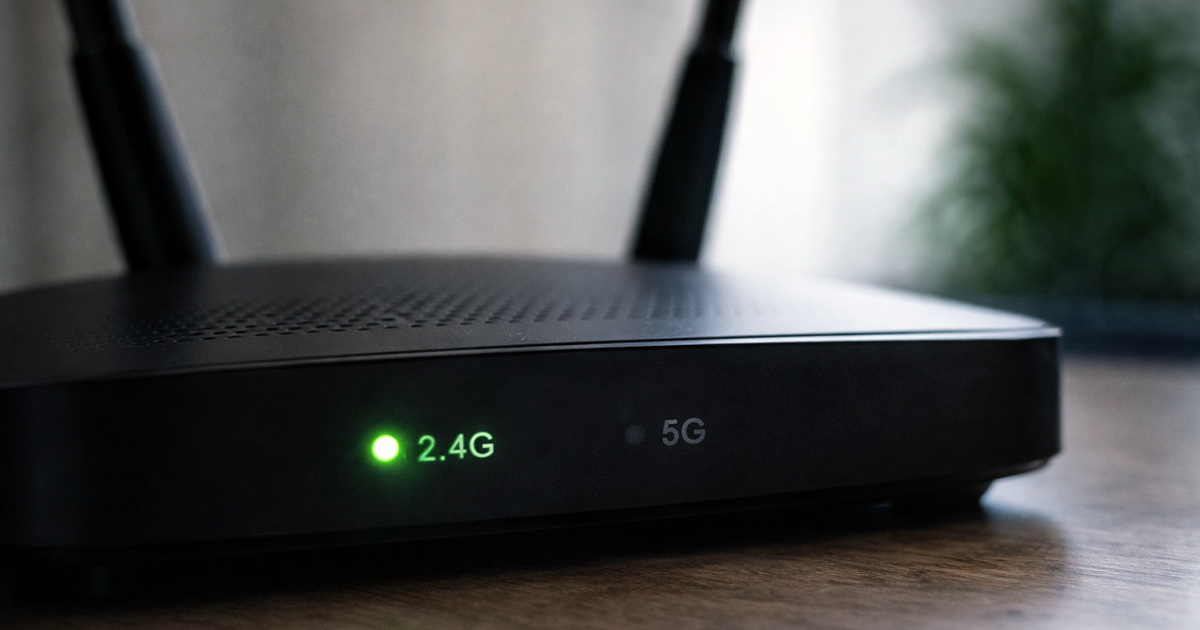
If your 5GHz Wi-Fi keeps disconnecting but 2.4GHz works perfectly fine, you’re not crazy.
You’re not “doing something wrong.”
And your internet provider probably isn’t sabotaging you.
This is one of the most common home network complaints right now.
You might notice:
- The 5GHz network disappears completely
- Devices randomly switch to 2.4GHz
- Streaming buffers only on 5GHz
- Gaming lags… but only sometimes
- Restarting the router fixes it for a few hours
That pattern tells us something important:
When 2.4GHz stays stable but 5GHz drops, the router itself isn’t fully failing. The faster band is struggling — and there’s usually a specific, fixable reason.
Let’s break it down calmly.
First: Why 5GHz Is More Sensitive Than 2.4GHz
This is the part most people don’t realize.
5GHz is:
- Faster
- Lower latency
- Less crowded
- But shorter range
- More sensitive to obstacles
2.4GHz is:
- Slower
- More congested
- But travels farther
- Better at going through walls
So when 5GHz drops but 2.4GHz holds steady, that’s not random. It’s physics.
5GHz is powerful — but it doesn’t travel well through:
- Thick walls
- Brick
- Metal
- Large appliances
- Floors
Think of 5GHz like a sports car. It’s fast and efficient — but it doesn’t handle rough terrain well.
That difference alone explains a large percentage of “5GHz keeps dropping” complaints.
The Most Common Reasons 5GHz Keeps Disconnecting
1. Signal Strength Is Just Barely Too Weak (Most Common)
This is the biggest culprit.
You don’t have to be far from the router.
You just have to be far enough.
If you’re:
- In the next room
- Upstairs
- Behind multiple walls
- Near metal shelving or appliances
…the 5GHz signal weakens quickly.
Once it drops below a stable threshold, your device will quietly switch to 2.4GHz to avoid losing connection entirely.
That’s not failure. That’s your device trying to help.
Fix:
- Move closer to the router and test
- Relocate the router to a central location
- Elevate it off the floor
- Keep it out in the open
Even moving it a few feet higher can improve 5GHz stability.
2. Router Overheating
Routers run nonstop. And the 5GHz radio generates more heat than 2.4GHz.
If your router is:
- Very warm or hot
- Inside a cabinet
- Covered in dust
- Sitting on carpet
- Stacked under other electronics
…the 5GHz band may shut down temporarily while 2.4GHz keeps running.
Routers are designed to protect themselves. They’ll throttle or disable one band before fully crashing.
If you reboot and it works again for a while, heat is a strong suspect.
Fix:
- Move it into open air
- Clean the vents
- Keep it on a hard surface
- Don’t stack devices on top
Warm is normal. “Too hot to hold comfortably” is not.
3. DFS Channel Switching (The Confusing One)
This one catches a lot of people off guard.
Some routers use DFS (Dynamic Frequency Selection) channels on 5GHz.
If the router detects radar signals (weather radar, airport radar, etc.), it must immediately vacate that channel.
When that happens:
- 5GHz disappears
- Devices disconnect
- It may take 30–60 seconds to return
It feels random. It isn’t.
It’s regulatory compliance.
Fix:
Log into your router settings and manually set 5GHz to a non-DFS channel like:
- 36
- 40
- 44
- 48
Save the setting and reboot.
This single change fixes a surprising number of “5GHz randomly drops” cases.
4. The Router Is Simply Overworked
Modern homes are brutal on routers.
Count what’s connected:
- Smart TVs
- Game consoles
- Security cameras
- Streaming boxes
- Phones
- Tablets
- Laptops
- Smart appliances
If your router is 4–6 years old, it may not be broken — it may just be overwhelmed.
5GHz handles high-speed traffic. But older hardware struggles under sustained load.
If disconnects happen when:
- Everyone is home
- Streaming starts
- Gaming ramps up
…load is likely the issue.
Fix:
- Move low-priority devices to 2.4GHz
- Upgrade to a Wi-Fi 6 or newer router if yours is aging
Sometimes it’s not instability. It’s capacity.
5. Outdated Firmware
Routers are small computers. And small computers run software.
Firmware bugs often affect one band more than the other.
Symptoms include:
- Only 5GHz drops
- Random instability
- Improvement after reboot
Rebooting clears temporary memory issues. It doesn’t fix underlying bugs.
Fix:
- Log into the router admin page
- Check for firmware updates
- Install them
- Reboot
It’s not exciting. It’s effective.
6. Band Steering Confusion
Some routers combine both bands under one network name.
This feature (band steering) automatically moves devices between 2.4GHz and 5GHz.
In theory, it’s smart.
In practice, it sometimes causes:
- Rapid switching
- Short disconnects
- Devices bouncing between bands
It can look like the 5GHz network is dropping when it’s actually being reassigned.
Fix:
- Separate the 2.4GHz and 5GHz network names
- Connect important devices manually to 5GHz
Manual control often improves stability.
Step-By-Step Fix (Do This Calmly, In Order)
Work through these:
✔ Restart the router
✔ Move it to an open, central location
✔ Check for firmware updates
✔ Set 5GHz to channels 36–48
✔ Separate the network names
✔ Reduce device load
✔ Test your connection while standing near the router
Most 5GHz issues get resolved somewhere in that list.
There’s no need to panic or immediately replace hardware.
When It’s Time to Replace the Router
It may be time for an upgrade if:
- 5GHz drops daily
- The router overheats regularly
- It’s 5+ years old
- Reboots only help temporarily
Wi-Fi standards evolve quickly. A router built years ago wasn’t designed for today’s device density.
Sometimes replacing the router fixes everything instantly — not because it was “broken,” but because it was outdated.
Final Thoughts
If your router keeps dropping 5GHz but 2.4GHz still works, that’s actually good news.
It means:
- Your ISP is likely fine
- Your modem is likely fine
- The router isn’t completely failing
The issue is usually:
- Range limitations
- Heat
- DFS channel switching
- Firmware instability
- Or hardware strain
Start simple. Adjust placement. Update firmware. Check channels.
Most of the time, this is a configuration issue — not a mystery.
And no, your router probably isn’t dying.
It’s just being asked to do more than it was built for.
If you’re troubleshooting other Wi-Fi problems, explore the related guides on FixTechProblem.com for clear, step-by-step solutions.