
Windows updates are supposed to improve things.
Then you restart your PC and… silence.
No system sounds. No YouTube audio. Volume slider moving like everything’s fine. It isn’t.
This usually isn’t a hardware failure. It’s Windows changing something behind the scenes — drivers, default devices, or audio services — and not telling you, which is why so many people run into issues after Windows update without realizing the cause. Annoying, yes. Fixable, almost always.
Let’s walk through why this happens, then fix it properly.
Why This Is Happening
Windows updates don’t just patch security issues. They often replace drivers, reset defaults, and reconfigure services. Audio is especially sensitive to that.
Here are the most common causes.
1. Windows Replaced Your Audio Driver
This is the big one.
During major updates, Windows may swap your manufacturer’s driver (Realtek, AMD, NVIDIA, etc.) for a generic Microsoft audio driver.
Generic drivers “work” — technically — but not correctly, and they’re a common source of broader Windows update problems beyond just audio.
Symptoms:
- Audio device shows as “High Definition Audio Device”
- Sound icon looks normal, but no output
- Crackling or distorted audio
- Missing enhancements or sound control panel options
Quick test:
- Right-click Start
- Click Device Manager
- Expand “Sound, video and game controllers”
If you see a generic name instead of your brand driver, that’s likely it.
Fix: Reinstall the correct driver from your manufacturer (we’ll cover that below).
2. Default Audio Device Got Changed
Windows updates sometimes reset your default playback device.
If you use:
- HDMI audio (monitor speakers)
- USB headset
- Bluetooth headphones
- External DAC
Windows may switch to something else quietly.
Symptoms:
- Volume meter moves, but nothing plays
- Audio works only after unplugging/replugging devices
- Sound coming from the wrong output
Quick test:
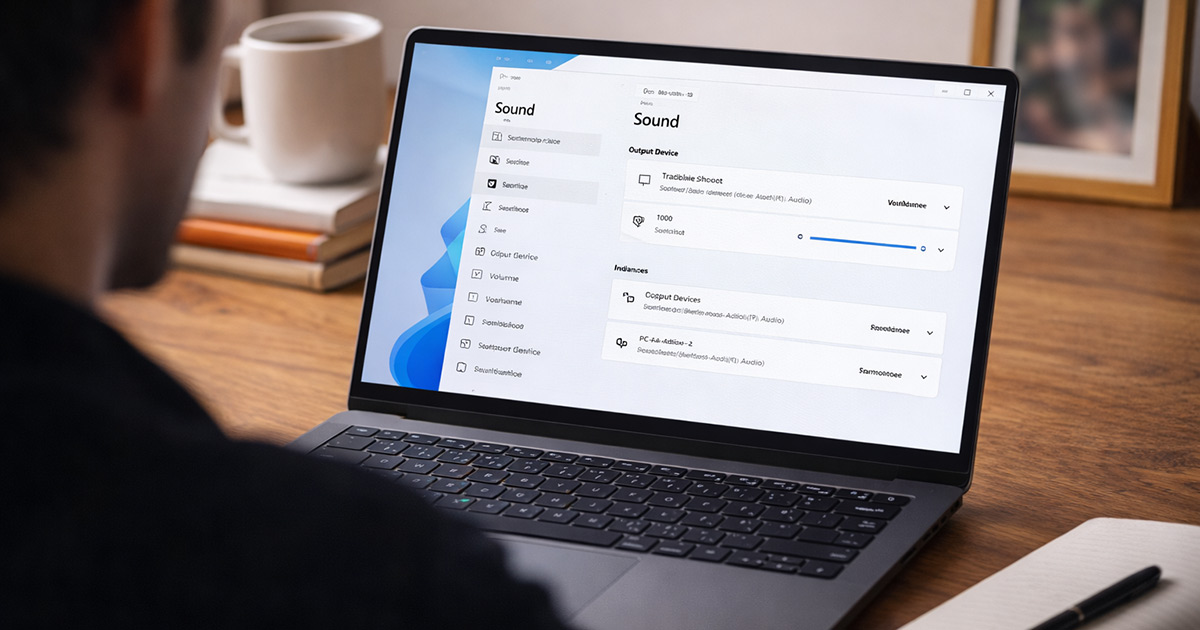
- Right-click the speaker icon in the taskbar
- Click “Open Sound settings”
- Check which output device is selected
If it’s wrong, there’s your gremlin — the same kind of subtle misconfiguration that can also trigger high CPU usage after Windows update when background services loop.
3. Audio Services Didn’t Start Properly
Sometimes after an update — especially if a windows update stuck mid-install — Windows audio services fail to initialize correctly.
No driver issue. No device issue. Just services stuck.
Symptoms:
- Red X on speaker icon
- “Audio services not responding” error
- Sudden silence after restart
Quick test:
- Press Windows + R
- Type: services.msc
- Find “Windows Audio”
If it’s not running, that’s the problem.
4. Audio Enhancements Broke Compatibility
Some updates don’t play nicely with older enhancement settings.
Virtual surround. Equalizers. Spatial audio. Third-party sound tools.
They can conflict after a system change, just like display drivers can during a black screen after Windows update scenario.
Symptoms:
- Audio cuts in and out
- Sound works in some apps but not others
- Static or popping noises
5. The Update Itself Glitched
Rare, but it happens.
If sound stopped immediately after a major feature update, the update may have introduced a compatibility issue.
We diagnose everything else first before blaming the update.
We don’t guess. We eliminate.
How to Fix It
Go in order. Test sound after each step.
One change at a time.
1. Check and Set the Correct Output Device
- Right-click the speaker icon
- Click “Sound settings”
- Under Output, select the correct device
- Click “Test”
Test: Do you hear the test tone?
Windows sometimes resets multiple device categories at once, which is the same reason wi-fi not working after windows update often shows up alongside audio issues.
If yes, you’re done.
If not, continue.
2. Restart Windows Audio Services
- Press Windows + R
- Type: services.msc
- Find “Windows Audio”
- Right-click → Restart
- Do the same for “Windows Audio Endpoint Builder”
Test: Play a YouTube video or system sound.
If audio returns, good. If not, move on.
3. Reinstall the Correct Audio Driver (Most Effective Fix)
This fixes the majority of cases, and it’s far less dramatic than the situations where Windows won’t boot after update because core drivers failed entirely.
- Right-click Start
- Click Device Manager
- Expand “Sound, video and game controllers”
- Right-click your audio device
- Click “Uninstall device”
- Check “Delete the driver software for this device” (if available)
- Restart your computer
After restart:
- Download the latest driver from your laptop or motherboard manufacturer’s website
- Install it manually
Avoid relying on “Update driver” inside Device Manager. It usually just reinstalls the same generic version.
Test: Play audio after installing.
If that fixed it, the update swapped your driver. Classic.
4. Disable Audio Enhancements
- Go to Sound settings
- Click your output device
- Scroll to “Audio enhancements”
- Turn them off
If you see “Spatial sound,” set it to Off for testing.
Some performance-enhancement layers behave unpredictably after patching, the same way certain systems feel Windows 11 slow after update until background changes settle.
Test: Check for clean playback.
5. Roll Back the Driver (If the Issue Started Immediately)
If the update installed a new driver and broke things:
- Open Device Manager
- Right-click your audio device
- Click Properties
- Go to the Driver tab
- Click “Roll Back Driver” (if available)
If the option is grayed out, Windows replaced it fully. In that case, manual reinstall is better.
6. Uninstall the Recent Windows Update (Last Resort)
Only do this if:
- Sound worked perfectly before the update
- All driver fixes failed
- Go to Settings
- Click Windows Update
- Click Update history
- Click Uninstall updates
- Remove the most recent update
Restart and test.
If sound returns, you’ve confirmed a compatibility issue — the same category of glitch that sometimes escalates into a Preparing Automatic Repair loop if core files get corrupted.
You can then pause updates temporarily until a fix is released.
Final Thoughts
When sound stops working after a Windows update, it feels bigger than it is.
Most of the time it’s one of three things:
- Driver replaced
- Default device changed
- Audio services stuck
Hardware failures are rare in this scenario.
Stay logical. Change one thing at a time. Test after each step.
Windows updates like to “help.” Sometimes they help a little too much.
But this is fixable. Calm, methodical, done.