
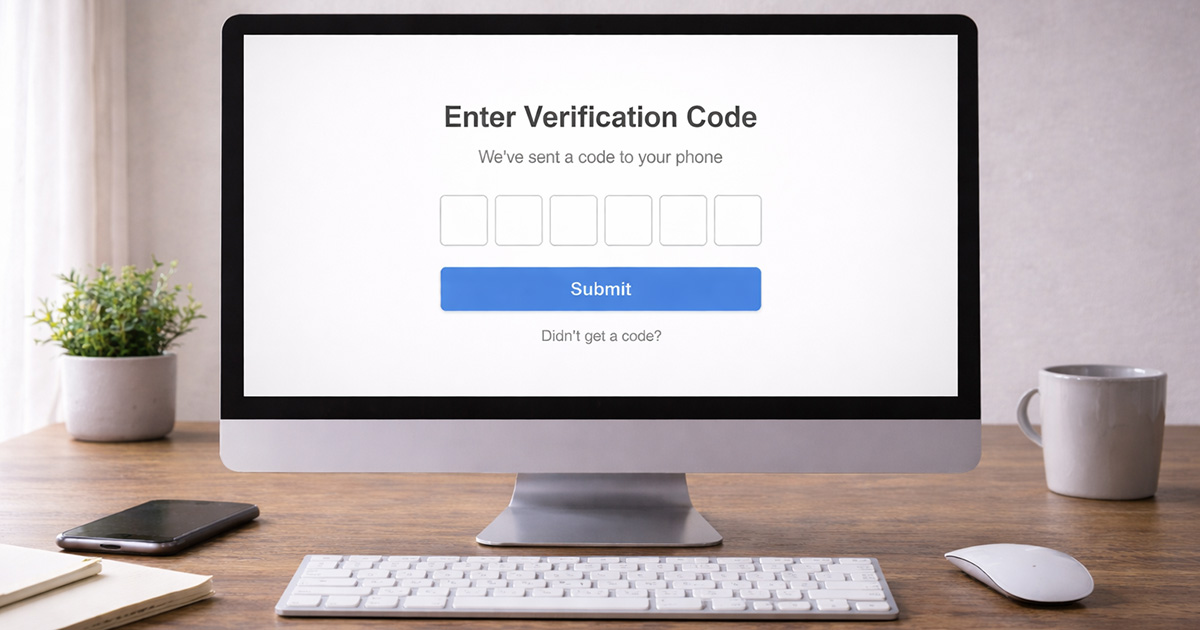
You’re trying to log in.
It says, “We sent a verification code.”
You wait.
Nothing.
You tap Resend.
Still nothing.
Now you’re staring at your phone like it personally betrayed you.
This isn’t random.
Verification codes fail for specific reasons. There’s a chain of systems involved — your device, your carrier, their servers — and one of them didn’t complete its job.
We’re going to figure out which one.
What’s Actually Happening When a Code Is Sent
When you request a verification code, the system has to:
- Generate a temporary code
- Attach it to your account
- Send it through a delivery method (SMS, email, or app push)
- Route it through your carrier or email provider
- Deliver it to your device
- Validate it before it expires
If any step fails, you don’t get the code.
Or you get it too late to use.
That’s the breakdown.
Now let’s walk through the real causes — in order of how often they actually happen.
1. Weak or Disrupted Mobile Signal (Most Common)
If you’re waiting on an SMS code, it relies on cellular service — not Wi-Fi.
You can have perfect Wi-Fi and still not receive the message.
Check this first:
- Do you have signal bars?
- Are you in a basement or metal building?
- Are you in Airplane Mode?
If signal looks weak:
- Turn Airplane Mode ON.
- Wait 10 seconds.
- Turn it back OFF.
That forces your phone to reconnect to the carrier.
If that doesn’t work, restart your phone.
Simple. Effective. Often overlooked.
2. You Requested Too Many Codes Too Fast
This one is common.
If you hit Resend five times in a row, the system may delay or block additional codes temporarily.
It’s a security throttle.
It doesn’t tell you that clearly. It just… stops cooperating.
There’s your gremlin.
What To Do
- Wait 10–15 minutes.
- Request one new code.
- Don’t tap resend again unless necessary.
Flooding the request system can slow it down further.
3. Your Phone Number Is Incorrect
It sounds obvious.
But people change numbers and forget to update accounts all the time.
Check:
- Is the last four digits shown on screen actually your number?
- Did you recently switch carriers?
- Are you using an old account tied to a previous number?
If the number is wrong, you’ll need to choose:
- “Try another method”
- Email verification
- Account recovery
4. SMS Blocked by Carrier or Phone Settings
Some carriers filter automated short-code messages.
Some phones block unknown senders.
Some spam filters get aggressive.
Check these:
- Blocked numbers list
- SMS filtering settings
- Carrier-level spam protection
If you’re on Android:
Go to Messages → Settings → Spam & Blocked
Make sure nothing important is filtered.
If you’re on iPhone:
Go to Settings → Messages
Turn off Filter Unknown Senders temporarily.
Also check if your carrier has spam protection enabled in their app.
5. Email Verification Not Arriving
If the code is sent to email instead of SMS:
Check your spam folder.
Then check:
- Promotions tab (Gmail users especially)
- Junk folder
- Delayed sync
Also confirm:
- You’re checking the correct email address
- The email isn’t full
- The account is still active
If email sync is delayed, refresh manually or open the mail app directly.
6. Wi-Fi Calling Causing SMS Delay
This one surprises people.
If Wi-Fi calling is enabled and your connection is unstable, SMS delivery can lag or fail.
Try this:
- Turn off Wi-Fi temporarily.
- Use mobile data only.
- Request a new code.
If it arrives instantly, that was the issue.
7. VPN, Firewall, or Custom DNS Interference
If the verification system uses app-based delivery or server handshake verification, network filtering can interfere.
If you’re using:
- A VPN
- A firewall app
- Custom DNS (like AdGuard or Pi-hole)
- Network-level filtering
Disable it temporarily.
Then try again.
If it works, you’ve found the conflict.
8. The Platform’s Servers Are Delayed
Sometimes it’s not you.
If thousands of people are logging in at once — major outage, product launch, big event — verification systems can lag.
Check:
- Official status pages
- Recent user reviews
- Social media complaints
If others are reporting delays, wait a few minutes and try again.
There’s nothing to fix locally in that case.
9. Your Device Time Is Wrong (For App-Based Codes)
If you’re using an authenticator app instead of SMS, and the code shows up but doesn’t work:
Your phone clock is probably out of sync.
Fix it:
On iPhone
Settings → General → Date & Time
Turn on Set Automatically
On Android
Settings → System → Date & Time
Turn on Use Network-Provided Time
Time mismatch breaks verification.
Quietly. Efficiently.
Fastest Way to Fix It (Quick Checklist)
If you don’t want to analyze everything, do this in order:
- Turn Airplane Mode on and off
- Restart your phone
- Wait 10 minutes and request one new code
- Disable VPN temporarily
- Turn off Wi-Fi and use mobile data
- Check spam or blocked messages
- Verify your phone number is correct
Most verification failures resolve by step three.
When You’re Completely Locked Out
If no code arrives and no alternative method works:
Use:
- Backup codes (if you saved them)
- Recovery email
- Identity verification process
- Official support channels
It’s slower. But it’s not permanent.
Accounts are rarely unrecoverable unless credentials were changed.
Final Thoughts
Verification codes don’t disappear into the void.
They fail because:
Signal dropped
Delivery was throttled
Spam filter blocked it
Number was wrong
Server lagged
Start simple.
Work logically.
Fix one layer at a time.
Nine times out of ten, it’s something small.
And once you see it, you’ll wonder why it felt so complicated.