
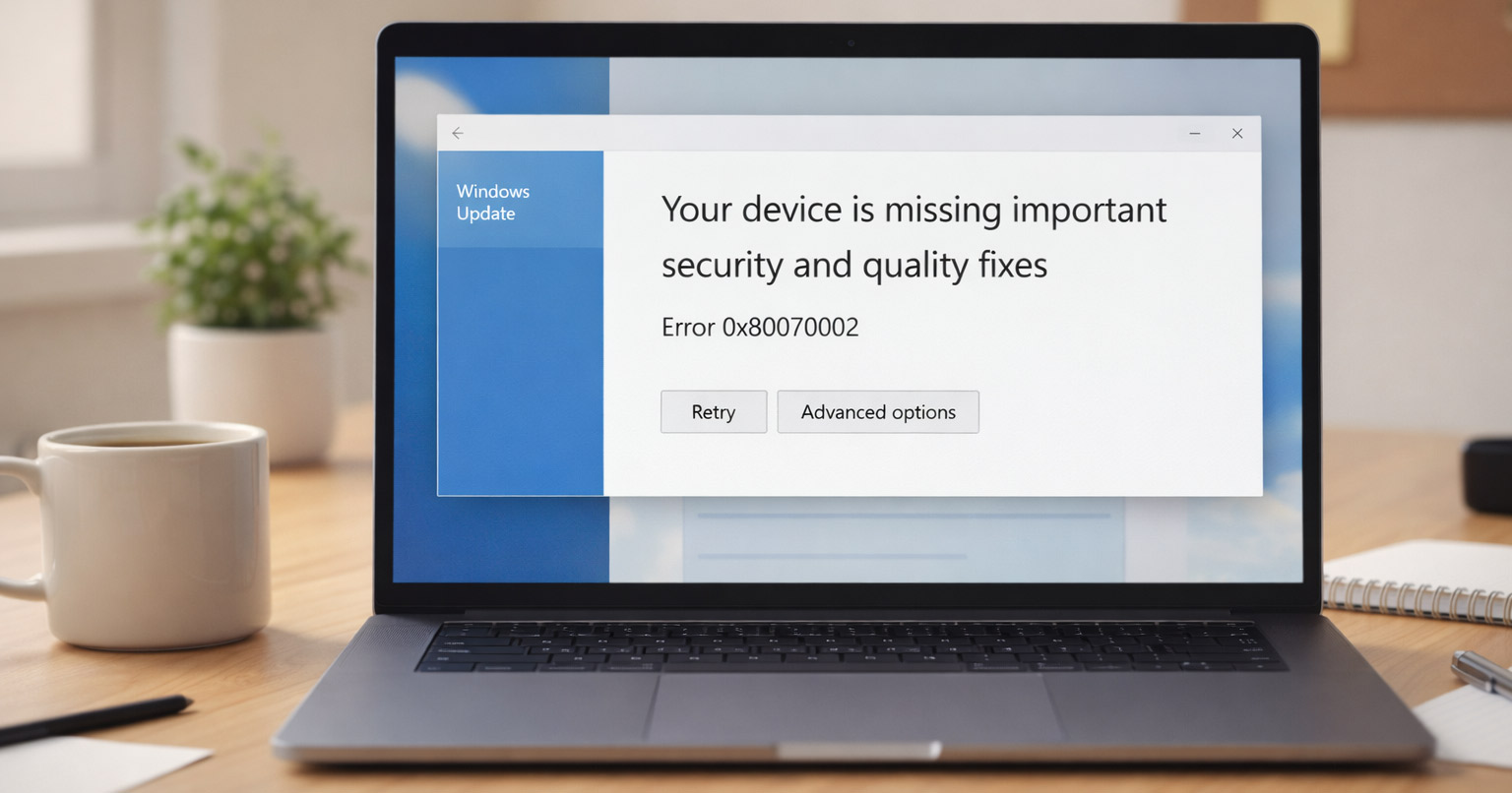
Your computer restarts…
Windows tries to update…
And then it hits you with the same update failure message again.
If you’re seeing:
“Your device is missing important security and quality fixes.”
Or
Error 0x80070002,
You’re dealing with one of Windows’ most annoying update problems.
But don’t worry — this one looks confusing, but the cause is actually pretty simple.
Let’s break it down in normal-human language.
Why This Update Error Happens (The Real Reason)
Windows needs two things to update correctly:
- Healthy system files
- Healthy update folders
If either one breaks, Windows trips over its own shoelaces and refuses to install anything.
Most of the time, the update fails because:
- Update files got corrupted
- Windows stored a “bad copy” of an update
- The update folder is locked or stuck
- Your antivirus interfered
- Catroot2 (a behind-the-scenes security folder) broke
- The repair tool (DISM) froze halfway through its job
None of this is your fault. Windows just gets messy over time — think of it like a junk drawer that gets too full to close.
Dave’s seen this a thousand times.
How to Fix Windows Update Error 0x80070002
Here’s the exact repair path I use to clean everything up.
It works even when your computer acts like it’s possessed.
1. Run System File Checker (SFC)
This checks your system files and repairs anything weird or broken.
Open Command Prompt (Run as administrator) and type:
sfc /scannow
Let it hit 100%.
If it says:
“Windows Resource Protection found corrupt files and repaired them.”
That’s great.
Move on.
If not, still move on — the next step fixes what SFC can’t.
2. Run DISM (Deeper Repair Tool)
DISM repairs the “component store,” which is basically the master file cabinet Windows uses to install updates.
Type this:
DISM /Online /Cleanup-Image /RestoreHealth
A few important notes so you don’t panic:
- It always pauses at 20%, 62%, and 91%
- It may sit there for minutes
- It hasn’t crashed — it’s just slow
If it finishes, great.
If it freezes forever, that tells us your update files are corrupted beyond normal repair — we’ll fix that in Step 5.
3. Stop the Windows Update Services
These services control the whole update system. Stopping them lets us clean things out safely.
Run these one at a time:
net stop wuauserv
net stop bits
net stop cryptsvc
net stop usosvc
If it says “service not started,” ignore it.
That just means it wasn’t running yet.
4. Reset the Update Folders
Windows stores update files in two places:
- SoftwareDistribution
- Catroot2
When these break, updates always fail.
Rename them like this:
ren C:\Windows\SoftwareDistribution SoftwareDistribution.old
Then:
ren C:\Windows\System32\catroot2 catroot2.old
If Windows says the folder is “in use” or “access denied,” that means it’s locked. This happens all the time — Safe Mode usually fixes that.
5. If DISM Froze: Repair Using a Clean Windows Image
This is the “big hammer” fix — and it works on almost every stubborn system.
Download the Windows 10 ISO straight from Microsoft:
Right-click → Mount
Find the drive letter (D:, E:, etc.)
Then run:
DISM /Online /Cleanup-Image /RestoreHealth /Source:D:\sources\install.wim /LimitAccess
(Replace D: with the drive letter you see.)
If you see install.esd instead of install.wim, use that.
This completely bypasses any damaged update files on your computer and uses the clean ones from the ISO.
It’s like replacing burnt instructions with a fresh copy.
6. Restart Your Computer
A normal restart is fine.
If you see:
“Getting Windows ready…”
That’s Windows finishing repairs.
Let it do its thing — don’t turn it off.
7. Try Windows Update Again
Go to:
Settings → Update & Security → Windows Update → Check for updates
If everything above worked (and it almost always does), the update will finally install.
Final Thoughts
Windows update errors look scary, but they all boil down to the same root problem:
Something got corrupted.
Once you:
- Repair system files
- Rebuild the update engine
- Reset the update folders
- Use a clean Windows source when needed
…the updates almost always start working again.
Dave’s rule of thumb?
If Windows can’t fix itself, give it the clean files and make it try again.
Works every time.