
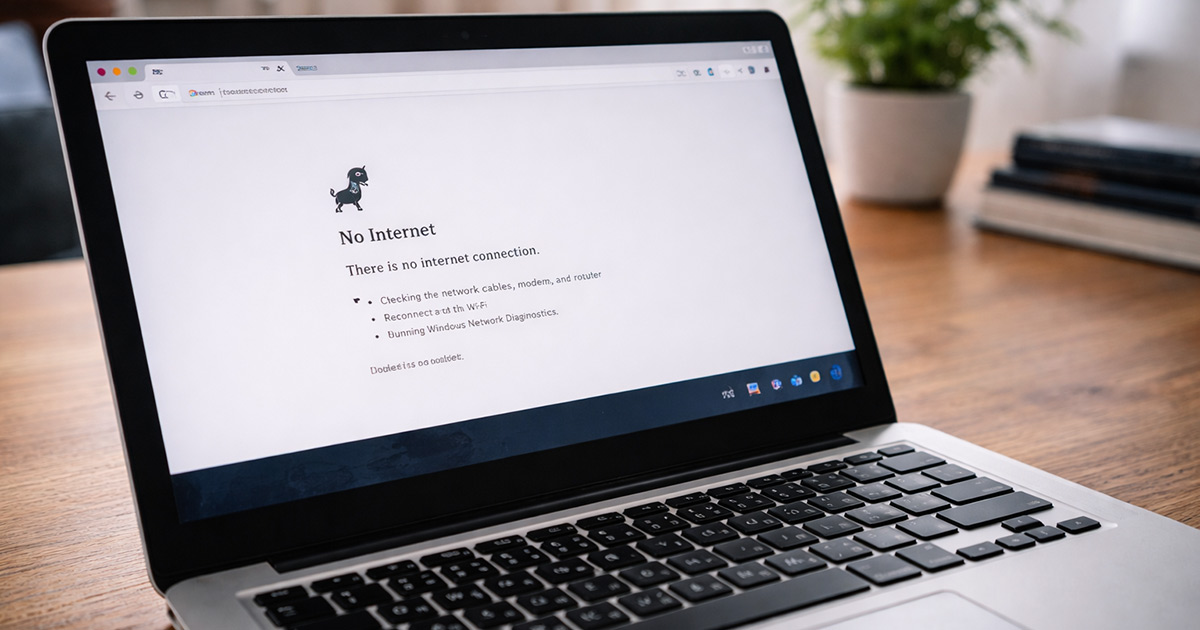
You’re connected to Wi-Fi.
The signal bars look strong.
The network name is there.
Everything says “Connected.”
But nothing loads.
Websites won’t open. Apps won’t refresh. Streaming just spins.
If that’s happening, here’s the key thing to understand:
Wi-Fi connection does not automatically mean internet access.
You’re connected to your router.
That doesn’t guarantee your router is connected to the internet.
Let’s break down why this happens — and how to fix it.
Why You Can Be Connected to Wi-Fi but Have No Internet
Your home network has two separate parts:
- Your device connecting to the router (Wi-Fi)
- Your router connecting to your ISP (internet)
When Wi-Fi works but internet doesn’t, it usually means:
- The router lost its connection to the modem
- The modem lost its connection to your ISP
- There’s a DNS or IP configuration issue
- Or your device is misconfigured
The Wi-Fi part is working.
The “outside world” part isn’t.
That distinction matters.
The Most Common Reasons This Keeps Happening
1. Modem Lost Internet Connection (Most Common)
If your modem drops connection to your ISP, your router will still broadcast Wi-Fi — but there’s no actual internet coming in.
Signs:
- All devices say “Connected” but nothing loads
- Modem lights are blinking strangely
- It happens at certain times of day
This is very common with unstable ISP connections.
Fix:
- Unplug the modem
- Wait 60–90 seconds
- Plug it back in
- Wait until all lights stabilize
- Then restart your router
Modem first. Router second. Always in that order.
2. Router Glitch or Memory Overload
Routers are small computers. And small computers freeze sometimes.
If the router’s internal memory fills up, it may:
- Stop routing traffic
- Fail DNS requests
- Drop internet while keeping Wi-Fi active
Rebooting works because it clears memory.
If this happens often, your router may be aging or overloaded.
3. ISP Outage or Instability
Sometimes it’s not your equipment.
If:
- Neighbors are also offline
- It happens during storms
- Speeds fluctuate before cutting out
…it may be your ISP.
You can confirm by:
- Checking your ISP’s outage map
- Calling their automated status line
- Using mobile data to check
If it’s an outage, only your ISP can fix it.
4. DNS Issues
This one feels mysterious but isn’t.
DNS translates website names (like google.com) into IP addresses.
If DNS fails:
- You’re technically online
- But websites won’t load
It can look like “no internet” even though you’re connected.
Fix:
Change your DNS to a public server like:
- Google DNS: 8.8.8.8
- Cloudflare DNS: 1.1.1.1
This often stabilizes random connection failures.
5. IP Address Conflict
If two devices on your network are assigned the same IP address, connection problems happen.
Symptoms:
- One device works, another doesn’t
- Internet drops randomly
- Rebooting temporarily fixes it
Fix:
- Restart modem and router
- Restart affected devices
- Forget and reconnect to Wi-Fi
This forces the network to reassign addresses cleanly.
6. Faulty Ethernet Cable (Between Modem and Router)
This is more common than people think.
If the Ethernet cable between your modem and router is:
- Loose
- Damaged
- Failing internally
…the router may show Wi-Fi connection, but internet drops intermittently.
Fix:
- Unplug and reseat the cable
- Replace it with a new one
- Try a different port on the router
Cheap cable. Big problems.
7. Device-Specific Issue
If only one device says “Connected, No Internet,” the problem may not be the network.
It could be:
- Corrupt network settings
- Outdated drivers
- VPN interference
- Firewall blocking traffic
Fix:
- Forget and reconnect to Wi-Fi
- Disable VPN
- Restart the device
- Update system software
If other devices work fine, focus on the one that doesn’t.
Step-By-Step Fix (Try This First)
Work through this calmly:
✔ Restart modem (wait fully)
✔ Restart router
✔ Test multiple devices
✔ Replace Ethernet cable
✔ Check ISP outage status
✔ Change DNS settings
✔ Forget and reconnect to Wi-Fi
Most “Connected but No Internet” issues get solved in that list.
Why This Problem Keeps Coming Back
If it happens repeatedly, the cause is usually:
- Aging router
- ISP instability
- Overloaded network
- Firmware that hasn’t been updated
- Heat-related router throttling
Routers don’t last forever. If yours is 5+ years old, random instability becomes more common.
It’s not dramatic failure. It’s gradual decline.
When It’s Time to Replace Equipment
Consider replacing hardware if:
- Reboots fix it temporarily
- Disconnects happen weekly
- Router runs hot
- Speeds feel inconsistent
A modern router handles device density much better than older models.
Sometimes upgrading removes the issue instantly.
Final Thoughts
If Wi-Fi says “Connected” but there’s no internet, that means:
Your device can see the router.
But the router can’t reach the internet.
That’s usually caused by:
- Modem issues
- ISP instability
- Router glitches
- DNS failures
- Cable problems
Start with a full restart. Check cables. Confirm ISP status. Update firmware.
Most of the time, this isn’t a mystery — it’s a small breakdown somewhere in the chain.
And no, your Wi-Fi isn’t lying to you.
It’s just connected to the wrong thing.
If you’re troubleshooting other internet or router issues, explore the related guides on FixTechProblem.com for step-by-step fixes.