
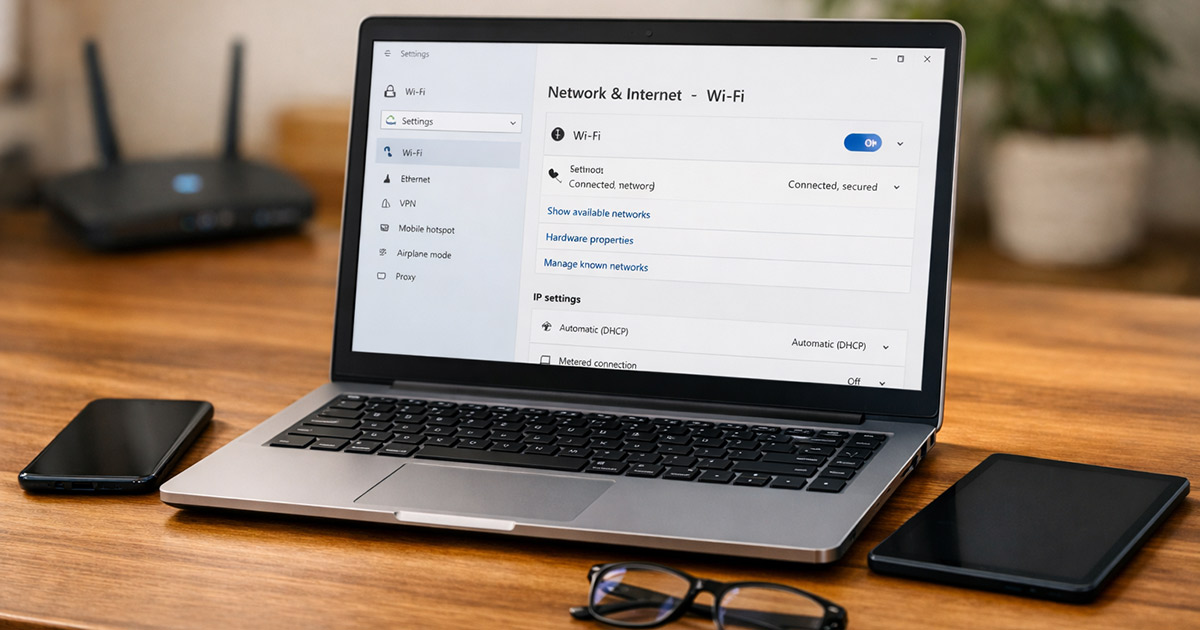
You’re on Wi-Fi.
The signal looks fine.
One phone is flying. Another is crawling.
A laptop is “connected, secured” and still feels like dial-up with a prettier icon.
This isn’t magic. It’s just networking being petty.
We’re going to diagnose it in a sane order: why it happens first, then how to fix it. One change at a time.
Why This Is Happening
When only some devices are slow, the router usually isn’t “broken.” It’s doing something specific, and certain devices are getting the short end of the stick.
1) The slow devices are on the wrong Wi-Fi band (2.4 GHz vs 5 GHz vs 6 GHz)
Most routers broadcast multiple networks (or one “combined” name that hides the bands). Devices then “choose” a band based on their own logic, which is… optimistic.
- 2.4 GHz goes farther but is slower and more crowded.
- 5 GHz is faster but shorter range.
- 6 GHz (Wi-Fi 6E/7) can be very fast but has the shortest range and not all devices support it.
Clues:
- The slow device is farther from the router (or behind walls).
- The fast device is newer (supports Wi-Fi 6/6E/7).
- Speed improves if you stand closer to the router.
Quick test: On the slow device, check the Wi-Fi details and see if it’s connected to 2.4 GHz while other devices are on 5 GHz/6 GHz.
Fix: Split the network names by band or force that device onto the faster band (if range allows).
2) Band steering is “helping” (and picking the wrong answer)
When you use one SSID for everything (same Wi-Fi name for 2.4/5/6), the router tries to “steer” devices to the best band.
In theory. In reality, certain devices get sticky and cling to 2.4 GHz like it’s a life raft.
Clues:
- The slow device refuses to move off 2.4 GHz even when close to the router.
- Toggling Wi-Fi off/on sometimes fixes it… temporarily.
Quick test: Forget the network and reconnect. If it jumps to 5 GHz briefly then falls back later, band steering is suspect.
Fix: Separate SSIDs (e.g., MyWiFi-2G and MyWiFi-5G) or disable band steering if your router allows it.
3) The slow device is using an old Wi-Fi standard or weak antenna
Older devices may top out at:
- 802.11n (Wi-Fi 4) or early 802.11ac (Wi-Fi 5)
- 1×1 MIMO (one antenna stream) instead of 2×2 or 3×3
- Narrow channel widths
That doesn’t just reduce max speed. It can also make the device more sensitive to interference, distance, and congestion.
Clues:
- Only older phones/tablets/laptops are slow.
- A brand-new phone is great in the same spot.
- The slow device’s link speed (PHY rate) is low in Wi-Fi details.
Quick test: Compare the “Link speed”/“Tx rate” between a fast device and a slow one while standing in the same location.
Fix: Put older devices on 2.4 GHz for stability (if you accept lower speed), or improve signal quality (closer AP, mesh node, better placement).
4) Interference and congestion are hitting some devices harder than others
Wi-Fi is shared radio. Microwaves, baby monitors, Bluetooth, neighboring routers, and a dozen “smart” devices all compete.
Some devices have better radios and better noise handling. Some don’t.
Clues:
- Speed is worse at certain times (evenings).
- The slow device improves dramatically if you move rooms.
- 2.4 GHz is especially bad.
Quick test: Run a speed test next to the router, then again where you normally use the slow device. If the drop is huge, it’s RF (range/interference), not your ISP.
Fix: Change channels, use 5 GHz where possible, reposition router/mesh nodes, or reduce competing devices on the same band.
5) A single device is hogging the connection (or triggering bufferbloat)
One device doing uploads, cloud backups, big downloads, game updates, security camera uploads, or a VPN tunnel can trash latency and throughput for everything else.
But here’s the twist: some devices cope better (newer radios, better TCP stacks), so it looks like “only some devices are slow.”
Clues:
- Video calls stutter while someone is uploading.
- Browsing feels laggy even if a speed test sometimes looks okay.
- The slow devices are the ones doing real-time stuff (calls, gaming).
Quick test: Temporarily pause big uploads/downloads on other devices (cloud sync, console updates, camera upload).
Fix: Enable QoS/SQM (if your router supports it), limit heavy uploaders, or schedule backups.
6) The router is “protecting” itself: airtime fairness, legacy support, or buggy firmware
Some settings are meant to improve overall performance, but they can punish specific devices.
- Airtime Fairness can help fast clients… and sometimes starve older ones.
- Legacy compatibility modes can slow down the whole radio.
- Some firmware versions just have issues with certain chipsets.
Clues:
- One specific model of device is always slow.
- The problem started after a router firmware update (or after switching routers).
- Disabling/reenabling Wi-Fi on the router changes behavior for a while.
Quick test: If your router has Airtime Fairness, toggle it and observe the affected device.
Fix: Update firmware (or roll back if you can), and adjust compatibility options.
7) DNS is slow on some devices (so “internet feels slow” even when Wi-Fi isn’t)
DNS is the thing that turns names like google.com into IP addresses. If DNS is slow or broken on one device, pages “hang” before loading, even though the raw connection is fine.
Clues:
- Speed tests look okay, but websites take forever to start loading.
- Apps say “connecting…” a lot.
- Switching to cellular instantly feels snappy on the same device.
Quick test: Try loading a site by IP (not always practical), or change DNS on the device temporarily.
Fix: Set DNS to a reliable provider on the router or the device.
8) IPv6 weirdness (some devices hate it, some love it)
IPv6 is supposed to be fine. Sometimes it isn’t—especially with certain ISPs, older routers, or buggy device stacks.
When IPv6 is misconfigured, some devices will keep trying it first and failing over slowly.
Clues:
- Some sites/apps hang while others load fine.
- The issue appears after changing routers or ISP equipment.
- Disabling Wi-Fi and rejoining “fixes it” briefly.
Quick test: Disable IPv6 on the router (temporary test) and see if the slow devices suddenly behave.
Fix: Keep IPv6 off if your setup is happier without it, or correct the ISP/router IPv6 mode.
9) The device is saving power and kneecapping its own Wi-Fi
Phones, tablets, and laptops will reduce Wi-Fi aggressiveness in power saving modes. Some do it badly.
Clues:
- The slow device is a laptop on battery.
- Speed improves when plugged in.
- “Low Power Mode” is on (phone/tablet).
Quick test: Plug in the laptop or disable low power mode briefly.
Fix: Adjust power settings for the Wi-Fi adapter, or keep performance mode on when you need speed.
How to Fix It
Work top to bottom. Stop when it’s fixed. Don’t shotgun ten changes and then wonder which one mattered.
- Confirm it’s “some devices” and not the internet itself.
Test: Run a speed test on one fast device and one slow device in the same room near the router. If they’re both bad near the router, this is an ISP or router-wide issue. If only one is bad, keep going. - Check which band the slow device is actually using.
Test: In the Wi-Fi details on the slow device, look for “Frequency,” “Band,” or “Wi-Fi type.” If it’s on 2.4 GHz while the fast device is on 5/6 GHz, that’s your first fix. - Split your Wi-Fi network names by band (temporarily or permanently).
- Create separate SSIDs for 2.4 GHz and 5 GHz (and 6 GHz if you have it).
- Connect the slow device to 5 GHz if it’s within reasonable range.
Test: Re-run a speed test and also do real-world checks (video stream, app loading).
- If you can’t split SSIDs, “force” a better reconnect.
- On the slow device: forget the network, reboot the device, then reconnect.
- If your router has band steering, try disabling it as a test.
Test: Check if the device stays on the faster band over time, not just for 30 seconds.
- Move the router (or mesh node) like you actually want it to work.
Wi-Fi hates:- Floors (especially with metal/ductwork)
- Dense walls
- Being stuffed in a cabinet behind “decorative” doors
Test: Compare speeds in the problem area before/after moving it. If the problem magically vanishes, it was RF, not “the internet being weird.” - Change the Wi-Fi channel (especially on 2.4 GHz).
On many routers you can set channels manually.- 2.4 GHz: stick to 1, 6, or 11.
- 5 GHz: try a different non-DFS channel if devices struggle to stay connected.
- Turn off (or adjust) Airtime Fairness if older devices are the ones struggling.
Airtime fairness can be great. It can also be mean.
Test: Toggle Airtime Fairness and retest on the problem device in the same location. - Check for one-device hogging and fix the upload problem first.
- Pause cloud backups (Google Photos, iCloud, OneDrive).
- Pause game downloads/updates.
- Check security cameras uploading constantly.
Test: Try a video call or a fast-loading website on the “slow” device while another device uploads. If that becomes stable after QoS/SQM, you found the bottleneck. - Fix DNS on the router (or on the slow device).
Set DNS to a known reliable provider, then reboot the router. Use one of these (pick one set):- Cloudflare: 1.1.1.1 and 1.0.0.1
- Google: 8.8.8.8 and 8.8.4.4
- Test IPv6 by disabling it (temporary test).
Do this on the router if possible so you’re testing consistently.
Test: If the “slow devices” suddenly stop hanging on certain apps/sites, IPv6 was your friction point. - Update router firmware and device Wi-Fi drivers (because yes, sometimes it’s the gremlin).
- Update the router firmware from the manufacturer’s admin page.
- On Windows, update the Wi-Fi adapter driver from the laptop maker (not just Windows Update).
- On phones/tablets, install OS updates.
Test: After updates and a router reboot, retest the same device in the same spot.
- If it’s one stubborn device: reset its network settings.
On iPhone/iPad (iOS):
- Settings → General → Transfer or Reset → Reset → Reset Network Settings
On Android:
- Settings → System → Reset options → Reset Wi-Fi, mobile & Bluetooth
On Windows:
- Settings → Network & Internet → Advanced network settings → Network reset
Test: Reconnect to Wi-Fi and confirm band, link speed, and real-world loading.
- If none of this works: you may be outgrowing that router.
Not because routers “get tired.” Because:
- Too many devices
- Too much 2.4 GHz clutter
- Bad placement you can’t change
- ISP combo units that were never great to begin with
Test: If a new-ish phone can’t get stable performance near the router on 5 GHz, the hardware/firmware is likely the limiter.
Final Thoughts
When Wi-Fi is connected but slow on only some devices, it’s almost never “random.” It’s usually band choice, interference, a weak client radio, or one device quietly saturating upload and ruining everyone’s day.
Work the problem like a technician, not like a cursed wizard. Same spot, same test, one change at a time. You’ll find the pattern.
And once you do, things get boring again. Which is the goal.