
You run a Windows update. It restarts. Everything looks normal.
Then you notice the Wi-Fi icon is gone. Or it says “No Internet.” Or it won’t connect at all.
That’s not random. Windows updates don’t “break Wi-Fi” for fun. But these problems after Windows update show up more often than people expect. Something specific changed — usually a driver, a network setting, or a service that didn’t restart properly.
This is fixable.
We’re going to figure out why it happened first. Then we’ll walk through it logically, one step at a time.
No guessing. No reinstalling your whole life.
Why Wi-Fi Stops Working After a Windows Update
Updates modify system files, drivers, and network configurations. If something doesn’t migrate cleanly, your wireless adapter is usually the first casualty.
Here are the most common causes.
1. The Wi-Fi Driver Got Replaced (Badly)
This is the big one.
Windows sometimes installs a “generic” wireless driver during updates — especially if a windows update stuck mid-install left driver components mismatched. On paper, it’s compatible. In reality, it’s unstable or incomplete.
Symptoms:
- Wi-Fi option disappears entirely
- “No networks found”
- Random disconnects after update
- Device Manager shows a warning icon
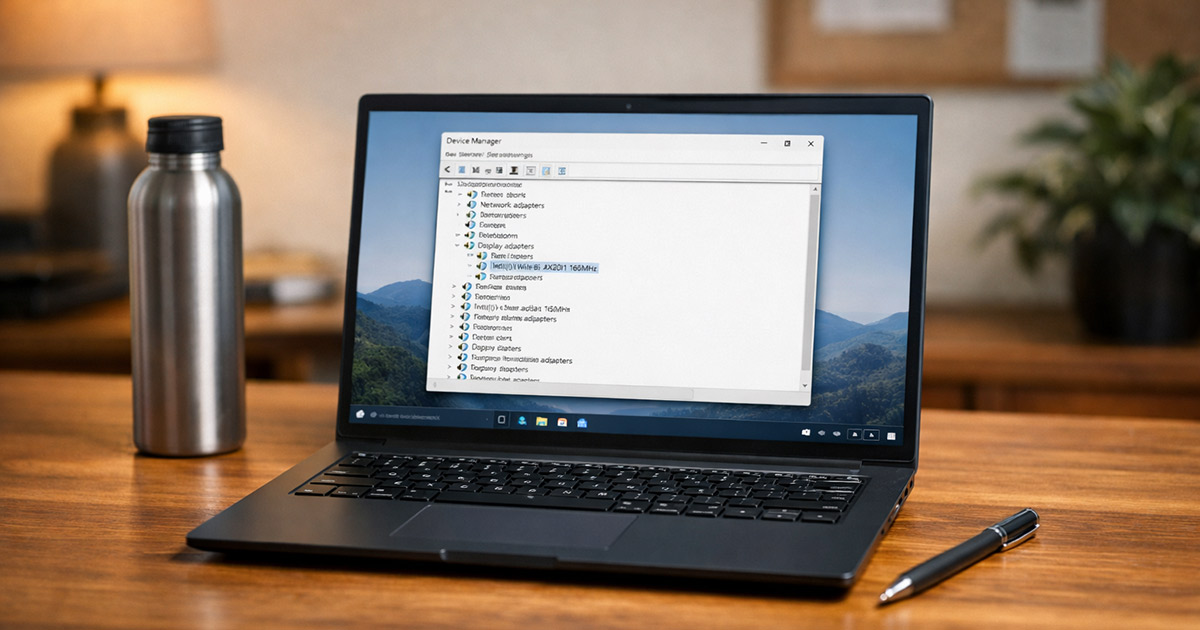
Quick test:
- Right-click Start
- Open Device Manager
- Expand Network adapters
If your wireless adapter has a yellow triangle, or it’s missing entirely, that’s the driver.
Fix: Roll back or reinstall the correct driver (we’ll do that below).
2. The Network Adapter Got Disabled
It happens.
An update resets power or device settings and disables the wireless adapter.
Symptoms:
- No Wi-Fi toggle in Settings
- Adapter shows as “Disabled” in Device Manager
Quick test:
In Device Manager, right-click your wireless adapter.
If you see “Enable,” it was turned off.
There’s your gremlin.
3. Network Settings Were Reset or Corrupted
Windows updates sometimes reset:
- Network profiles
- DNS settings
- Winsock catalog
- TCP/IP stack
If those don’t reinitialize properly, you get:
- Connected but “No Internet”
- Extremely slow connection
- Some websites loading, others not
The adapter works. The configuration doesn’t — the same kind of behind-the-scenes reset that causes sound not working after windows update on audio devices.
4. A Windows Service Didn’t Restart Properly
Wi-Fi depends on background services like:
- WLAN AutoConfig
- Network Connections
- DHCP Client
When these services fail, it triggers the same kind of cascading issues seen in a black screen after Windows update, just in a different subsystem.
If one of these didn’t restart after the update, your system can’t negotiate a connection.
Not common. But it happens — and it’s often paired with high CPU usage after Windows update when system services fail to restart cleanly.
How to Fix Wi-Fi After a Windows Update
We start simple. Then escalate only if needed, just like you would when diagnosing a Windows Update BSOD or any other post-patch failure.
After each step, test your Wi-Fi before moving on.
One change at a time.
1. Restart the Computer (Yes, Again)
Not a shutdown. A full restart.
- Click Start
- Select Restart
Updates sometimes finish configuring on the second boot.
That’s why Bluetooth not working after Windows update also sometimes fixes itself after a clean reboot.
Test: After reboot, check if Wi-Fi networks appear.
If not, continue.
2. Check If the Adapter Is Disabled
- Right-click Start
- Open Device Manager
- Expand Network adapters
- Right-click your wireless adapter
If you see Enable, click it.
Test: Wait 10 seconds and check the Wi-Fi icon.
3. Roll Back the Driver
If Wi-Fi broke immediately after the update, this is likely the cause — one of those moments where it feels like windows update broke my computer, even though it’s usually just a driver mismatch.
- Open Device Manager
- Expand Network adapters
- Right-click your Wi-Fi adapter
- Select Properties
- Go to the Driver tab
- Click Roll Back Driver (if available)
Restart after rollback.
Test: Try connecting again.
If rollback is grayed out, move to reinstalling.
4. Reinstall the Wireless Driver
This sounds dramatic. It’s not.
- Open Device Manager
- Right-click your wireless adapter
- Click Uninstall device
- Confirm
- Restart your computer
Windows will reinstall a fresh copy automatically.
If it doesn’t:
- Go to your laptop or motherboard manufacturer’s website
- Download the latest Wi-Fi driver manually
- Install it
Avoid third-party driver updater tools. They cause more problems than they solve.
Test: Reconnect to your Wi-Fi network.
5. Run a Network Reset
If drivers look fine but you get “Connected, No Internet,” reset the network stack.
- Open Settings
- Go to Network & Internet
- Click Advanced network settings
- Select Network reset
- Click Reset now
This removes:
- Saved Wi-Fi networks
- VPN adapters
- Custom DNS settings
It’s a safe reset that fixes bad configurations without risking a Preparing Automatic Repair loop or deeper boot-level problems.
Your PC will restart.
Test: Reconnect to Wi-Fi and check internet access.
6. Make Sure WLAN AutoConfig Is Running
- Press Windows + R
- Type
services.msc - Press Enter
- Find WLAN AutoConfig
- Make sure:
- Status = Running
- Startup type = Automatic
If not:
- Double-click it
- Set Startup type to Automatic
- Click Start
Test: Check for available networks.
7. Uninstall the Recent Windows Update (If Necessary)
If everything fails and Wi-Fi worked perfectly before the update — and especially if you’ve seen cases where Windows won’t boot after update — the update itself is almost certainly the culprit.
- Open Settings
- Go to Windows Update
- Click Update history
- Select Uninstall updates
- Remove the most recent update
Restart and test.
If Wi-Fi comes back immediately, the update caused a driver conflict. You can pause updates temporarily until Microsoft patches it.
Final Thoughts
When Wi-Fi stops working after a Windows update, it’s almost always one of three things:
- A broken or replaced driver
- A disabled adapter
- A corrupted network configuration
It feels bigger than it is.
You don’t need to reset Windows. You don’t need a new router. You don’t need to panic.
Work the list. Test after each step. Stay logical.
Systems break for reasons. Find the reason, fix it, move on.
That’s how this gets solved.