
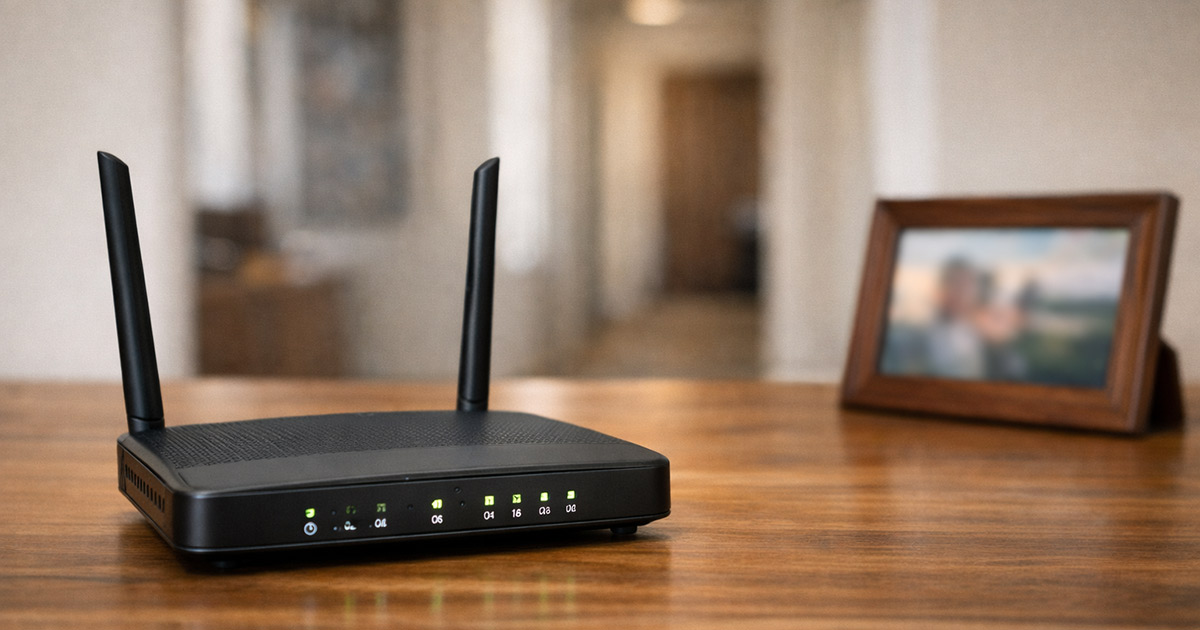
You’re standing next to the router.
Wi-Fi is great. Speed test looks normal. Life is fine.
You walk to the bedroom. Or the office.
The signal drops to two bars, then one, then “Connected, no internet,” then pure rage.
Nothing about this feels logical.
It is. This is fixable.
We troubleshoot in order: why it’s happening, then how to fix it. One change at a time.
Why This Is Happening
Wi-Fi isn’t magic. It’s radio. And radio is extremely sensitive to distance, materials, interference, and the router’s own limitations.
“Works near the router but not elsewhere” usually means one of these:
1) Your walls are eating the signal (and some walls are hungrier than others)
Different materials block Wi-Fi differently. Drywall is annoying but survivable. Brick, concrete, plaster with metal lath, tile, mirrors, and anything with lots of metal… that’s where Wi-Fi goes to die.
The tricky part: you can have a strong signal in the hallway and a dead zone five feet away because the signal path crosses one “bad” wall.
Clues:
- One or two specific rooms are consistently bad
- The bad room is behind a bathroom, kitchen, fireplace, or exterior wall
- Closing a door makes it noticeably worse
Quick test: Stand in the weak room with the door open and then closed. If it changes a lot, your “problem” is mostly materials and placement.
2) You’re on the wrong band: 5 GHz is fast, but it doesn’t travel well
Most routers broadcast two main Wi-Fi bands:
- 2.4 GHz: longer range, better through walls, slower and more crowded
- 5 GHz: faster, cleaner, shorter range, more easily blocked
Near the router, your device happily uses 5 GHz. In other rooms, it clings to a weak 5 GHz signal instead of switching cleanly to 2.4 GHz, or it switches but performance is still rough due to congestion.
Clues:
- Speed is amazing in the same room as the router, terrible elsewhere
- The “bad rooms” improve slightly if you force 2.4 GHz
- Devices keep dropping and reconnecting as you walk around
Quick test: In the bad room, connect to the 2.4 GHz network (if it’s separate) and see if stability improves even if speed isn’t breathtaking.
3) Channel interference: your neighbors are basically yelling over you
Wi-Fi shares airspace with:
- Neighbor networks (especially in apartments)
- Bluetooth devices
- Baby monitors
- Wireless cameras
- Microwaves (yes, seriously)
- Some smart home hubs
If your router is on a busy channel, you can get “works near router” behavior because strong signal brute-forces through the noise, while weaker signal in other rooms collapses.
Clues:
- Wi-Fi is worse at certain times (evenings/weekends)
- In one room it’s “fine,” in another it’s unstable rather than just slower
- 2.4 GHz is especially awful (it’s usually the most crowded)
Quick test: If your router has an app that shows channel utilization or “Wi-Fi scan,” check it. If not, your phone can run a Wi-Fi analyzer app and show how crowded the channels are.
4) Router placement is doing you no favors (the closet/router shrine problem)
Routers need air and open space. Stuffing one behind a TV, inside a cabinet, in a corner on the floor, or near a metal object is a great way to create “perfect Wi-Fi” within 8 feet and “why is this happening” everywhere else.
Also: Wi-Fi radiates more like a squashed donut than a perfect sphere. If your router is on one end of the house, low to the ground, or jammed behind furniture, you’re wasting a lot of signal.
Clues:
- Router is low (on floor or bottom shelf)
- Router is behind a TV, inside a cabinet, or next to a big metal object
- The “bad rooms” are basically on the opposite side of the house
Quick test: Temporarily move the router to a more central, open spot (even if it’s ugly for 10 minutes) and see if the weak rooms improve.
5) Your router’s hardware is underpowered or outdated
Some routers just… aren’t strong. Especially ISP-provided all-in-one units that were “free,” which is always a fun sign.
Older Wi-Fi standards, weak antennas, poor radios, and low-quality firmware can produce that classic pattern: strong nearby, weak beyond one or two walls.
Clues:
- Router is several years old, or came from your ISP
- Multiple devices struggle in the same far rooms
- Streaming and video calls get worse as distance increases (not just speed tests)
Quick test: If you have a newer phone/laptop and an older one, compare them in the bad room. If everything is bad, it’s likely the network. If only older devices are bad, it may be device radios too.
6) Extenders and “mesh-ish” setups can make it worse if they’re placed wrong
A cheap extender placed in the dead zone is basically repeating trash. It needs to be placed where it still gets a decent signal from the router.
Also, some extenders create a second network name and your device sticks to the wrong one. Or it clings to the main router even when the extender is closer. Devices are stubborn like that.
Clues:
- You added an extender and now things are weirdly inconsistent
- You have two similar network names and aren’t sure which one you’re on
- Your “far room” connects but feels laggy and drops a lot
Quick test: Stand halfway between router and bad room and check if the extender (or mesh node) still has strong signal. If it doesn’t, it’s placed too far out.
7) The “it’s not Wi-Fi, it’s internet” scenario
Sometimes Wi-Fi signal is fine, but the connection dies under load because:
- The modem is flaking out
- Your ISP line has noise
- The router is overheating or crashing under traffic
- The router is doing “smart” features badly (QoS, parental controls, security filtering)
Clues:
- Devices show strong Wi-Fi signal but say “No internet”
- Everything drops at once, including devices near the router
- Reboot fixes it… until it doesn’t
Quick test: When it “dies,” check a device right next to the router. If that device also has no internet, the issue isn’t range. It’s upstream stability or router reliability.
How to Fix It
Do these in order. Stop when the problem is solved. Don’t change five things and then wonder which one mattered.
1) Reposition the router for signal, not interior design
The goal: center of the space, up high, open air, away from metal and dense electronics.
- Move the router (temporarily) to a more central location in the home, ideally chest-height or higher.
Test: In the worst room, check signal bars and load a few real sites (not just a speed test). - Keep it out of cabinets, away from TVs, and not on the floor.
Test: Walk between rooms while streaming something and see if it stays stable. - Rotate or reposition antennas (if you have them).
- One vertical, one angled can help in multi-floor homes.
Test: Re-check the same weak room.
- One vertical, one angled can help in multi-floor homes.
If router placement fixes it, you’re done. If you can’t keep the router there because of wiring or reality, keep going.
2) Split the Wi-Fi bands (or at least control which one you’re using)
If your router uses one combined name (band steering), it sometimes “steers” like a shopping cart with one bad wheel.
- Log into your router and see if you can separate 2.4 GHz and 5 GHz into distinct network names.
Test: In the far room, connect to 2.4 GHz and see if the connection becomes stable. - If your router already has two names, use them intentionally:
- Use 5 GHz for devices near the router (TV, consoles, main laptop if nearby)
- Use 2.4 GHz for devices far away or behind walls (smart home, bedrooms, garage)
Test: In the bad room, do a video call test (the most honest test) or stream HD video.
If 2.4 GHz stabilizes the far rooms, the core issue is range/walls. That points strongly toward placement or adding proper coverage (mesh/AP), not endless tweaking.
3) Change Wi-Fi channels (because interference is real and annoying)
Routers don’t always auto-pick good channels. They pick “a channel.” Big difference.
- In router settings, set 2.4 GHz channel manually to 1, 6, or 11.
Test: In the bad room, browse and stream for 5–10 minutes. Watch for drops. - Set 5 GHz to a less crowded option (many routers can pick a good one automatically; if not, try a different channel group).
Test: Re-check speed and stability in both near and far rooms.
If you live in an apartment building and your Wi-Fi graph looks like a porcupine, channel selection matters more than you want it to.
4) Turn off “features” that break Wi-Fi roaming and stability
Router feature lists are basically a trophy shelf. Some of those trophies are cursed.
In the router settings, look for:
- “Smart Connect” / aggressive band steering
- Overactive QoS
- Security filtering / “advanced protection”
- Airtime fairness (sometimes helps, sometimes hurts)
- Parental controls that do DNS filtering
- Disable one feature at a time.
Test: Use the worst room, on the worst device, and do a real task (Zoom, streaming, file download).
If disabling something suddenly fixes random drops, congratulations: you found the router’s gremlin.
5) Update router firmware (yes, really)
Firmware bugs can cause roaming issues, bad band steering, random disconnects, and performance drops under load.
- Use your router’s app or admin page and check for firmware updates.
Test: After update and reboot, re-check the worst room.
If your router is ISP-provided, firmware updates might be controlled by the ISP. In that case, you might not have much control besides replacing the router.
6) If you’re using an extender, relocate it (or replace it with something better)
Extenders work best when they’re not living inside the dead zone.
- Place the extender halfway between the router and the dead room (closer to the router than you think).
Test: Connect in the bad room and check stability. - If the extender creates a separate network name, use it consistently in the far area.
Test: Walk between rooms and confirm the device doesn’t cling to the wrong signal.
If the extender only ever gives you “sort of better,” it’s because it’s still repeating a weak signal and cutting bandwidth. That’s what they do.
7) Upgrade the coverage properly: mesh or a wired access point
If the home is large, long, multi-floor, or built with signal-killing materials, you can fight physics for weeks or you can add coverage like an adult.
You have two good options:
- Mesh Wi-Fi system (good if you can’t run Ethernet)
- Wired access point (best performance if you can run Ethernet)
Mesh basics:
- Put the main mesh unit where the router is now (or replace the router entirely, depending on the kit).
- Put the second node where it still gets a strong connection, not inside the dead zone.
Test: In the dead room, confirm the device connects to the closer node and stays stable.
Wired access point basics:
- Run Ethernet from the router area to the problem area.
- Add a proper access point (or a spare router in access point mode).
Test: Connect in the far room and confirm you now have strong signal and stable throughput.
If you want the “done with this” solution, wired access points win. Mesh is the next best thing when cables aren’t happening.
8) Check if it’s actually the internet dropping, not Wi-Fi range
When the far room dies, confirm what’s dying.
- When the issue happens, test a device right next to the router.
Test: If that device also has no internet, it’s not a range issue. - Power-cycle modem and router (modem first, then router).
Test: If this fixes it temporarily, suspect ISP line issues, a flaky modem, or a router that’s crashing under load. - If you have frequent “no internet” events everywhere, call the ISP and ask them to check signal levels and line noise.
Test: Watch if drops stop after they replace a connector, modem, or fix the line.
Wi-Fi range problems are location-specific. Internet dropouts are usually “everything at once.”
Final Thoughts
If Wi-Fi works near the router but falls apart in other rooms, it’s usually not “random.” It’s radio + walls + placement + interference, with a side of router limitations.
The fastest path is always the same:
- Confirm whether it’s range or internet stability
- Fix placement first
- Control the band (2.4 vs 5 GHz) instead of hoping band steering behaves
- Adjust channels if the airwaves are crowded
- Add real coverage if the building layout is hostile
Do it in that order and you’ll stop chasing ghosts. And once it works, don’t touch anything. That’s how you keep it working.