
You hit the power button.
Fans spin. Lights come on.
You get a logo… then nothing. Or a loop. Or “Preparing Automatic Repair” forever.
Maybe it blue-screens so fast you can’t read it.
Maybe it just sits there like it’s thinking about it.
This is fixable.
But “won’t boot” isn’t a single issue. It’s the end result of a small chain breaking somewhere.
We diagnose the chain first, then fix the link that’s actually failing. One change at a time.
Why This Is Happening
Boot problems usually live in a few predictable places: firmware/boot order, the bootloader, the file system, Windows system files, drivers/updates, or hardware (drive/RAM/power). The trick is figuring out which layer is failing before you start flailing.
1) The PC isn’t booting the right thing
If the firmware picks the wrong device (USB drive, empty SATA port, secondary drive), Windows never even gets a chance to load.
You’ll usually see:
- “No boot device found”
- “Reboot and select proper boot device”
- It goes straight into BIOS/UEFI every time
- It boots to a blank drive or some other OS you forgot existed
Quick test: Unplug any USB storage (flash drives, external drives, SD card readers) and boot again.
Fix: Set “Windows Boot Manager” (UEFI) or your OS drive as the first boot device.
2) UEFI vs Legacy mode mismatch
Modern systems install Windows in UEFI mode. If the firmware flips to Legacy/CSM (or you changed it), the boot method no longer matches how Windows was installed.
Clues:
- Boot device is visible, but it won’t boot
- Boot entries look different than you remember
- This started after a BIOS reset, BIOS update, or CMOS battery issue
Quick test: In BIOS/UEFI, see if “Windows Boot Manager” exists as an option.
Fix: Use UEFI mode if Windows was installed as UEFI (most Windows 11 systems, many Windows 10).
3) Boot files (BCD/EFI) are damaged
The boot manager relies on a small set of files and configuration data (BCD). Corruption here causes loops and boot errors that look dramatic but are often repairable.
Common symptoms:
- “Automatic Repair couldn’t repair your PC”
- Error codes like 0xc000000f or 0xc0000225
- “The Boot Configuration Data file is missing”
Causes:
- Power loss during updates
- Forced shutdowns
- Disk errors
- Over-enthusiastic “cleanup” tools
Quick test: If WinRE (recovery) can see your Windows installation, the drive is probably readable and this is fixable.
Fix: Rebuild boot files from WinRE.
4) File system errors or disk-level corruption
Even if the boot files are intact, the underlying NTFS file system can be dirty or damaged. Windows may fail to load, or it may “repair” itself forever and never finish.
Clues:
- Boot gets slower over time, then fails
- Repair loops repeat without progress
- You had a hard power-off right before this started
Quick test: Run a disk check from WinRE.
Fix: CHKDSK, and if errors keep returning, suspect the drive.
5) Corrupted Windows system files
Windows can’t boot if core system files are missing or corrupted. This often happens after interrupted updates, sudden power loss, or storage problems.
Clues:
- Spinning dots for a while, then reboot
- Early blue screens
- It starts loading, then resets repeatedly
Quick test: Offline SFC scan from WinRE.
Fix: SFC offline, then DISM offline.
6) A driver is stopping boot (storage and security drivers are top suspects)
Some drivers load early. If a storage controller driver, encryption filter, antivirus filter, or GPU driver crashes, Windows can faceplant before you get a login screen.
Clues:
- BSOD like INACCESSIBLE_BOOT_DEVICE or CRITICAL_PROCESS_DIED
- It started right after a driver update or Windows update
- Safe Mode works (or worked once)
Quick test: If Safe Mode boots, this is very often driver/update related.
Fix: Uninstall the latest update or roll back the problematic driver.
7) A Windows update is stuck in a half-applied state
Updates can fail mid-flight and leave Windows in a loop: “Working on updates,” reboot, repeat. Or “Undoing changes,” forever.
Clues:
- “Working on updates” every boot
- “Undoing changes made to your computer” loops
- Automatic Repair shows up after an update cycle
Quick test: In WinRE, use “Uninstall updates.”
Fix: Remove the latest quality update first.
8) BitLocker/device encryption is blocking startup
On many laptops (and a lot of Windows 11 installs), encryption is enabled by default. Firmware changes can trigger a BitLocker recovery prompt, which people interpret as “Windows broke.” It didn’t. It got suspicious.
Clues:
- BitLocker recovery screen asking for a key
- This started after BIOS update, TPM change, or boot setting change
Quick test: Can you retrieve the recovery key (often in your Microsoft account)?
Fix: Enter the key, then stabilize firmware settings.
9) Hardware instability (drive failing, RAM errors, power issues)
If your drive is dying, Windows can’t reliably read boot and system files. If RAM is unstable, Windows can crash randomly during boot. If power delivery is inconsistent, everything becomes “random.”
Clues:
- It boots sometimes, fails other times
- Freezes, restarts, or weird glitches started before the boot failure
- New RAM installed, XMP/EXPO enabled, or overclocking involved
- Drive intermittently disappears in BIOS/UEFI
Quick test: Disable XMP/EXPO and try one RAM stick at a time.
Fix: Make hardware boring again. Then test stability.
How to Fix It
Do these in order. The early steps are low-risk and fast. The later steps are more involved. After each step, try a normal boot.
First: Get into Windows Recovery Environment (WinRE)
If you can’t reach WinRE, you can’t do most repairs.
Safe reset method: Force WinRE by interrupting boot three times.
- Power on the PC.
- As soon as you see the Windows logo or spinning dots, hold the power button to turn it off.
- Repeat that cycle three times.
- On the next boot, Windows should load recovery options.
If that doesn’t work, boot from a Windows 10/11 installation USB and choose “Repair your computer.”
Test: You can reach Troubleshoot > Advanced options.
1) Remove external devices and eliminate “wrong boot target”
- Shut down.
- Unplug all USB storage and non-essential accessories (external drives, flash drives, SD cards, docks).
- Boot again.
Test: If it boots now, something external was stealing boot priority or confusing firmware.
2) Check BIOS/UEFI boot order (and don’t randomly flip modes)
- Enter BIOS/UEFI (often Del, F2, F10, or Esc).
- Find boot options.
- Set Windows Boot Manager (preferred on UEFI systems) or your OS drive as first.
- If you see UEFI/Legacy/CSM settings, don’t “try both” unless you know it was changed. Match what Windows was installed with.
Test: If it stops falling into “no boot device” or BIOS every time, you fixed the selection.
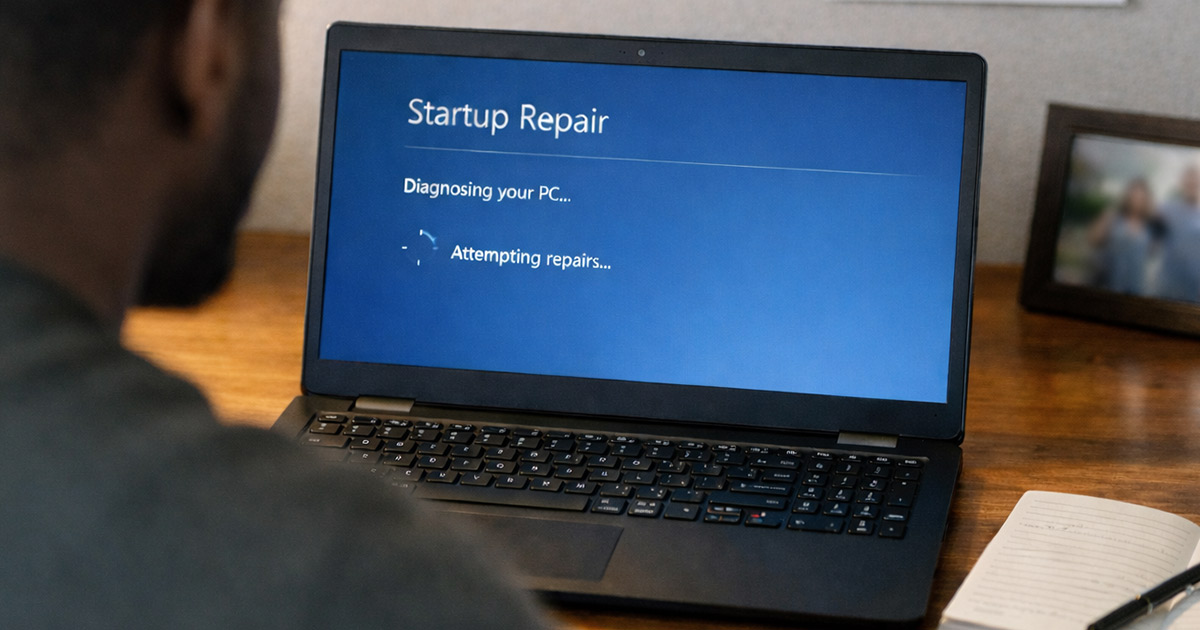
3) Run Startup Repair once
In WinRE:
- Troubleshoot
- Advanced options
- Startup Repair
Sometimes it repairs boot configuration without manual commands. Sometimes it shrugs and wastes two minutes. It’s still worth one attempt.
Test: Normal boot.
4) Try Safe Mode (this is a diagnostic step)
In WinRE:
- Troubleshoot
- Advanced options
- Startup Settings
- Restart
- Press 4 for Safe Mode (or 5 for Networking)
Test:
- If Safe Mode boots, suspect drivers/updates/startup items.
- If Safe Mode fails, focus on boot files, disk integrity, or system file corruption.
5) Uninstall the latest Windows update
In WinRE:
- Troubleshoot
- Advanced options
- Uninstall Updates
- Uninstall latest quality update first
If the failure started right after Patch Tuesday, don’t treat that like a coincidence.
Test: Normal boot.
6) Use System Restore (if available)
System Restore can roll back drivers, registry changes, and updates.
In WinRE:
- Troubleshoot
- Advanced options
- System Restore
- Pick a restore point from before the boot failure
Test: Normal boot.
7) Identify the Windows drive letter in WinRE
WinRE often assigns different drive letters than your normal Windows session. Don’t assume Windows is on C:.
Open Command Prompt in WinRE:
- Troubleshoot
- Advanced options
- Command Prompt
Run:
bcdedit | find "osdevice"
You’ll see something like partition=D:. That letter is your Windows partition in WinRE. Use it for the steps below.
Test: You can browse the drive in your head: if it’s D:, it should contain D:\Windows.
8) Check the disk (file system repair)
Replace D: below with your Windows partition letter from the previous step.
chkdsk D: /f
If CHKDSK reports lots of errors, or if it keeps finding errors repeatedly after reboots, that’s not a great sign for drive health.
Test: Reboot and try to boot normally.
9) Repair Windows system files offline (SFC)
Still in WinRE Command Prompt, using the correct drive letter:
sfc /scannow /offbootdir=D:\ /offwindir=D:\Windows
This checks and replaces corrupted system files using the offline Windows install.
Test: Reboot.
10) Repair the component store offline (DISM)
If SFC can’t fix everything (or keeps reporting corruption), run DISM offline:
DISM /Image:D:\ /Cleanup-Image /RestoreHealth
DISM can take a while. Let it finish. If it fails with source errors, you may need a Windows install USB as a repair source, but try the basic command first.
Test: Reboot.
11) Rebuild boot configuration (BCD/EFI) when boot errors point there
If you’re seeing BCD errors or missing boot config messages, rebuild boot data.
Start with:
bootrec /rebuildbcd
If that doesn’t help, UEFI systems often respond better to rebuilding boot files using bcdboot. This requires identifying the EFI partition.
Open DiskPart:
diskpart
List volumes:
list vol
Look for:
- The Windows volume (NTFS, large)
- The EFI System Partition (FAT32, usually 100–300MB)
Select the EFI volume (replace 3 with the correct volume number):
select vol 3
Assign a drive letter (example uses S:):
assign letter=S
Exit DiskPart:
exit
Now rebuild boot files (example assumes Windows is on D: and EFI is S:):
bcdboot D:\Windows /s S: /f UEFI
Test: Reboot. If it now passes the early boot stage, you repaired the boot chain.
12) If BitLocker is asking for a key, handle that first
If you’re at a BitLocker recovery screen, don’t keep “repairing boot” blindly. You can make it worse.
- Retrieve the recovery key (often in your Microsoft account under Devices).
- Enter the key and boot.
- After you’re in Windows, check what changed: BIOS updates, TPM settings, Secure Boot, boot order.
Test: If it boots after the key, the problem was protection, not corruption.
13) Hardware sanity checks when fixes don’t stick
If Windows repairs successfully and then breaks again, or if boot behavior is inconsistent, stop assuming software.
- Disable XMP/EXPO in BIOS/UEFI (memory overclock profiles).
- Reseat RAM.
- Test with one RAM stick at a time.
- If possible, test the drive with manufacturer diagnostics or check SMART in BIOS (some systems show basic drive health).
If the system becomes stable after disabling XMP or swapping RAM sticks, you weren’t chasing a Windows problem. You were chasing unstable memory pretending to be a Windows problem.
Test: Consistent boot behavior over multiple restarts.
14) Last resort: Reset or reinstall (but be intentional)
If you’ve repaired disk and system files and it still won’t boot reliably:
In WinRE:
- Troubleshoot
- Reset this PC
- Choose Keep my files first
This removes apps and settings but can salvage a broken Windows install.
If Reset fails, or if the drive is suspicious, back up data and do a clean install. At that point you’re not “giving up.” You’re choosing time over stubbornness.
Test: Fresh boot to desktop, multiple restarts, no loops.
Final Thoughts
A Windows boot failure looks like one big problem. It isn’t. It’s a failure somewhere in a small sequence: firmware picks a target, bootloader hands off, disk serves files, Windows loads core components, drivers load, updates finalize.
So you fix it the same way: in order.
Start with boot order and external devices.
Then use WinRE tools (Startup Repair, uninstall updates, System Restore).
Then do the offline repairs (CHKDSK, SFC, DISM).
Then rebuild boot files if the errors point there.
If it keeps “almost working” and then collapses again, start suspecting hardware—especially the drive and RAM. Windows is fragile, sure. But it’s usually not imaginative.