
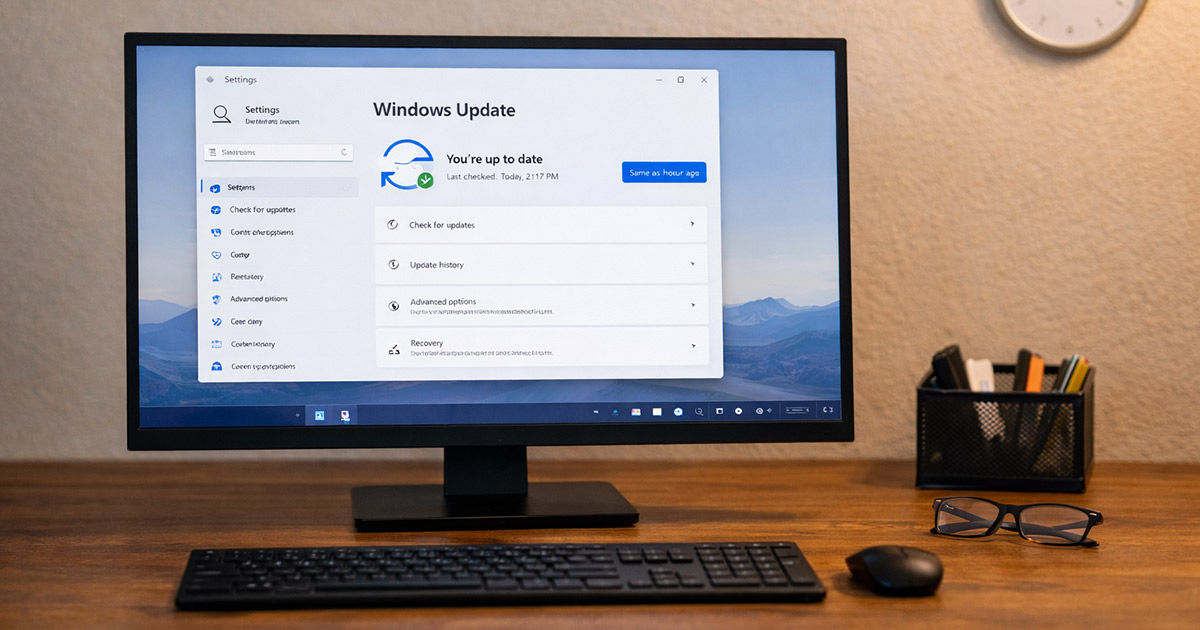
You install a Windows update. It restarts. Everything looks fine.
Then the freezing starts.
The mouse stops moving. Apps hang. The taskbar locks up. Maybe it works for 10 minutes. Maybe 10 seconds.
This shouldn’t be happening. Updates are supposed to improve things, not turn your PC into a paperweight or make you feel like windows update broke my computer overnight.
The good news? Windows rarely freezes “for no reason.” Something changed during that update. We just need to isolate what.
Let’s break it down logically.
Why Windows 11 Freezes After an Update
Updates don’t just patch security holes. They modify drivers, system files, power behavior, background services, and sometimes firmware communication.
If something doesn’t integrate cleanly, the system stalls.
Here are the usual suspects.
1. Driver Conflicts (Most Common)
Windows updates often replace or modify drivers silently.
That’s fine — unless your hardware doesn’t like the new version, the same way display drivers can crash into a black screen after Windows update when they misfire.
Common troublemakers:
- Graphics drivers
- Chipset drivers
- Storage/NVMe drivers
- Wi-Fi/Bluetooth adapters
Symptoms:
- Freezing when opening apps
- Freezing during video playback
- Screen stutters before lockup
- System freezes but audio continues briefly
These same instability signs sometimes appear right before a Windows Update BSOD, so the pattern is very familiar.
Quick test:
Open Device Manager and check for any yellow warning symbols.
Also ask yourself: does it freeze under load (YouTube, gaming, multitasking)? That’s often GPU-related.
Fix:
Reinstall or roll back the affected driver (we’ll do that properly in the fix section).
There’s your gremlin.
2. Corrupted System Files During the Update
Updates sometimes fail quietly in the background — especially if a windows update stuck mid-install left half-applied files behind.
Power hiccup. Forced restart. Antivirus interference. Something interrupts the process.
Windows boots — but underlying system files are partially damaged.
Symptoms:
- Random freezes, no pattern
- File Explorer crashes
- Start menu unresponsive
- Event Viewer shows critical errors
Quick test:
If freezing started immediately after the update and wasn’t gradual, system file corruption is likely.
Fix:
Run SFC and DISM scans (covered below).
3. Background Services Stuck in a Loop
After an update, Windows re-indexes files, rebuilds caches, reinitializes drivers.
Sometimes it gets stuck doing that.
Symptoms:
- High CPU or disk usage in Task Manager
- System slows, then freezes
- Freezing improves after waiting 10–15 minutes
When those background tasks pile up, you also get the classic high CPU usage after Windows update symptom at the exact same time.
Quick test:
Open Task Manager → check CPU and Disk usage when freezing starts.
If one process is constantly spiking, that’s your clue — and it’s one of the same root causes behind systems feeling Windows 11 slow after update as indexing or maintenance loops run wild.
Fix:
Let indexing finish — or reset Windows Search if it’s looping.
4. Fast Startup + Update Conflict
Fast Startup doesn’t fully shut down Windows. It hibernates part of the kernel.
After an update, that hybrid shutdown can conflict with newly modified system files.
Symptoms:
- Freezing shortly after boot
- Freezing only on cold boot
- Restart temporarily fixes it — the same kind of one-reboot fix people see with wi-fi not working after Windows update when Windows reloads fresh drivers.
Quick test:
Restart the PC instead of shutting down. If freezing disappears after restart but returns later, Fast Startup is involved.
Fix:
Disable Fast Startup (steps below).
5. Failing Hardware That the Update Exposed
This one’s uncomfortable.
Sometimes the update didn’t cause the problem — it just made Windows use hardware differently.
For example:
- New GPU scheduling behavior
- Different memory handling
- New storage driver interaction
If hardware was already borderline unstable, the update exposes it.
The update didn’t cause the hardware issue. It revealed it — the same thing that happens in more severe cases where Windows won’t boot after update because a weak component finally failed under pressure.
Symptoms:
- Blue screens along with freezing
- Freezes under heavy load
- Random reboots
- Memory-related errors
Quick test:
Run Windows Memory Diagnostic.
If errors appear, that’s not a Windows problem. That’s hardware.
How to Fix Windows 11 Freezing After an Update
We’re going in order. Don’t shotgun 12 changes at once.
One change. Test. Move forward.
1. Restart Properly (Not Shut Down)
Before anything else:
- Click Start
- Select Power
- Click Restart
Not shut down. Restart.
Freezing is annoying, but it’s still better than landing in a Preparing Automatic Repair loop where Windows can’t even reach the desktop.
Test:
Use the PC normally for 10–15 minutes.
If freezing stops, Fast Startup may be the issue. Continue to step 2 anyway.
2. Disable Fast Startup
- Press Windows + R
- Type: control
- Open Power Options
- Click “Choose what the power buttons do”
- Click “Change settings that are currently unavailable”
- Uncheck “Turn on fast startup”
- Save changes
- Restart
Test:
Use the system normally.
If freezing improves significantly, that was the conflict.
3. Run System File Repairs (SFC + DISM)
Right-click Start → choose Terminal (Admin).
Run this first:
sfc /scannow
Wait until it finishes.
Then run:
DISM /Online /Cleanup-Image /RestoreHealth
Let it complete fully.
Restart after both finish.
Test:
If corruption was the issue, freezing should reduce or disappear.
4. Check and Roll Back Drivers
Open Device Manager.
Look at:
- Display adapters
- Storage controllers
- Network adapters
Right-click the suspected device → Properties → Driver tab.
If “Roll Back Driver” is available, try it.
If not:
- Visit the manufacturer’s website
- Download the latest stable driver
- Install manually
Avoid relying on Windows Update for this part.
Test:
Use the system under the same conditions that caused freezing before.
5. Uninstall the Recent Windows Update (If Needed)
If freezing began immediately after a specific update:
- Go to Settings
- Windows Update
- Update History
- Uninstall Updates
- Remove the most recent one
Restart afterward.
Test:
If freezing stops completely, the update itself is unstable on your hardware.
You can pause updates temporarily until Microsoft patches it.
This same pause-and-wait approach is often what resolves Bluetooth not working after Windows update, since those fixes usually arrive in follow-up patches.
6. Check for BIOS Updates (Advanced but Important)
If freezes persist and drivers look fine:
- Visit your motherboard or laptop manufacturer’s site
- Compare your BIOS version
- Update if a newer stable version exists
BIOS updates often improve hardware compatibility after major Windows builds.
Only do this if you’re comfortable following manufacturer instructions carefully.
7. Last Resort: System Restore
If you had restore points enabled:
- Search “Create a restore point”
- Click System Restore
- Choose a restore point before the update
This reverts system files without deleting personal files.
If that fixes it, you’ve confirmed the update interaction was the trigger.
Final Thoughts
Windows 11 freezing after an update feels random. It isn’t.
Something changed. Drivers, power handling, background services, or hardware interaction.
Start simple:
- Restart properly
- Disable Fast Startup
- Repair system files
- Check drivers
Most cases resolve in those steps.
And if they don’t, you now know how to narrow it down instead of guessing.
Updates don’t freeze systems for fun. Something tripped behind the curtain.
Find it. Fix it. Move on.