
You install the update.
It restarts.
And suddenly your computer moves like it’s dragging a couch uphill.
Programs take longer to open. The fan ramps up. Task Manager shows things you didn’t ask for. It feels wrong.
This shouldn’t be happening.
But there’s a reason for it. Windows updates don’t randomly make systems slow for fun. Something changed behind the curtain.
Let’s walk through why it happens — then we’ll fix it properly.
Why Windows 11 Runs Slow After an Update
Updates change system files, drivers, background services, and sometimes power settings. When one of those doesn’t settle correctly, performance drops.
Here are the most common causes.
1. Background Indexing and Cleanup Is Still Running
After a major update, Windows quietly does housekeeping:
- Re-indexing files
- Rebuilding search database
- Running disk cleanup tasks
- Optimizing apps
- Installing additional components
You don’t see most of it. You just feel it.
Symptoms:
- High CPU usage
- Disk usage spikes
- Sluggish response for 1–3 days
Quick Test:
Press Ctrl + Shift + Esc → open Task Manager
Check CPU and Disk usage.
If they’re constantly high, background tasks are likely still finishing.
Fix:
Sometimes the fix is patience. Give it 24–72 hours of normal use. If it settles down, there’s your gremlin.
If not, keep going.
2. Drivers Were Replaced or Reset
Windows updates sometimes overwrite graphics, chipset, or storage drivers.
If the wrong version loads, performance tanks.
Symptoms:
- Lag when opening windows
- Stuttering video
- Sluggish animations
- Random freezing
Quick Test:
Open Device Manager
Look for:
- Yellow warning symbols
- Generic “Microsoft Basic Display Adapter”
Fix:
- Visit your laptop or motherboard manufacturer’s website.
- Download the latest graphics and chipset drivers.
- Install manually.
- Restart.
This one fixes a surprising number of post-update slowdowns.
3. Startup Programs Got Re-Enabled
Updates sometimes reset startup settings.
Suddenly you have:
- OneDrive
- Teams
- Discord
- Update assistants
- Background utilities
All launching at boot.
That stacks up fast.
Fix:
- Press Ctrl + Shift + Esc.
- Go to Startup tab.
- Disable anything you don’t absolutely need.
- Restart.
Less noise at boot = smoother performance.
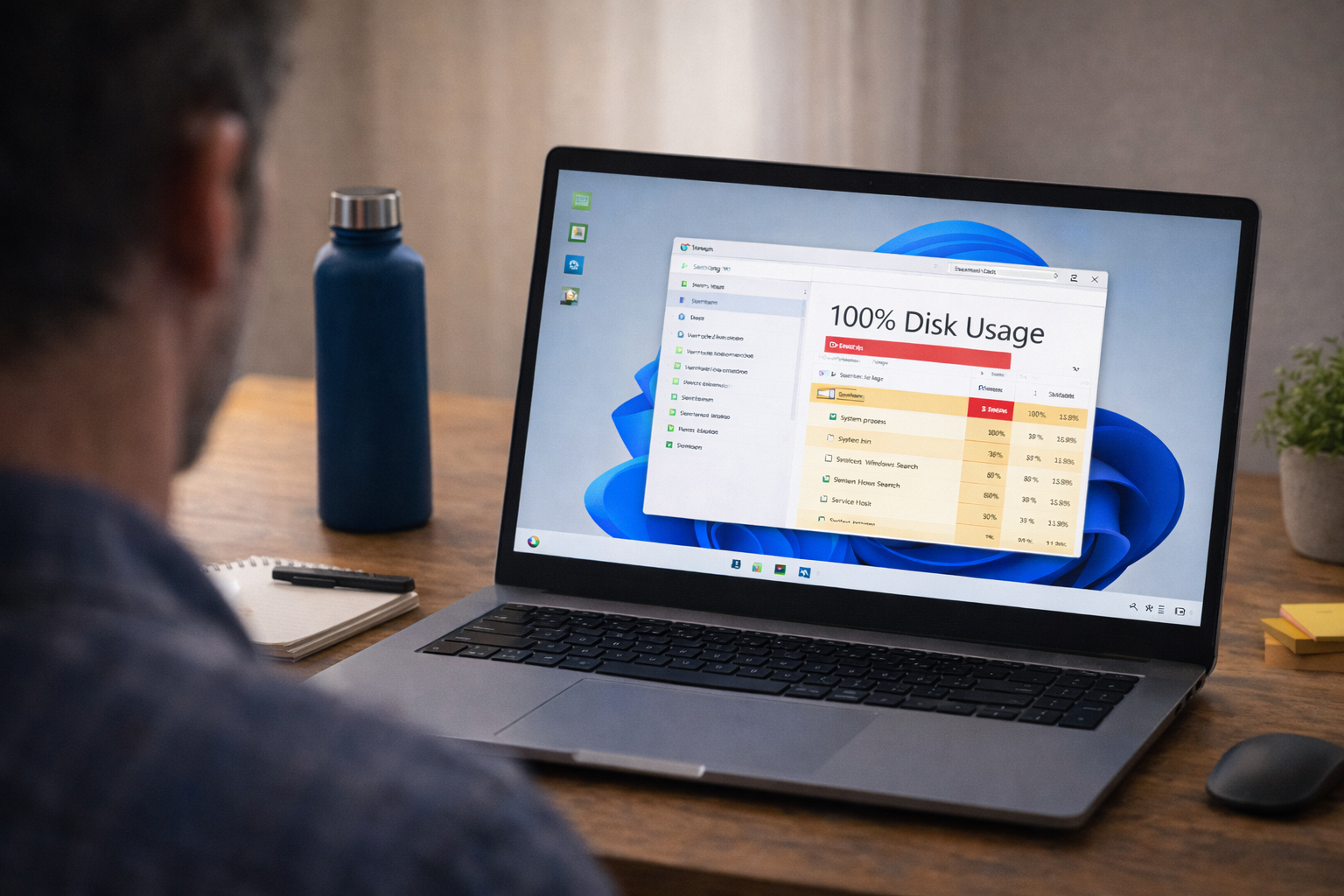
4. High Disk Usage (100% Disk)
This one deserves attention.
If Task Manager shows Disk at 100% constantly, the system will feel slow no matter how fast your CPU is.
Common causes:
- Windows Search indexing
- SysMain service
- Corrupt update files
If you’re seeing this specifically, you’ll want to read our full guide on High Disk Usage in Windows.
That problem feeds directly into this one.
5. Power Plan Was Reset
Sometimes updates switch power settings.
Especially on laptops.
Symptoms:
- Slower performance on battery
- Reduced CPU speeds
- Throttling under load
Fix:
- Open Settings.
- Go to System → Power & Battery.
- Set Power Mode to Best Performance.
- Restart.
Simple. But it matters.
6. Corrupted Update Installation
Occasionally, the update itself doesn’t install cleanly.
This can cause:
- System file corruption
- Slow boot times
- Freezing
- Lag spikes
If your slowdown started immediately and feels extreme, this may be it.
What You Can Do to Fix It (Step-by-Step Checklist)
Now we go in logical order.
One change at a time.
Step 1: Restart Again (Yes, Again)
I know.
But after updates, a second clean restart can finish pending operations.
Do a full shutdown:
- Click Start.
- Hold Shift.
- Click Shut Down.
- Wait 30 seconds.
- Power back on.
That forces a proper reset.
Step 2: Check for Another Update
Sometimes Microsoft releases a quick patch to fix the first update.
- Go to Settings.
- Windows Update.
- Check for updates.
- Install anything pending.
Restart.
Step 3: Run System File Checker
We’re not guessing. We’re checking integrity.
- Right-click Start.
- Click Terminal (Admin).
- Type:
sfc /scannow
- Press Enter.
- Let it complete.
If it finds and repairs corrupted files, restart.
Step 4: Run DISM Repair
If SFC doesn’t fix it:
- Open Terminal (Admin).
- Type:
DISM /Online /Cleanup-Image /RestoreHealth
- Press Enter.
- Wait.
- Restart.
This repairs the Windows image itself.
Step 5: Roll Back the Update (If Necessary)
If performance is still bad and nothing improved:
- Go to Settings.
- Windows Update.
- Update History.
- Uninstall Updates.
- Remove the most recent quality update.
Only do this if the slowdown is severe and immediate.
Step 6: Check Storage Space
Low storage makes everything worse.
Open File Explorer → This PC
If your C: drive is under 15% free space, that’s part of the problem.
Free up space and restart.
Final Thoughts
Windows 11 running slow after an update isn’t random.
It’s usually:
- Background tasks finishing
- Drivers needing correction
- Disk usage pinned
- Startup clutter
- Or a partially broken update
Work through it methodically.
One change at a time.
Don’t panic. Don’t factory reset immediately. Don’t start uninstalling random programs.
There’s a cause. There’s always a cause.
Find it. Fix it. Move on.
If you’re also seeing freezing or disk usage spikes, check those guides next. They’re often connected.
There it is.