
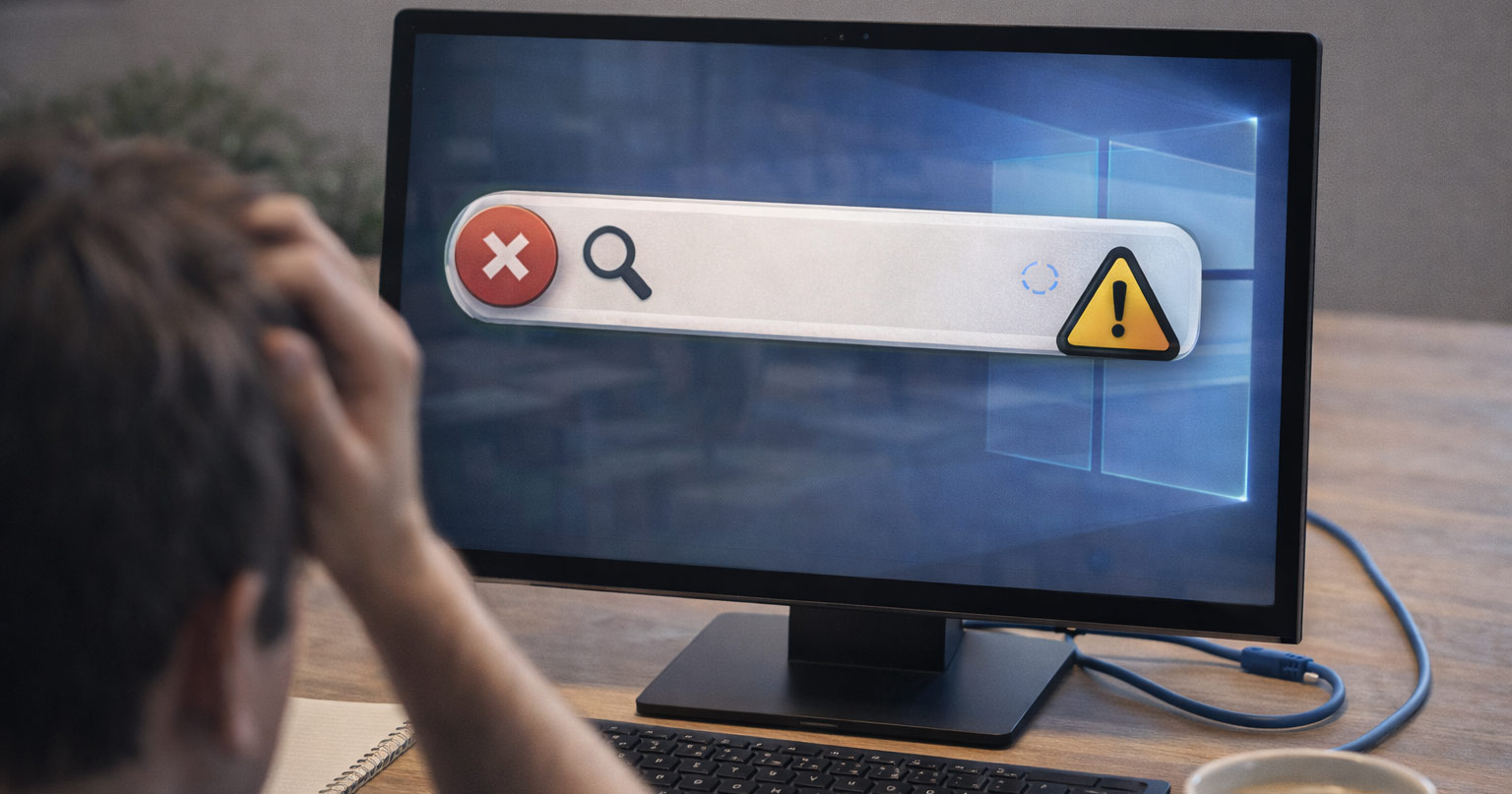
You click the Start button.
You type something.
Nothing.
No results. No spinning dots. Maybe the search box won’t even open.
That’s not random. And it’s not “just Windows being Windows.”
Search is a background system tied to services, indexing, and system files. If one piece trips, the whole thing looks dead.
The good news? This is almost always fixable.
Let’s break it down properly.
Why the Windows Search Bar Stops Working
When Search fails, it’s usually one of these:
- The Search process crashed
- The Windows Search service stopped
- The search index is corrupted
- A recent update broke something
- System files are damaged
Search isn’t one single feature. It’s multiple components working together. If one stops responding, the search box just sits there like it forgot its job.
We’re not guessing. We’re isolating.
1. The Search Process Froze in the Background
Windows runs Search as a background process (SearchHost.exe).
If that process hangs, the search bar won’t respond.
Symptoms:
- Search box opens but won’t type
- Search panel stays blank
- Taskbar search doesn’t react
Quick test:
Open Task Manager and look for “Search.”
If it’s sitting there but not responding, that’s likely the issue.
Fix: Restart the process
- Press Ctrl + Shift + Esc
- Click More details (if needed)
- Find Search or SearchHost.exe
- Right-click it
- Click End task
Windows will automatically restart it.
Try Search again.
If it suddenly works, there’s your gremlin.
2. The Windows Search Service Stopped Running
Search depends on a system service called “Windows Search.”
If it stops, Search stops.
Symptoms:
- Search bar won’t open at all
- Typing does nothing
- No indexing activity
Fix: Restart the service
- Press Windows Key + R
- Type: services.msc
- Press Enter
- Scroll to Windows Search
- Double-click it
- Click Restart
If it isn’t running, click Start.
Make sure Startup Type is set to Automatic.
Close everything and test again.
3. The Search Index Is Corrupted
Search doesn’t scan your whole drive every time you type. That would be chaos.
It uses an index — basically a catalog of your files.
If that index gets corrupted, search results disappear or become incomplete.
Symptoms:
- Search works but finds nothing
- Files you know exist don’t show up
- Results are inconsistent
Fix: Rebuild the index
- Open Control Panel
- Click Indexing Options
- Click Advanced
- Under Troubleshooting, click Rebuild
This can take time depending on how many files you have.
While it rebuilds, results may be limited.
Let it finish.
4. A Windows Update Broke Something
If Search stopped working right after an update, that’s not coincidence.
Sometimes updates corrupt system components or misconfigure services.
Quick test:
Did this start immediately after an update?
If yes, check system file integrity.
Fix: Run System File Checker
- Right-click Start
- Click Windows Terminal (Admin) or Command Prompt (Admin)
- Type:
sfc /scannow
- Press Enter
- Let it complete
If it finds and repairs corrupted files, restart the computer.
Test Search again.
5. Search Components Need a Reset
If nothing above worked, the Search app package itself may need resetting.
This is deeper, but still safe.
Fix: Reset Windows Search via PowerShell
- Open PowerShell as Administrator
- Run:
Get-AppxPackage Microsoft.Windows.Search | Reset-AppxPackage
- Press Enter
- Restart the computer
This resets Search without reinstalling Windows.
Step-by-Step Troubleshooting Order (Do This in Sequence)
If you want the clean diagnostic path, here it is:
- Restart the Search process in Task Manager
- Restart the Windows Search service
- Rebuild the search index
- Run sfc /scannow
- Reset Search via PowerShell
Test after each step.
One change at a time.
That’s how you avoid chasing ghosts.
When It’s Something Bigger
If Search still refuses to work after all of this, you may be dealing with deeper system corruption.
At that point, your options are:
- System Restore (if enabled before the issue started)
- In-place repair upgrade of Windows
Both keep your files intact.
But don’t jump there first.
Most Search problems resolve long before that.
Final Thoughts
When the Windows Search bar stops working, it feels bigger than it is.
It’s just a background process, a service, and an index.
One of them stopped behaving.
This isn’t hardware. It’s not your drive dying. It’s not your computer giving up.
It’s a software component that needs a nudge.
Take it step by step.
You’ll get it back.
And when you do, everything feels normal again.
Which is how it should be.