
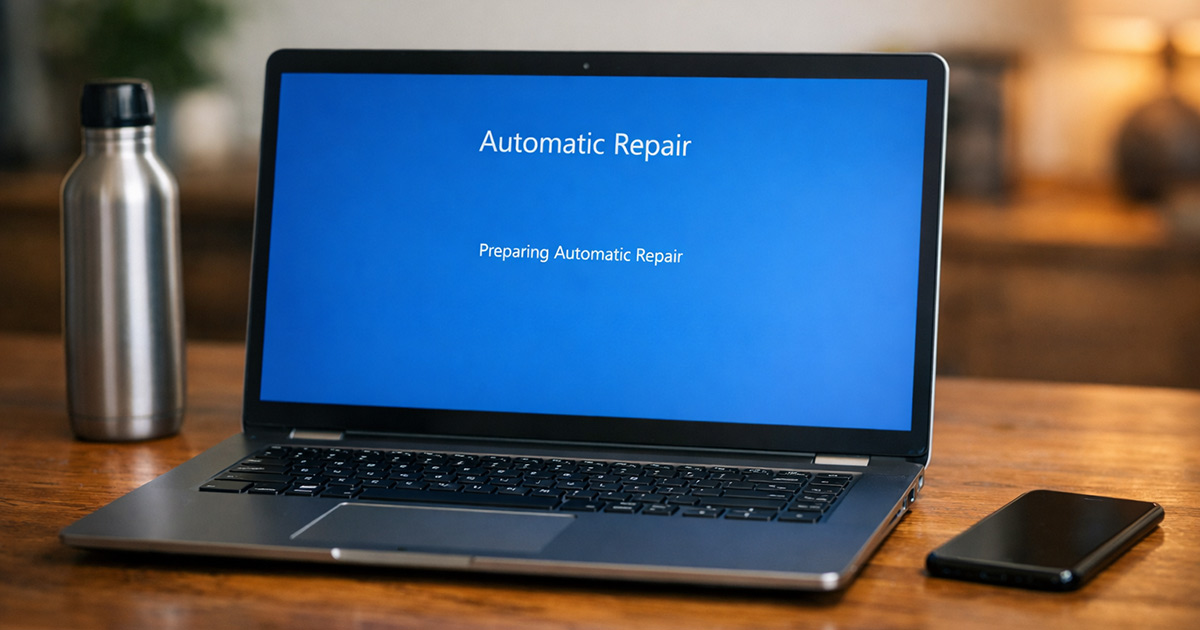
You installed a Windows update.
Now your PC boots… shows “Preparing Automatic Repair”… spins… restarts… and does it all over again.
No desktop. No login screen. Just the same loop.
This usually looks worse than it is. Windows isn’t randomly broken — even when it feels like windows update broke my computer during reboot. Something during the update didn’t finish correctly, and now the boot process can’t complete.
We’re not guessing. We’re going to isolate the failure and fix it logically.
Why This Is Happening
“Preparing Automatic Repair” appears when Windows detects a failed boot sequence multiple times in a row. After an update, that usually points to one of a few specific things.
1. Corrupted Update Files
If power cut out mid-update, or the system froze during restart, Windows can end up with half-written system files. This is the same kind of mess that shows up when a windows update stuck mid-install leaves half-written system files.
What happens:
- Update installs partially
- Critical boot files don’t match
- Windows fails startup validation
- Automatic Repair launches… and loops
Symptoms:
- Loop started immediately after an update
- No hardware changes
- No previous warning signs
Quick test:
Did this start right after Windows said “Working on updates” and restarted? If yes, this is likely it.
2. Damaged Boot Configuration Data (BCD)
The Boot Configuration Data tells Windows how to start.
If the update modified boot parameters and something glitched, the BCD can become unreadable.
What happens:
- Boot loader can’t find Windows properly
- Automatic Repair tries to rebuild
- It fails and restarts
This one is common after feature updates.
3. Disk Errors or Failing Drive
If your hard drive or SSD has bad sectors, an update stresses it hard. That heavy read/write load is also the same reason some people see high disk usage after Windows update right before things start to fail. That’s when weak spots show up.
What happens:
- Windows writes new system files
- Disk errors interrupt the process
- Critical files become unreadable
Clues:
- System was slow before
- Random freezes previously
- Clicking noise (HDD only)
If this is the cause, the update didn’t break Windows. It exposed the problem.
There’s your gremlin.
4. Third-Party Driver Conflict
Some drivers don’t cooperate with major Windows updates.
When they misfire during startup, you get everything from repair loops to a Windows Update BSOD depending on what failed first.
Especially:
- GPU drivers
- Storage controller drivers
- Old antivirus software
If a driver fails during boot initialization, Windows halts and launches repair mode — the same underlying issue that can cause a black screen after windows update when the display chain collapses.
How to Fix the Automatic Repair Loop
We’re starting with the least invasive options first.
Automatic Repair is dramatic, but still better than cases where Windows won’t boot after update and doesn’t even load recovery mode.
After each step, restart and check if Windows boots normally.
Step 1: Force Access to Advanced Startup
- Power on the PC.
- As soon as you see the Windows logo, hold the power button to force shut down.
- Repeat this 3 times.
- On the fourth boot, Windows should load Advanced Startup. If background processes were already stuck in a loop — the classic high CPU usage after Windows update symptom — forcing recovery is sometimes the only escape.
If you see “Automatic Repair” then “Advanced options,” good. That’s where we want to be.
Step 2: Try Startup Repair (Once)
- Click Advanced options
- Select Troubleshoot
- Click Startup Repair
- Choose your account
- Let it run
Test:
If it boots normally after this, you’re done.
If it says it couldn’t repair your PC, move on.
Step 3: Uninstall the Latest Update
This is often the real fix.
- Go to Advanced options
- Select Troubleshoot
- Click Advanced options
- Choose Uninstall Updates
- First try Uninstall latest quality update
- Restart and test
If that fails, repeat and uninstall the latest feature update.
Feature updates are bigger and more likely to cause this loop.
They’re also the same type that often leave systems feeling Windows 11 slow after update before they tip over into a full repair loop.
Step 4: Boot Into Safe Mode
If uninstalling doesn’t work:
- Go to Advanced options
- Select Startup Settings
- Click Restart
- Press 4 for Safe Mode
If Safe Mode loads:
- Open Device Manager
- Roll back recently updated drivers. Audio drivers especially tend to break during feature updates, which is why sound not working after windows update often appears right before deeper boot issues.
- Uninstall third-party antivirus. Some security suites also wipe or reset network stacks, which is why you sometimes see wi-fi not working after windows update following a bad patch.
- Restart normally
Test:
If normal boot works afterward, a driver was the problem.
Step 5: Run Disk Check (Important)
From Advanced options:
- Open Command Prompt
- Type:
chkdsk C: /f /r
- Press Enter
- Let it complete (this can take a while)
This scans for bad sectors and repairs file system errors.
Corruption here doesn’t just affect boot — it’s the same thing that triggers Bluetooth not working after Windows update when driver files become unreadable.
If errors are found and fixed, restart.
If it reports serious disk problems repeatedly, your drive may be failing.
Step 6: Rebuild Boot Configuration
Still looping? Time to rebuild the boot data.
In Command Prompt, type these one at a time:
bootrec /fixmbr
bootrec /fixboot
bootrec /scanos
bootrec /rebuildbcd
Press Enter after each.
Then restart.
If it boots, the BCD was corrupted.
Step 7: System Restore (If Available)
If you had restore points enabled:
- Go to Advanced options
- Click System Restore
- Choose a restore point before the update
- Let it complete
This rolls back system files without deleting personal data.
Step 8: Reset Windows (Last Resort)
If nothing works:
- Go to Troubleshoot
- Choose Reset this PC
- Select Keep my files
This reinstalls Windows but keeps personal documents.
Apps will need to be reinstalled.
If even reset fails, you’re likely dealing with hardware.
Final Thoughts
When Windows gets stuck on “Preparing Automatic Repair” after an update, it’s almost never random.
It’s usually:
- A corrupted update
- Boot configuration damage
- A weak drive finally showing its age
- Or a driver conflict
All of these are the same reasons you’ll see a windows update frozen mid-install — one broken piece cascades into a much bigger startup problem.
Work through it one step at a time. Don’t jump straight to reinstalling Windows unless you have to.
Most of the time, uninstalling the latest update or repairing the boot configuration fixes it.
Calm. Methodical. One change at a time.
Windows isn’t trying to ruin your day. It just tripped during startup.
Fix the trip point, and it boots.