
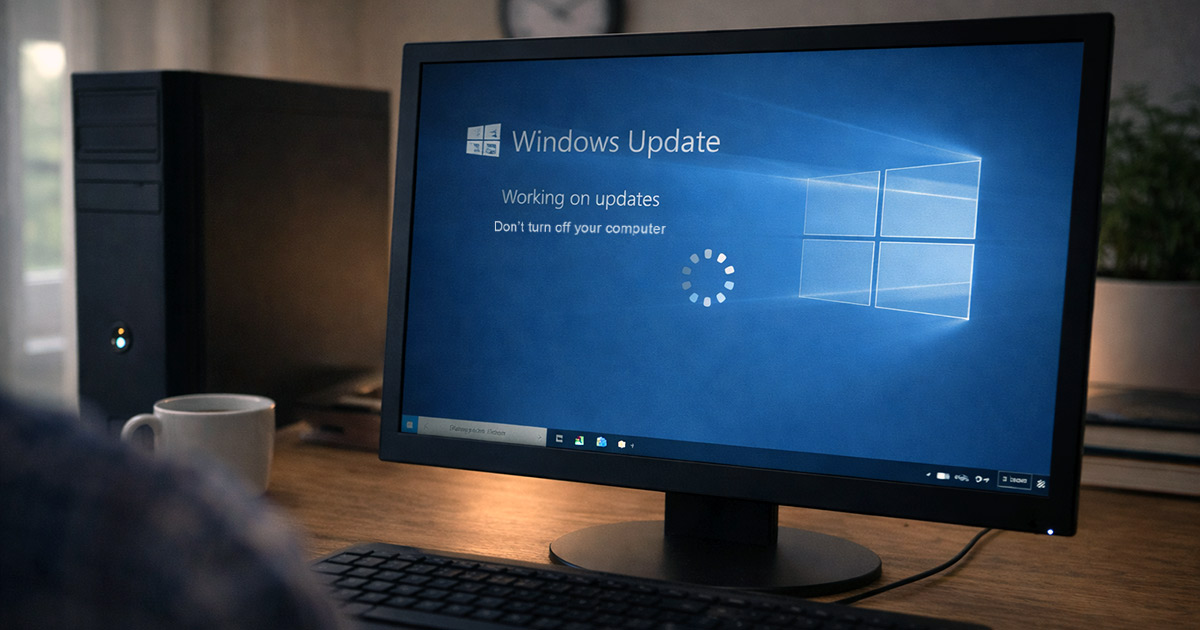
You install a Windows update.
It restarts.
You log back in.
And suddenly… everything feels heavier.
Apps take longer to open.
The fan spins more.
The cursor feels just a little delayed.
Immediate thought:
“Great. The update broke my computer.”
I can tell you right now — I’ve seen this exact scenario hundreds of times.
And most of the time?
Nothing is broken.
Your computer is just busy.
Let’s unpack what’s actually happening.
First: The Update Isn’t Finished When It Says It’s Finished
When Windows reboots after an update, that’s not the end of the process.
That’s just the visible part.
After you log back in, Windows often spends hours quietly:
- Rebuilding system components
- Re-indexing files
- Re-optimizing storage
- Updating built-in apps
- Running Defender scans
- Reconfiguring drivers
All of that uses CPU and disk activity.
And when CPU + disk are busy, the system feels slow.
That doesn’t mean the update is bad.
It means your system is cleaning up and reorganizing itself.
The Most Common Reasons It Feels Slower
1. Background Optimization (By Far the Most Common)
This is the one I see constantly.
After major updates, Windows runs background optimization tasks that:
- Spike CPU
- Max out disk usage
- Slow down app launches
- Increase fan noise
Open Task Manager (Ctrl + Shift + Esc).
Sort by CPU or Disk.
You’ll usually see system processes working harder than usual.
That’s normal for a short period.
It’s not corruption. It’s housekeeping.
Most systems settle within 24–72 hours.
2. Hard Drive Bottleneck
If your system still runs on a traditional hard drive (HDD), updates hit it hard.
HDDs struggle with:
- Large file rewrites
- Re-indexing
- System cleanup
An SSD handles this much better.
If you’ve ever heard someone say “Windows updates made my PC unusable,” and they’re on an old hard drive — that’s usually the real issue.
It’s not Windows.
It’s the drive.
3. Driver Swaps
Windows updates sometimes replace:
- Graphics drivers
- Chipset drivers
- Network drivers
If the new driver doesn’t play perfectly with your hardware, you may notice:
- Lower frame rates
- Slight lag
- Higher CPU usage
It’s not common — but I’ve seen it enough to mention it.
Rolling back a driver can fix it quickly if that’s the case.
4. Startup Programs Waking Back Up
Updates occasionally re-enable:
- Startup apps
- Background services
- Sync programs
Suddenly, more things are launching at boot.
Boot time increases. System load increases.
Open Task Manager → Startup tab.
You might find some familiar names turned back on.
Disable what you don’t need.
5. It Actually Installed Poorly (Rare, But Real)
Sometimes an update doesn’t install cleanly.
If slowdown continues for several days with:
- Constant 100% disk usage
- Freezing
- Repeated crashes
- Blue screens
That’s when we look at corruption.
But that’s not the typical case.
Most post-update slowdowns are temporary.
What To Do (Without Overreacting)
Let’s handle this calmly.
Step 1: Restart One More Time
Yes, again.
I’ve seen so many systems smooth out after a second reboot.
It clears lingering background tasks and finalizes configuration.
It sounds simple.
It works.
Step 2: Open Task Manager and Observe
Don’t guess. Look.
If system processes are using CPU or disk heavily, let it run while plugged in for a few hours.
Let it finish.
Constantly interrupting it by shutting down can drag the process out longer.
Step 3: Give It a Day
If the update installed today, give it time.
Most of the heavy background optimization finishes within 24–48 hours.
If it’s still slow after several days, that’s when deeper investigation makes sense.
Step 4: Clean Up Startup
Disable:
- Game launchers
- Auto-updaters
- Apps you don’t need at boot
Less startup clutter = less post-update strain.
Step 5: Check Free Space
If your drive is nearly full, updates struggle.
Try to maintain at least 15–20% free space.
Low storage makes everything feel worse.
Step 6: Consider an SSD Upgrade (If Still on HDD)
I’ve watched this change machines overnight.
Same laptop. Same Windows version.
Swap HDD for SSD.
Suddenly updates don’t feel like disasters anymore.
If you’re still on spinning storage, that may be the hidden problem.
Step 7: Roll Back Only If It Truly Broke Something
If performance is dramatically worse and doesn’t improve after several days:
Settings → Windows Update → Update History → Uninstall Updates.
But don’t rush here.
Most systems don’t need this step.
When It’s Actually Concerning
It’s more serious if:
- CPU usage is pegged at 100% constantly
- Disk usage stays maxed for days
- Blue screens appear
- Apps crash repeatedly
That’s when we look at driver conflicts or corrupted installs.
But that’s the minority of cases.
Final Thoughts
When a Windows update makes your computer feel slow, it usually didn’t break anything.
It made your system busy.
Updates trigger:
- File re-indexing
- Driver changes
- Security scans
- System cleanup
That temporary workload feels like sluggishness.
Most machines stabilize within a couple of days.
And I’ll say this clearly:
In the vast majority of cases, patience fixes this.
If it’s still slow after that window, then we troubleshoot deeper.
But don’t assume the update destroyed your system.
It usually just asked your computer to reorganize itself.
If you’re troubleshooting other Windows performance issues, explore the related guides on FixTechProblem.com for clear, step-by-step solutions.