
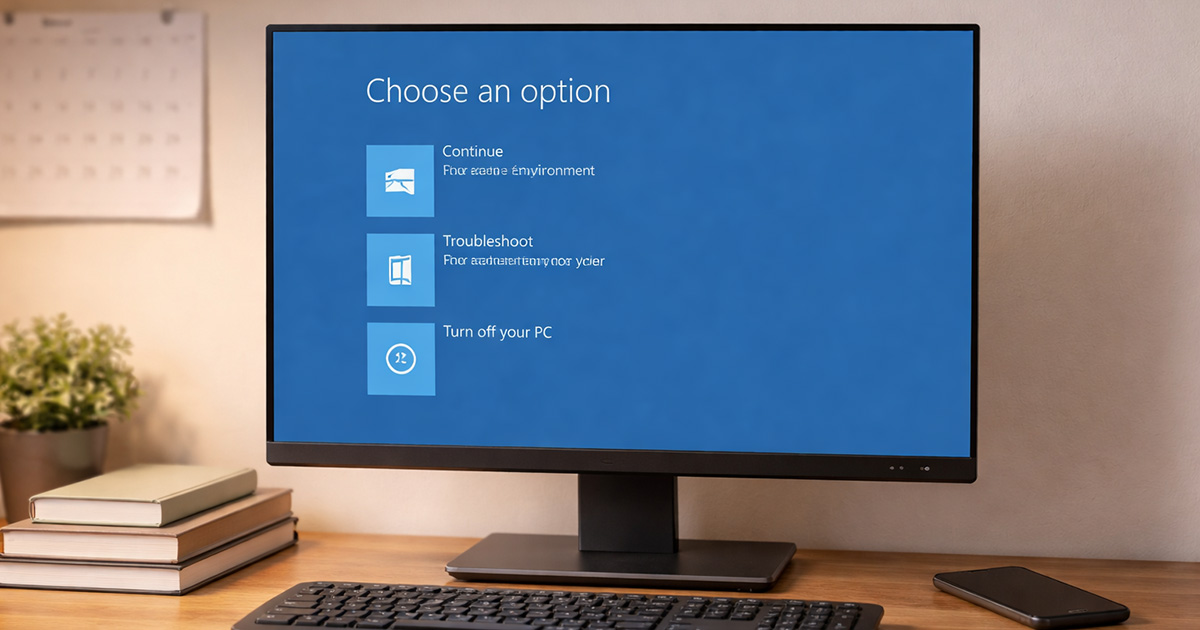
Windows was working fine.
Then it installed an update.
Now it won’t boot.
Black screen. Spinning dots. Automatic Repair loop. Maybe a blue screen. Maybe nothing at all.
This is one of those problems that feels catastrophic — the classic “windows update broke my computer” panic moment. It usually isn’t.
Most post-update boot failures come down to three things: a corrupted system file, a broken driver, or an update that didn’t finish cleanly.
We’re going to diagnose it logically and fix it step by step. No guessing. No random button mashing.
Why This Is Happening
Updates don’t break systems for fun. Something underneath changed, and your machine didn’t like it.
Here are the usual suspects.
1. Corrupted System Files During Update
If the update was interrupted — power loss, forced shutdown, low disk space — Windows may have partially replaced core system files.
That leaves it stuck in boot limbo.
Symptoms:
- Stuck on spinning dots forever
- “Preparing Automatic Repair” loop
- Blue screen immediately after BIOS. Problems like these often overlap with the classic Windows Update BSOD, where damaged files crash the system before Windows can load.
- Error messages like “INACCESSIBLE_BOOT_DEVICE”
Quick test:
Did this happen immediately after an update finished (or failed) — the same pattern you see when a windows update stuck mid-install leaves corrupted files behind? If yes, this is likely the issue.
Fix:
We’ll use Startup Repair or System File tools from recovery mode.
2. Broken or Incompatible Driver
Updates sometimes replace graphics, storage, or chipset drivers.
If the new driver doesn’t cooperate with your hardware, Windows can’t fully initialize during boot.
Symptoms:
- Black screen after Windows logo — one of the same failure modes you see with black screen after windows update when display initialization breaks.
- Screen flashes, then nothing
- Boot works in Safe Mode but not normally
Quick test:
If Safe Mode works, but normal boot doesn’t — there’s your gremlin.
Drivers that misfire during startup often showed early warning signs like high CPU usage after Windows update before the crash finally hit.
Fix:
Boot into Safe Mode and roll back or remove the problem driver.
3. Corrupted Boot Configuration (BCD)
The Boot Configuration Data tells Windows how to start.
When BCD gets scrambled, all kinds of problems after windows update start appearing — everything from boot loops to wi-fi not working after windows update depending on what got overwritten.
If the update touched boot files and something glitched, Windows doesn’t know where to look anymore.
Symptoms:
- “Boot configuration data is missing”
- “Your PC needs to be repaired”
- Immediate recovery screen
Fix:
Rebuild the BCD using recovery tools.
4. Update Didn’t Complete Properly
Sometimes Windows reboots mid-update and never finishes configuring.
It just loops.
Sometimes an update limps during installation first — the type that makes systems feel Windows 11 slow after update — and then fails completely on the next reboot.
Symptoms:
- “Working on updates” stuck for hours
- Reboot → same message → repeat
Fix:
Uninstall the update from recovery mode. Rolling back a bad update is often the same fix behind issues like Bluetooth not working after Windows update, where driver mismatches cascade into larger system failures.
How to Fix It
We’re starting with the least invasive options first.
Do these in order.
Test after each one.
Step 1: Force Windows Into Recovery Mode
If Windows won’t boot normally:
- Turn the PC on.
- As soon as Windows starts loading, hold the power button to force shutdown.
- Repeat this 3 times.
On the third attempt, Windows should enter Advanced Startup.
If it doesn’t, you’ll need a Windows installation USB.
Once you’re in recovery:
Go to:
Troubleshoot → Advanced Options
Now we work.
Step 2: Run Startup Repair
Inside Advanced Options:
- Click Startup Repair
- Select your Windows installation
- Let it scan and attempt repair
Startup Repair often gets triggered right after a Windows update CPU spike where background tasks crashed during boot.
Test:
Reboot normally.
If it works, you’re done.
If not, continue.
When Startup Repair fails instantly, it usually means a windows update frozen partway and left partial system files behind.
Step 3: Uninstall the Latest Update
Back to:
Troubleshoot → Advanced Options → Uninstall Updates
You’ll see:
- Uninstall latest quality update
- Uninstall latest feature update
Start with quality update (smaller patch).
Test:
Reboot.
If still broken, uninstall the feature update.
Step 4: Try System Restore (If Available)
If you had restore points enabled:
- Go to System Restore
- Choose a restore point before the update
- Let it roll back
This does not delete personal files.
System Restore is surprisingly effective for messy update fallout — the same kind that causes sound not working after windows update when audio services get corrupted.
Test:
Reboot.
Step 5: Boot Into Safe Mode
From Advanced Options:
Startup Settings → Restart → Press 4 for Safe Mode
If Safe Mode loads:
You’re likely dealing with a driver issue.
Inside Safe Mode:
- Open Device Manager
- Look for recently updated drivers (especially Display Adapters or Storage Controllers)
- Right-click → Properties → Roll Back Driver (if available)
If rollback isn’t available:
Uninstall the driver and reboot normally.
Windows will reinstall a stable version automatically.
Test:
Restart normally.
Step 6: Repair System Files Manually
If nothing above worked:
Go to:
Advanced Options → Command Prompt
Run these one at a time:
sfc /scannow
(Wait for completion.)
Then:
DISM /Online /Cleanup-Image /RestoreHealth
If Windows won’t accept the DISM command in recovery mode, skip it.
Test:
Reboot.
Step 7: Rebuild Boot Configuration
Still stuck?
Back to Command Prompt.
Run:
bootrec /fixmbr
bootrec /fixboot
bootrec /scanos
bootrec /rebuildbcd
If it finds your Windows installation, allow it to add it.
Test:
Restart.
Step 8: Last Resort — Reset This PC (Keep Files)
If nothing works:
Troubleshoot → Reset this PC → Keep my files
This reinstalls Windows without deleting personal data.
It removes apps and drivers, though.
Only use this if everything else failed.
Final Thoughts
When Windows won’t boot after an update, it feels like the system is dead.
It usually isn’t.
Updates change system files, drivers, and boot data. If any one of those doesn’t transition cleanly, Windows stalls.
The fix is methodical:
Repair.
Remove update.
Check drivers.
Rebuild boot files.
One change at a time. Test after each step.
No panic. Just process.
Most machines come back before you ever reach the reset option.
And once it’s stable again, consider delaying major feature updates for a bit. Let other people beta test them.
There’s no trophy for installing them on day one.