
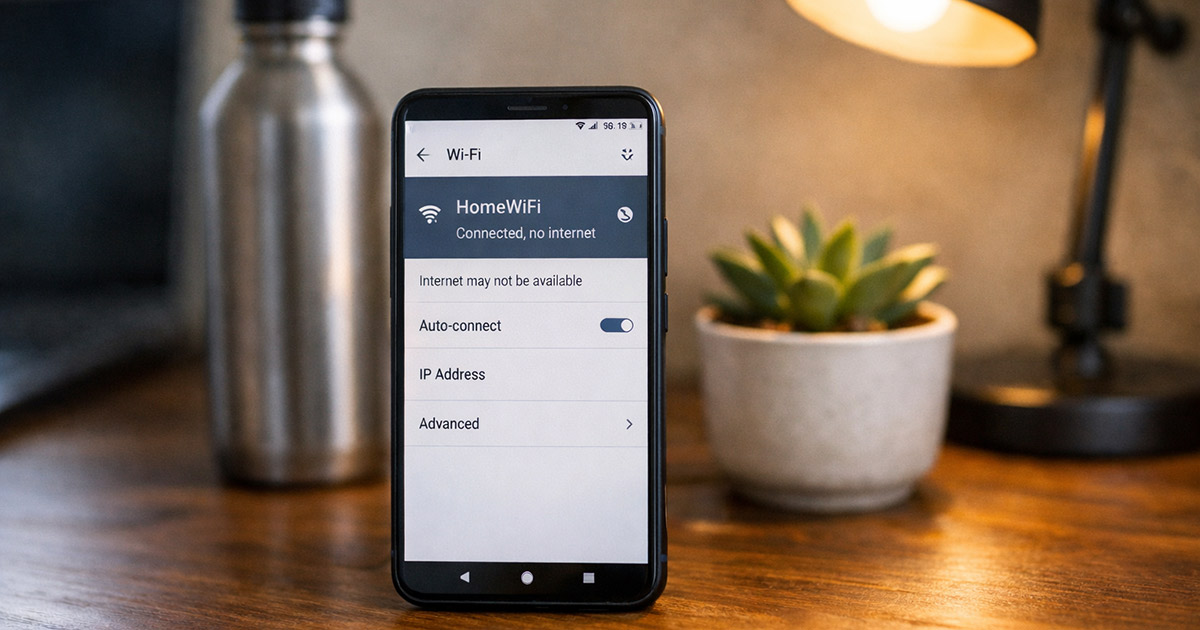
Your phone says “Connected.”
The Wi-Fi icon is sitting there like it’s proud of itself.
Apps spin. Pages don’t load. Messages stall.
You toggle Wi-Fi off and on like it owes you money.
This isn’t magic and it isn’t random. The phone is connected to the router, but the router (or the path beyond it) isn’t actually delivering internet. We diagnose the “why” first, then fix it in order. One change at a time.
Why This Is Happening
“Wi-Fi connected” only means your phone successfully joined a local network.
That’s step one.
Internet access is step two, and it can fail in a bunch of very specific, very boring ways.
1) The router has no real internet connection
Your phone is fine. The router is fine at broadcasting Wi-Fi. But the router isn’t getting internet from the modem/ONT/ISP.
Clues:
- Every device on the same Wi-Fi also has no internet
- The router looks “normal” but nothing loads
- The modem/ONT lights look off, red, or stuck in “trying”
Quick test: Connect your phone to mobile data. If everything instantly works, the phone isn’t the problem.
Fix: You troubleshoot the network side (modem, ISP, router connection) instead of wiping your phone for no reason.
2) You’re connected to the wrong Wi-Fi (or the router has no upstream)
This one is sneaky because it looks identical.
Examples:
- You connected to a Wi-Fi extender/mesh node that’s lost its backhaul
- You joined the neighbor’s “linksys” because your phone remembered it
- You connected to a guest network that’s isolated or temporarily down
Clues:
- Strong Wi-Fi signal, still no internet
- Only one part of the house has the problem (near the extender)
- The network name is correct, but the extender itself is disconnected upstream
Quick test: Walk closer to the main router and reconnect.
Fix: Fix the upstream/backhaul (or stop using the extender until it’s stable).
3) Captive portal login is required, but your phone isn’t showing it
Hotels, airports, apartments, some cafes, some “free Wi-Fi” setups.
You connect, but internet is blocked until you accept terms or log in. Phones don’t always pop the login page anymore because modern privacy/security features can suppress the redirect.
Clues:
- It works on other networks, not this one
- The Wi-Fi is public/managed
- Some apps show “No Internet” while others weirdly half-work
Quick test: Open a browser and try to load a plain HTTP site (not HTTPS-heavy).
Fix: Force the login page to appear, then complete it.
4) DNS is failing (so the internet is there, but names won’t resolve)
DNS is how “google.com” becomes an IP address. If DNS breaks, the connection is technically alive, but everything looks dead.
Clues:
- Some apps might work (rare), most won’t
- You get “server not found” type errors
- The Wi-Fi network says connected, but it feels like the internet vanished
Quick test: Try a different DNS by switching networks (mobile hotspot). If it works instantly, your Wi-Fi’s DNS is suspect.
Fix: Use a known-good DNS temporarily, or fix the router’s DNS/ISP issue.
5) Your phone has a bad network lease (IP conflict or wrong gateway)
Your phone gets an IP address, gateway, and DNS via DHCP. If it gets garbage (or duplicates another device), you get “connected” with no usable routing.
Clues:
- Only your phone fails on that Wi-Fi
- Other devices work fine
- It worked yesterday, nothing “changed” (something changed)
Quick test: Forget the network and reconnect to force a new lease.
Fix: Renew the network info on the phone, and if it keeps happening, restart router DHCP.
6) VPN, Private DNS, or security apps are hijacking the connection
VPNs can connect but route traffic to a dead endpoint.
Private DNS can be set to a provider that’s down or blocked.
Some ad blockers/security apps install local VPN profiles and quietly break things.
Clues:
- Mobile data works, but Wi-Fi doesn’t (or vice versa)
- The problem appears right after installing a “privacy” app
- Turning off the VPN suddenly makes everything work
Quick test: Disable VPN and Private DNS temporarily.
Fix: Remove or reconfigure the culprit.
7) MAC randomization or network filtering is blocking your device
Some routers, schools, workplaces, and “managed” networks allow only approved devices (MAC filtering), or they don’t like randomized MAC addresses.
Clues:
- You can connect but have no internet on this specific network
- Other phones work, yours doesn’t
- It’s a workplace/school/apartment-managed Wi-Fi
Quick test: Toggle the phone’s “Private address / Randomized MAC” setting for that network and reconnect.
Fix: Use the expected MAC mode, or have the network admin whitelist the device.
8) The router is “up” but half-frozen (NAT table / firmware / memory leak)
Routers love to fail slowly. They keep broadcasting Wi-Fi while the part doing routing/NAT is choking.
Clues:
- It comes and goes
- Streaming dies first, then everything
- Restarting the router “fixes it” for a while
Quick test: If a router reboot fixes it for hours/days, it’s not your phone.
Fix: Firmware update, reduce load, or replace the router if it’s ancient.
9) The Wi-Fi network blocks internet by design
Some guest networks isolate clients.
Some parental controls block “unknown” devices.
Some routers have schedules.
Clues:
- You’re on “Guest” Wi-Fi
- It works for other devices but not yours (blocked device list)
- It only fails at certain times of day
Quick test: Try the main Wi-Fi (not guest), or temporarily disable parental controls for a minute.
Fix: Adjust router settings to allow the phone.
How to Fix It
Do these in order. The goal is to identify which layer is broken: phone, Wi-Fi link, router routing, DNS, or ISP.
- Check if it’s the Wi-Fi network or just your phone
- On the same Wi-Fi, test another device (laptop, another phone).
- Or switch your phone to mobile data and load a site.
Test: If other devices also fail on Wi-Fi, stop blaming the phone. It’s the network.
- Toggle Airplane Mode (the clean “reset radios” move)
- Turn Airplane Mode on for 10 seconds.
- Turn it off.
Test: Reconnect to Wi-Fi and try loading a simple webpage.
- Forget the Wi-Fi network and reconnect
- Forget/remove the network on your phone.
- Rejoin it and re-enter the password.
Test: If it works now, you likely had a bad DHCP lease or stale network profile.
- Check for a captive portal login
- Open your browser and try to visit a basic site.
- If nothing loads, try visiting:
- Disable VPN and Private DNS temporarily
- Turn off your VPN app (and any “always-on VPN” setting).
- Disable Private DNS (Android) or any DNS profile (iOS) for a quick test.
Test: If internet instantly returns, your VPN/DNS setup is the break point.
- Try switching Wi-Fi bands or moving closer to the main router
- If your router has 2.4 GHz and 5 GHz, try the other one.
- If you’re on an extender/mesh node, move near the main router and reconnect.
Test: If it only fails on the extender side of the house, the backhaul/extender is the issue.
- Restart the router and modem/ONT in the correct order
Power cycling works when the router is half-frozen or the modem lost its mind. The order matters.- Unplug the router and the modem/ONT.
- Wait 30 seconds.
- Plug in the modem/ONT first. Wait until it’s fully online.
- Plug in the router. Wait for Wi-Fi to come back.
- Check router settings that can block internet (guest isolation, parental controls, device block list)
Look for:- Guest network isolation
- Parental controls / schedules
- “Blocked devices” lists
- MAC filtering / access control
- Toggle “Private Address / Randomized MAC” for that network
This depends on phone and network type, but the concept is the same: some networks don’t like changing MAC addresses.- On the Wi-Fi network settings for that specific SSID, find “Private address” (iOS) or “Randomized MAC” (Android).
- Toggle it, then reconnect.
Test: If it suddenly works, the network was filtering you.
- Fix DNS (temporary workaround, useful for diagnosis)
If you strongly suspect DNS (connected, no sites resolve), set a known DNS on the router if you can.
Common options:
- Cloudflare: 1.1.1.1 and 1.0.0.1
- Google: 8.8.8.8 and 8.8.4.4
Test: If DNS change fixes everything, your ISP DNS (or router DNS forwarding) was the weak link.
- Update router firmware (or admit the router is tired)
If the “reboot fixes it for a while” pattern keeps happening:
- Update router firmware.
- If it’s an ISP combo unit, check for updates in its app/admin page.
- If it’s a bargain router from years ago doing modern workloads, it may just be done.
Test: If stability improves after firmware update, you had a known-bug situation. If not, you’re probably shopping.
- Use the nuclear option on the phone only if the phone is clearly the only broken device
If every other device works on that Wi-Fi and your phone refuses, even after forgetting the network:
- Reset network settings on the phone (this wipes saved Wi-Fi, Bluetooth pairings, and VPN profiles).
Test: After reset, reconnect to Wi-Fi and test immediately before reinstalling VPN/ad blocker profiles.
Final Thoughts
“Connected to Wi-Fi” is not the same thing as “has internet.” It just means your phone and router agreed to talk. That’s a low bar.
The clean way through this is layering:
- Does the internet work on mobile data?
- Do other devices work on this Wi-Fi?
- Is there a captive portal?
- Is DNS/VPN interfering?
- Is the router or ISP path actually alive?
Once you know which layer is broken, the fix stops being a random ritual and starts being… boring. Which is what you want. If you keep seeing the “router reboot fixes it temporarily” pattern, that’s your sign the router is the real problem, not your phone acting “weird.”