
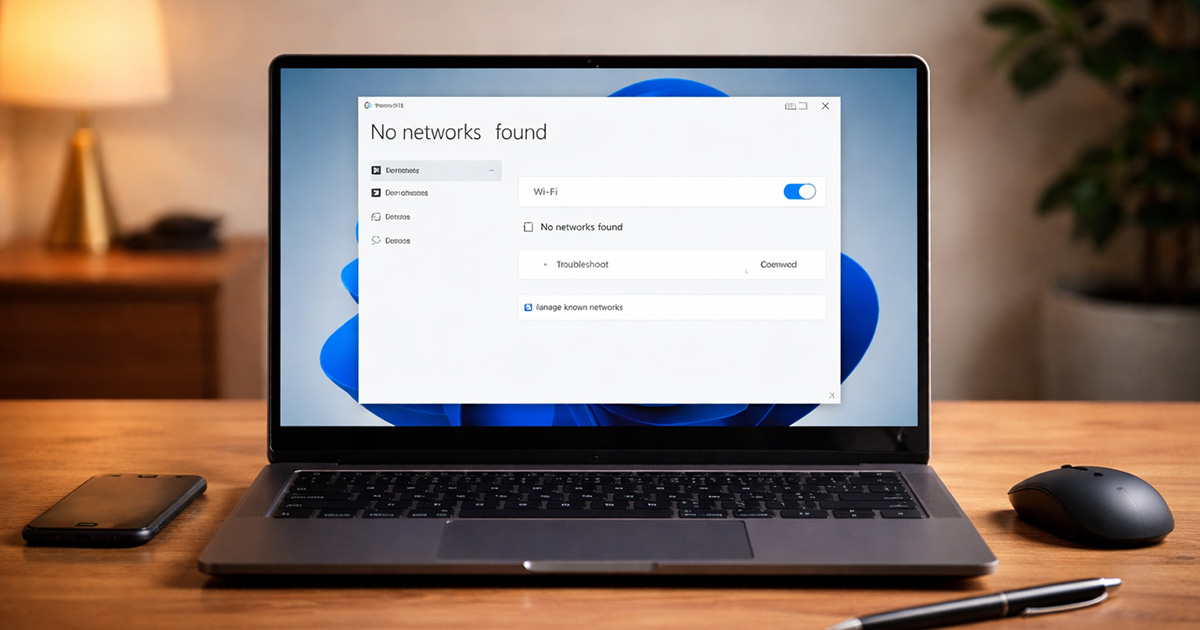
You click the Wi-Fi icon.
Nothing. No list. No “available networks.”
Maybe it just says “No networks found.” Maybe the Wi-Fi toggle is missing entirely. Maybe it worked yesterday and now it’s pretending radio waves don’t exist.
This is fixable.
We’re not guessing. We figure out why Windows can’t see networks, then we fix the exact thing that broke. One change at a time.
Why This Is Happening
Windows doesn’t “scan for Wi-Fi” in some magical way. It relies on a chain of boring components all doing their jobs:
- The Wi-Fi adapter has to be enabled and not in a bad driver state
- WLAN AutoConfig has to be running
- Airplane mode / hardware radios can’t be forcing the radio off
- The adapter has to be allowed to scan (power settings matter)
- The network stack can’t be corrupted
- Security software can’t be blocking the interface
- Sometimes the router/band/channel combo is the actual problem
When any link in that chain snaps, Windows stops showing networks.
1) Airplane mode, a stuck radio switch, or the Wi-Fi toggle got disabled
Windows can disable the radio at multiple layers: Airplane mode, a hardware hotkey, OEM “radio control” utilities, even BIOS/UEFI settings on some laptops.
Clues:
- Airplane mode looks off, but Wi-Fi still won’t scan
- Wi-Fi toggle is missing or instantly flips back off
- You recently used a function key (Fn + something) for airplane/Wi-Fi
Quick test: If Ethernet works but Wi-Fi shows no networks, the radio layer is suspicious.
Fix: Force a full radio reset (steps below).
2) The Wi-Fi adapter is disabled, hidden, or stuck in a driver failure state
Device Manager might show:
- The adapter is disabled
- A yellow triangle error
- The adapter name is present but it’s basically dead (driver loaded wrong, power state stuck)
Clues:
- Wi-Fi option disappears from Quick Settings
- Network & Internet settings show no Wi-Fi section at all
- Device Manager shows Code 10 / Code 43 / “device cannot start”
Quick test: Check Device Manager for the wireless adapter and its status.
Fix: Re-enable, roll back, reinstall driver, or force Windows to rebuild the device.
3) WLAN AutoConfig (Wlansvc) is stopped or broken
This service is the thing that actually manages Wi-Fi scanning and connections in Windows.
Clues:
- Wi-Fi adapter exists, but no networks ever appear
- Networks appear briefly, then vanish
- You ran “optimizer” tools or disabled services
Quick test: If WLAN AutoConfig is stopped, scanning usually fails.
Fix: Start it and set it to Automatic.
4) Power management is shutting the adapter down
Windows 11 loves saving power. Some Wi-Fi drivers react by going into a coma and not waking up to scan.
Clues:
- Happens after sleep/hibernation
- Reboot fixes it temporarily
- Laptop on battery is worse than plugged in
Quick test: If it happens after sleep, power settings are guilty until proven innocent.
Fix: Disable “Allow the computer to turn off this device” and adjust power plan wireless settings.
5) Corrupted network stack or bad winsock / TCP/IP state
Windows networking is layered. You can have a perfectly fine adapter and service, but the stack is corrupted and nothing behaves normally.
Clues:
- Other network features are weird too (VPN issues, DNS problems, adapters duplicating)
- You recently installed VPN software, “network boosters,” virtual adapters, or security tools
- You’ve done multiple driver swaps already
Quick test: If Windows sees the adapter but acts confused across the board, reset the stack.
Fix: Winsock + TCP/IP reset, then reboot.
6) Driver mismatch after an update (Windows Update vs OEM driver)
Windows Update can “helpfully” replace your stable OEM driver with a newer one that’s… adventurous.
Clues:
- Problem started right after a Windows update
- Device Manager shows a recent driver date change
- Rolling back makes it work again
Quick test: Check driver date/version and recent Windows updates.
Fix: Roll back or install the OEM driver from the laptop/motherboard vendor.
7) The router is fine… but your PC can’t see that band/channel
This is sneaky. The laptop can’t see any networks, sure. But sometimes it really can’t see 5 GHz networks on certain channels (DFS), or it can’t do Wi-Fi 6/6E cleanly with a specific driver.
Clues:
- Your phone sees networks, PC sees none (or only some)
- You’re in an apartment building with congested channels
- Router is set to 5 GHz only or 6 GHz only
- You recently enabled WPA3-only mode
Quick test: Create a 2.4 GHz hotspot from your phone. If the PC sees it, scanning works and the router settings/band is the issue.
Fix: Change router band/channel/security settings (or update router firmware + adapter driver).
8) Third-party security/VPN software is interfering
Some suites install network filters. When they break, they can take Wi-Fi discovery with them.
Clues:
- Started after installing/uninstalling VPN or security software
- You have multiple VPN clients installed
- Safe Mode with Networking behaves differently
Quick test: Temporarily disable (or cleanly uninstall) the suite and reboot.
Fix: Remove the broken filter drivers, then reinstall only what you actually need.
How to Fix It
Do these in order. Stop when networks show up again.
- Toggle Airplane mode on/off the “hard” way
- Turn Airplane mode ON in Quick Settings.
- Wait 10 seconds.
- Turn it OFF.
- If your laptop has a Wi-Fi key (Fn + a function key), tap it once.
- Confirm the Wi-Fi adapter exists and is enabled
- Right-click Start → Device Manager
- Expand Network adapters
- Look for Intel/Realtek/Qualcomm wireless adapter
If you see a warning icon, that matters. Test: If the Wi-Fi section returns in Settings and networks appear, you’re done. - Restart WLAN AutoConfig
Press Windows + R, type:
services.msc
Find WLAN AutoConfig.
- Startup type: Automatic
- Click Start (or Restart) Test: Networks should populate within 10–20 seconds.
- Do a full “adapter power” reset
This clears stuck power states that survive soft toggles.- Shut down the PC (not restart).
- Wait 20 seconds.
- If it’s a laptop and you can remove the charger, unplug it for 20 seconds.
- Power back on.
- Disable adapter power shutdown
In Device Manager → your Wi-Fi adapter → Properties → Power Management:- Uncheck “Allow the computer to turn off this device to save power”
- Control Panel → Power Options → Change plan settings → Advanced
- Wireless Adapter Settings → Power Saving Mode → set to Maximum Performance (at least on battery while testing)
- Reset the network stack (Winsock/TCP/IP)
Open Terminal (Admin) or Command Prompt (Admin) and run these, one at a time:
netsh winsock reset
netsh int ip reset
Then reboot.
Test: If networks appear after reboot, the stack was corrupted.
- Do a Windows “Network reset” (the bigger hammer)
Settings → Network & internet → Advanced network settings → Network reset.
This removes and reinstalls network adapters and resets networking components. It also wipes saved Wi-Fi networks, VPN adapters, and some custom settings. That’s the point.
Test: After reboot, see if networks populate. Reconnect to Wi-Fi fresh.
- Fix the driver properly (roll back or reinstall clean)
In Device Manager → Wi-Fi adapter → Properties:
- If Roll Back Driver is available, try it first.
- Otherwise uninstall and reinstall:
Right-click the adapter → Uninstall device.
If there’s an option to delete the driver software, take it (when available). Reboot.
Then install the latest OEM driver from your laptop/motherboard manufacturer if possible. Windows Update drivers are fine until they aren’t.
Test: If networks appear immediately after the OEM driver install, the driver was the culprit.
- Check if it’s a band/channel/security mismatch
Do the phone-hotspot test:- Enable a 2.4 GHz hotspot on your phone (if your phone supports band selection, choose 2.4 GHz for the test).
- See if the PC can see that network.
Results:
- If the PC sees the hotspot: scanning works. Your router band/channel/security is the issue.
- If the PC still sees nothing: the PC-side Wi-Fi system is still broken.
Router-side fixes (common ones):
- Enable 2.4 GHz temporarily
- Avoid DFS channels on 5 GHz (pick a basic channel like 36/40/44/48)
- Temporarily set WPA2/WPA3 mixed instead of WPA3-only
- Update router firmware Test: After each router change, scan again on the PC.
- Remove VPN/security network filters (only if you have them)
If you have third-party VPN/security software installed, disable it and reboot.
If disabling doesn’t change anything, uninstall it (cleanly) and reboot again.
Yes, it’s annoying. But broken network filter drivers can block discovery and connections in weird ways.
Test: If networks appear only after uninstall + reboot, you found the interference.
- Last resort: confirm Windows system integrity
If everything above fails and Device Manager looks unstable (Code errors, devices disappearing), check system files:
sfc /scannow
If SFC reports issues it can’t fix, follow with DISM (Admin Terminal):
DISM /Online /Cleanup-Image /RestoreHealth
Reboot after DISM finishes.
Test: If networks appear after repairs, Windows networking components were damaged.
Final Thoughts
When Windows 11 won’t show any Wi-Fi networks, it’s rarely “mystical.” It’s usually one of four things: radio state, adapter/driver state, WLAN AutoConfig, or power management. The rest are just variations that waste your time in different outfits.
Work the list in order. Make one change, then Test: for networks. If a step makes Wi-Fi start scanning again, don’t keep “optimizing.” Stop. Take the win.
And if the phone hotspot shows up but your home network doesn’t, that’s not your imagination. That’s your router settings arguing with your Wi-Fi driver. There’s your gremlin.